
WordPress Playground is a browser-based environment that runs a full, functional WordPress installation directly in your web browser — no server, no database, no local setup required. You can open a fresh WordPress site in seconds, test plugins and themes, experiment with settings, and build content, all without touching your live site or installing anything on your computer. When you close the browser tab, the temporary instance disappears.
Playground was developed by Adam Zieliński and released as an official WordPress project in 2022. It’s built on WebAssembly (Wasm) — the same technology that powers browser-based code editors and development tools — which allows it to run PHP and a simulated database inside the browser itself. The practical result is a fully functional WordPress environment that’s as technically agnostic as a browser: it works on Windows, Mac, Linux, and mobile devices, requires no technical setup, and can be shared with anyone via a URL. WordPress contributor teams use it to test new features before major releases, and plugin developers use it to let users preview their tools without installation.
How WordPress Playground Works
Playground runs WordPress inside a browser using WebAssembly to execute PHP code client-side. A simulated file system and in-memory database replace the traditional server-side components. The result is indistinguishable from a standard WordPress install in almost every way — you get the full admin dashboard, the block editor, theme and plugin management, and content creation tools.
Playground exposes three layers of configuration:
- Query API — The simplest approach. Add parameters to the Playground URL to pre-load a specific WordPress version, theme, or plugin. No code required. For example, appending
?theme=twentytwentyfourto the URL launches Playground with that theme pre-installed. - Blueprint API — A JSON configuration file that acts as a build script for your Playground instance. Blueprints can install specific plugins and themes, set site options, import content, define constants like
WP_DEBUG, and run WP-CLI commands — all before the browser tab finishes loading. - JavaScript API — An npm package that allows developers to embed a Playground instance inside their own web application or website. This enables interactive plugin demos, embedded tutorials, and automated testing workflows.
[Image: WordPress Playground running in a browser tab, showing the familiar WordPress dashboard with a simulated browser chrome above the admin bar]
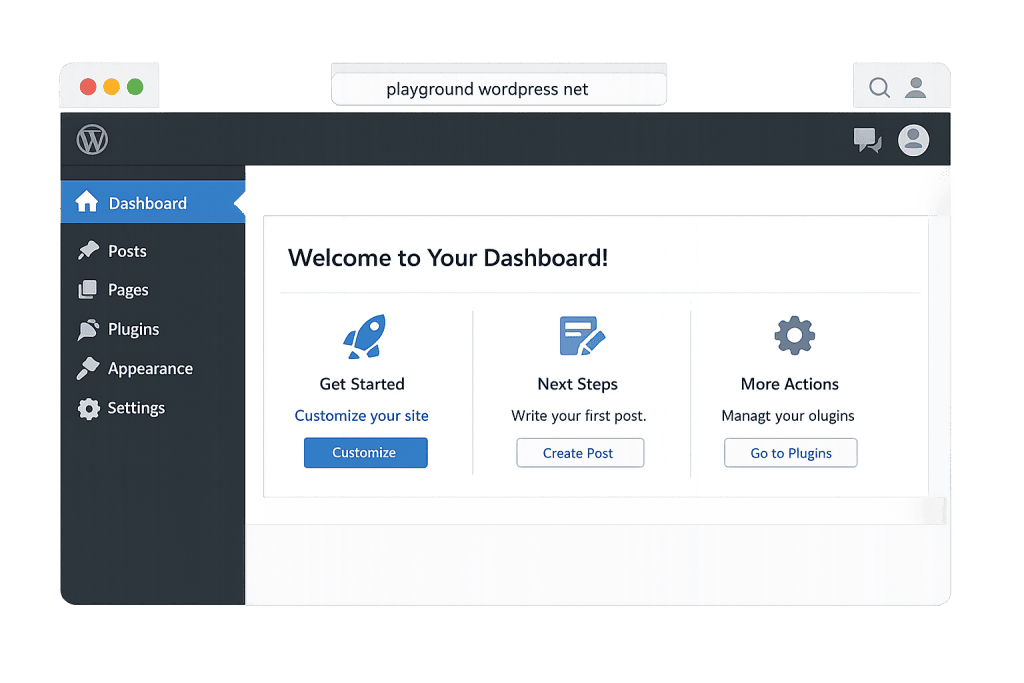
Playground instances are ephemeral by default — refreshing the page resets them. However, you can export a site as a ZIP file to preserve your work, and the platform supports saving to GitHub directly. WP-CLI commands, theme/plugin installation from the WordPress.org directory, and full database manipulation are all available.
Purpose & Benefits
1. Risk-Free Testing Before Touching a Live Site
Playground provides a sandbox where you can test any change — a new plugin, a major update, a theme customization — without any risk to your real site. Before installing a plugin that might conflict with existing tools, you can spin up a Playground instance with your current theme active and the plugin installed to see what happens. This is a genuinely useful alternative to maintaining a staging site for quick, low-stakes experiments. Our WordPress development services rely on similar sandboxing workflows to validate changes before deployment.
2. Zero-Setup Learning Environment
For anyone learning WordPress — a new employee, a client who wants to understand how their site works, or a developer new to the platform — Playground removes the barrier of local setup. A curious user can go from “I want to try WordPress” to actively exploring the block editor in under 30 seconds, on any device. This has made Playground a core tool for WordPress education programs and contributor onboarding.
3. Shareable, Reproducible Environments via Blueprints
Blueprints make Playground configurations shareable and reproducible. A plugin developer can publish a Blueprint link that opens Playground with their plugin pre-installed, configured, and populated with demo content — so potential users can try it without ever visiting a plugin page or downloading a ZIP file. Development teams can share Blueprint links to let stakeholders preview work in progress. The AI & Emerging Tech applications of this are growing — teams are integrating Playground with CI/CD pipelines for automated testing without dedicated server infrastructure.
Examples
1. Evaluating a Plugin Before Installation
A site owner wants to know if a form plugin will work well before committing to it. Instead of installing it on their live site or setting up a staging environment, they open WordPress Playground at playground.wordpress.net, navigate to Plugins → Add New, and install the plugin directly in Playground. They can fully test the plugin’s interface, create forms, and confirm it meets their needs — all in a temporary environment that evaporates when they’re done.
2. Sharing a Plugin Demo via Blueprint
A developer ships a plugin and wants to let potential users try it live without installing it. They create a Blueprint JSON file that installs the plugin, activates it, and imports sample content. They then link this Blueprint to a Playground URL. Anyone who clicks the link gets a ready-to-explore demo environment in their browser within seconds — no downloads, no sign-ups, no hosting required. This is now a common practice in the WordPress plugin ecosystem.
3. Testing Compatibility Before a Major WordPress Update
Before upgrading a client site to a new major WordPress version, a developer uses Playground to spin up a clean install on the new version, import a copy of the client’s theme and active plugins, and run through key functionality. Issues caught here — plugin conflicts, deprecated functions, broken layouts — can be resolved before the update touches the live site. This is a lightweight alternative to a full staging site for pre-update validation.
Common Mistakes to Avoid
- Treating Playground as a substitute for a proper staging environment — Playground is excellent for quick tests, but a real staging site that mirrors your production environment (same server stack, same database, same plugins) is still the right choice for comprehensive pre-launch testing or major migration work.
- Forgetting that Playground instances are temporary — Unless you export your work or connect Playground to GitHub, everything resets when you close or refresh the tab. Don’t invest significant time building something in Playground without a plan to export it.
- Expecting full parity with a hosted site — Playground runs inside a browser sandbox, which means some server-dependent features — like email delivery, certain cron jobs, and server-to-server HTTP requests — behave differently or not at all. Test those features in a proper environment before going live.
- Overlooking Playground for client presentations — Many developers set up elaborate staging sites just to show clients a theme or layout. A Blueprint-powered Playground link often gets the job done faster and without requiring a live URL.
Best Practices
1. Use Blueprints to Create Reproducible Test Environments
Rather than manually setting up Playground each time you need to test something, write a Blueprint JSON file that handles the setup automatically. A Blueprint that installs your theme, activates your plugins, and imports test content can be run repeatedly — ensuring every test starts from an identical, known state. Store Blueprints in your project repository alongside your theme or plugin code.
2. Integrate Playground Into Your Plugin or Theme Demo Flow
If you build WordPress plugins or themes for distribution, providing a live Playground demo link is more compelling than screenshots or videos. Users can interact with the real interface rather than imagining what it might feel like. Blueprint-powered demos are increasingly the standard for well-maintained plugins in the WordPress.org directory.
3. Export and Version Your Work
When using Playground for development experiments you want to preserve, export the site as a ZIP file immediately after reaching a state you want to save. For more structured development, connect Playground to a GitHub repository to push changes directly from the browser. Treating Playground as the ephemeral sandbox it is — and having a clear export workflow — prevents lost work.
Frequently Asked Questions
Is WordPress Playground free to use?
Yes, completely. Playground is an official WordPress open-source project available at playground.wordpress.net with no account required and no cost. It’s part of the broader WordPress ecosystem maintained by contributors and the WordPress Foundation.
Does Playground work offline?
Partially. Playground can run in a limited offline mode once the initial assets are cached in your browser. However, features that require fetching resources from wordpress.org — like installing plugins from the plugin directory — require an internet connection. Core functionality works offline after the first load.
Can I use WordPress Playground for a real website?
Playground is not designed for production hosting. Instances are temporary, there’s no persistent domain, and the browser-based environment has meaningful differences from a hosted server. For a real website, you need actual WordPress hosting. Playground is for testing, learning, and development — not live sites.
What’s the difference between Playground and a local development environment?
Both run WordPress without a web host, but local environments like LocalWP or DevKinsta run on your computer as an actual server. Playground runs inside your browser using WebAssembly. Local environments are generally faster, support email testing, and more closely mirror production servers. Playground’s advantage is zero setup, portability, and shareability — you can share a Playground link; you can’t share a local environment.
Can I install any WordPress plugin in Playground?
Most plugins from the WordPress.org directory work in Playground. Plugins that rely heavily on server-side features — outbound email, certain server configurations, or integrations with external services — may have limited functionality. Playground clearly represents itself as a sandbox, so plugin behaviors that depend on the hosting environment may not be fully replicable.
Related Glossary Terms
- WordPress
- WordPress.org
- Staging Site
- WordPress Hosting
- Plugin
- WP-CLI
- WordPress Block Theme
- WordPress REST API
How CyberOptik Can Help
WordPress Playground is a valuable tool for exploration and quick testing, but building and maintaining a production-ready WordPress site takes more than a browser tab. We handle everything from initial setup through ongoing maintenance — including setting up proper staging environments, managing updates safely, and developing custom functionality. Whether you’re starting fresh or improving an existing site, our team is here. Get in touch to discuss your project or explore our WordPress development services.


