
UI (User Interface) is the collection of visual and interactive elements through which a person interacts with a website, application, or digital product. It includes everything a visitor can see and click — buttons, menus, forms, typography, color, layout, and imagery — and how those elements are organized on the screen.
UI is distinct from the underlying code or database that powers a site. It’s the surface layer: what users experience visually before they click anything, and the controls they use to navigate and take action. A well-designed UI makes a site feel polished, professional, and easy to use. A poorly designed one creates confusion, erodes trust, and drives visitors away — often before they’ve read a single word.
For business websites, UI design is where brand identity meets functionality. Your color palette, typography, button styles, and page layouts all communicate something about your organization. First impressions form within milliseconds, and the interface is what creates them.
[Image: Annotated screenshot showing UI elements on a web page — navigation bar, hero section, call-to-action button, form fields, footer]
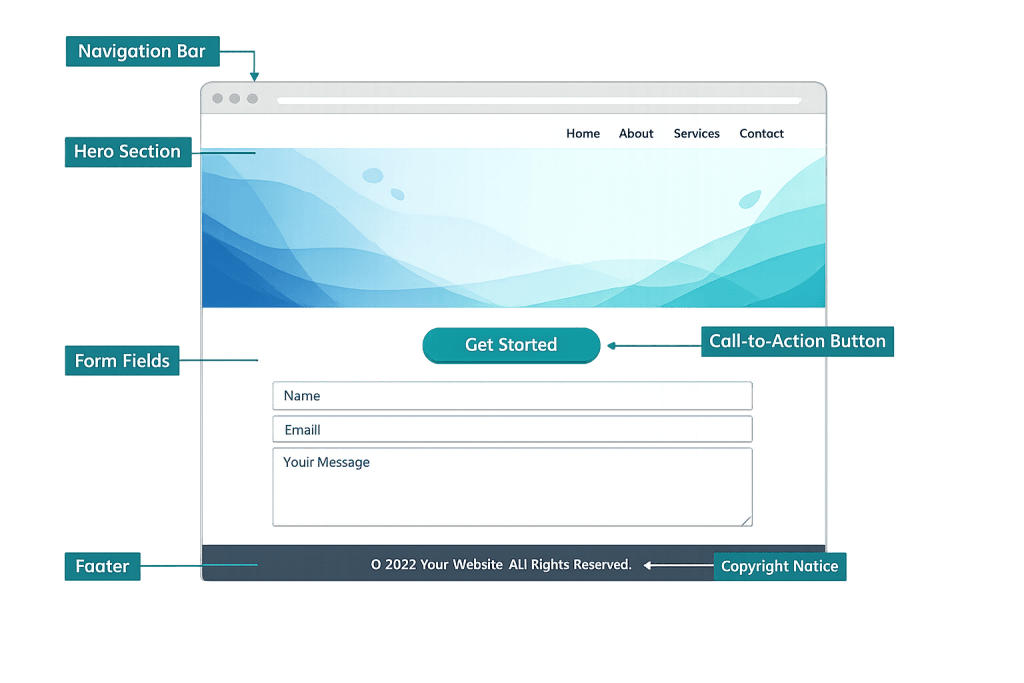
Key Concepts in UI Design
Understanding UI requires knowing the components that make it up:
- Layout — How content is arranged on the page. Good layout creates visual hierarchy, guiding the eye from the most important element to the least important.
- Typography — Font choice, size, weight, line spacing, and contrast. Readable text is a UI requirement, not just a stylistic preference.
- Color — Not just brand colors, but how color is used to signal actions (a blue link, a red error message, a green success state) and create visual balance.
- Navigation — Menus, breadcrumbs, and links that let users move through the site. Navigation design is one of the highest-impact UI decisions a site can make.
- Interactive elements — Buttons, forms, dropdowns, toggles, and hover states. These are the controls users interact with directly.
- Spacing and whitespace — The empty space around and between elements. Crowded interfaces feel stressful; well-spaced ones feel calm and professional.
- Iconography and imagery — Visual elements that support meaning rather than just decorate.
The goal of UI design is consistency — ensuring that the same type of element always looks and behaves the same way across the site. Inconsistency creates cognitive friction, even when users can’t identify why something feels off.
Purpose & Benefits
1. Creates a Trustworthy First Impression
Visitors judge a website’s credibility within the first few seconds of landing on it — primarily through visual design. A clean, consistent UI signals professionalism and builds the baseline trust visitors need before they’ll read your content, fill out a form, or make a purchase. Our web design services are built around this principle.
2. Reduces Friction and Improves Conversion
Every poorly labeled button, hard-to-find phone number, or confusing checkout step is a point where visitors give up. Well-designed UI removes these obstacles. When users can navigate intuitively and find what they need without thinking, they’re more likely to take action — whether that’s contacting you, subscribing, or buying.
3. Reinforces Brand Identity
UI is where your branding becomes tangible online. Color choices, font selections, spacing decisions, and visual style all communicate who you are. A site with a consistent, intentional UI feels like a unified experience. One without it feels assembled rather than designed — and visitors notice, even if they can’t say why.
Examples
1. E-Commerce Product Page
A well-designed product page uses UI to make purchasing frictionless: the product image is large and zoomable, the price and “Add to Cart” button are prominent, reviews appear close to the purchase decision, and related products are surfaced without overwhelming the primary action. Every UI decision on this page either helps or hinders conversion.
2. Contact Page Redesign
A services company noticed their contact form had a low submission rate. A UI audit revealed the form had eight required fields, small text, and a “Submit” button that blended into the background. Reducing the form to four fields, increasing contrast on the button, and adding a clear label boosted submissions significantly — no content changes required.
3. Mobile Navigation
A business site with a desktop navigation of eight top-level items becomes unusable on mobile if those same eight items are crammed into a hamburger menu with no prioritization. A thoughtful mobile UI reorganizes navigation around the actions most likely to happen on mobile — calling, getting directions, or finding hours — while still providing access to everything else.
Common Mistakes to Avoid
- Prioritizing aesthetics over usability — A beautiful interface that confuses users is a failed interface. Visual appeal matters, but every design decision should serve clarity first.
- Inconsistent design patterns — Using three different button styles, varying font sizes arbitrarily, or placing navigation elements in different locations on different pages undermines trust and increases cognitive load.
- Ignoring mobile UI — Designing for desktop and assuming it will scale to mobile is a reliable path to a broken experience. Mobile UI requires deliberate design choices, not afterthoughts. With the majority of web traffic now coming from mobile devices, this isn’t optional.
- Overcomplicating navigation — More menu items is not better. A focused navigation forces clarity about what matters on your site and helps visitors find it faster.
Best Practices
1. Establish and Maintain a Design System
Define your typography scale, color palette, spacing rules, and component styles at the start of a project — and document them. When every designer and developer works from the same system, consistency follows naturally. This is especially important in WordPress environments where multiple people may be editing content over time.
2. Design for Accessibility from the Start
Accessibility isn’t separate from UI — it’s a quality dimension of it. Sufficient color contrast, keyboard-navigable elements, appropriately sized tap targets, and meaningful alt text for images all improve UI for everyone, not just users with disabilities. Many accessibility requirements also overlap with good general design.
3. Test with Real Users
UI assumptions that seem obvious to designers often trip up real users. Even informal testing — watching five people try to complete a key task on your site — reveals friction points that internal review misses. Use what you learn to iterate. A wireframe stage is the right time to test structure before visual design locks in.
Frequently Asked Questions
What’s the difference between UI and UX?
UI (User Interface) refers to the visual and interactive elements of a design — what it looks like and how the controls work. UX (User Experience) is the broader discipline of how the overall interaction feels — whether it’s intuitive, efficient, and satisfying. Good UX requires good UI, but UX also encompasses strategy, research, and information architecture that happens before any visual design begins.
Does my website’s UI actually affect my search rankings?
Indirectly, yes. Google measures Core Web Vitals and user engagement signals like bounce rate and time on page. A confusing or frustrating UI increases bounces, which signals to search engines that your site isn’t satisfying users. Strong UI also supports better conversion rates, meaning more value from the same traffic regardless of search position.
How often should I update my website’s UI?
There’s no fixed schedule, but a full UI evaluation every two to three years is reasonable for most business sites. Technology changes, design conventions evolve, and your brand may shift over time. More importantly, update when you have data suggesting the current UI is causing problems — high bounce rates, low form conversions, or consistent user complaints are all signals.
Can I improve my UI without a full redesign?
Often, yes. Targeted improvements to high-traffic pages, clarifying call-to-action buttons, improving mobile layout, or updating typography can meaningfully improve performance without a complete overhaul. A website redesign makes sense when the issues are systemic and widespread.
What makes a UI “good”?
A good UI is invisible in the best sense — users accomplish their goals without being distracted or confused by the interface itself. The measure isn’t whether the design is trendy or award-worthy; it’s whether visitors find what they need and take the action you want them to take.
Related Glossary Terms
- UX (User Experience)
- Wireframe
- Accessibility
- Whitespace
- Usability
- Responsive Theme
- Above the Fold
- Color Palette
How CyberOptik Can Help
Great design is about more than aesthetics — it’s about creating experiences that work. Our team applies UI principles to every site we design, ensuring your visitors find what they need and take action. Whether you’re starting from scratch or addressing a site that isn’t converting, we design interfaces that balance visual quality with real usability. See our web design services or contact us to start a project.


