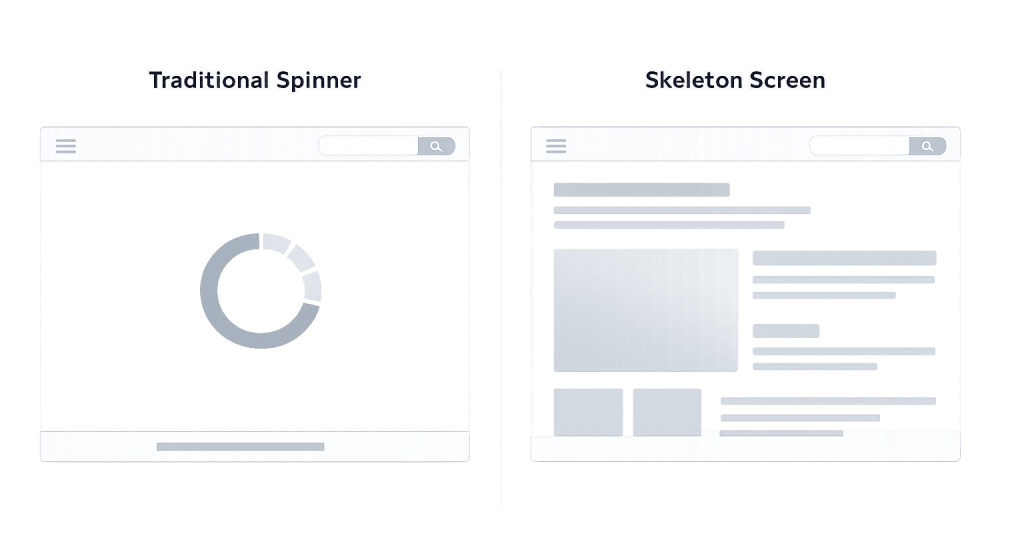
Skeleton screen is a UI design pattern that displays a wireframe-like placeholder layout while a page or component is loading. Instead of showing a blank screen, a spinner, or a progress bar, the skeleton screen mimics the structure of the content that’s about to appear — blocks of gray or muted color shaped like text lines, image placeholders, and card outlines that gradually resolve into actual content.
The concept was popularized by designer Luke Wroblewski and has become a standard pattern in web and app design, used by platforms like LinkedIn, Facebook, YouTube, and Slack during content loads. The underlying psychology is straightforward: showing users what the layout will look like — even in placeholder form — reduces the perceived wait time and keeps them oriented while the real content loads. It’s a design-led approach to the problem of network latency, not a substitute for performance optimization.
[Image: Side-by-side comparison showing a traditional spinner vs. a skeleton screen layout with gray placeholder blocks matching the final content structure]
How Skeleton Screens Work
A skeleton screen replaces the actual content area with simplified, low-fidelity visual placeholders that match the approximate shape and position of the real content. When the data finishes loading, the placeholders are swapped out for the actual content — ideally with a smooth transition.
Technically, the implementation involves:
- CSS-based placeholders — Simple divs or spans styled with neutral background colors, matching the approximate height and width of real content elements (headings, paragraphs, images, cards).
- Shimmer or pulse animation — A subtle horizontal shimmer or fade-pulse animation over the placeholders signals to users that loading is actively in progress, not stuck.
- Progressive population — As different parts of the page finish loading, they replace their corresponding skeleton blocks. This is called “gradual content loading” and is the optimal implementation.
Skeleton screens differ from splash screens (which display a logo while the entire app loads) and traditional progress bars (which show percentage completion). Skeleton screens are specifically designed for content-level loading within an already-loaded interface.
Purpose & Benefits
1. Reduces Perceived Load Time and User Frustration
Research from Nielsen Norman Group confirms that skeleton screens reduce the subjective experience of waiting, even when the actual load time is unchanged. By showing users what’s coming — a card grid, a feed, a form — they can begin to orient their attention before content arrives. This is particularly valuable for user experience on slower connections or data-heavy content. Our web design process considers loading states as part of the overall experience design.
2. Prevents Layout Shift and Maintains Visual Stability
Skeleton screens reserve space for incoming content, which prevents Cumulative Layout Shift (CLS) — a Core Web Vitals metric that penalizes pages where content jumps around as it loads. By occupying the exact space the real content will fill, skeleton screens contribute to visual stability and help PageSpeed scores.
3. Communicates That the Page Is Alive
A blank or frozen screen during a slow load looks like a broken page. Even a spinner only tells users “something is happening” without showing what. A skeleton screen communicates structure and intent — visitors can see the layout, understand what kind of content is loading, and feel confident the page is working. This reduces abandonment during slow loads.
Examples
1. Social Media Feed Loading
A company’s website includes an embedded social media feed. When the page loads, skeleton rectangles appear in place of the feed cards — gray blocks shaped like post thumbnails with placeholder lines below them. Within a second or two, the actual posts populate. The user’s eye never has to readjust to a sudden appearance of content.
2. WooCommerce Product Archive
An e-commerce store uses lazy loading on its product archive pages. As users scroll down, products below the fold load as needed. Instead of showing empty boxes, skeleton screens appear in the shape of product cards — a rectangle for the product image and two narrow bars for the title and price. The transition to real product content is nearly seamless.
3. Dashboard With Multiple Data Widgets
A client portal dashboard has five widgets pulling data from different sources. Each widget shows a skeleton version of its chart or table while data fetches independently. Some widgets populate quickly while others take longer — the skeleton screens for slower widgets persist until their data is ready, so the overall page feels responsive even though some data is still loading.
Common Mistakes to Avoid
- Using skeleton screens to mask poor performance — Skeleton screens improve the perception of speed, not the actual speed. If your site is slow because of unoptimized images, excessive scripts, or server issues, fix those problems with PageSpeed optimization rather than masking them with placeholders.
- Mismatched skeleton layout — If the skeleton screen’s placeholder shapes don’t match the actual content layout, the shift from skeleton to real content feels jarring. Keep skeleton placeholders as close as possible to the real content’s size and shape.
- Overcomplicating the skeleton — Skeleton screens should be simple. Trying to match every micro-element (icons, badges, exact spacing) creates unnecessary complexity. A simplified representation of primary structural elements is enough.
- Ignoring accessibility — Screen readers need to understand the loading state. Use
aria-busyattributes and appropriate ARIA roles to communicate that content is loading, so assistive technologies can handle the transition gracefully.
Best Practices
1. Use Skeleton Screens for Component-Level Loads, Not Full Page Loads
Skeleton screens work best when portions of a page are loading independently — a feed, a data table, a product grid. For a full-page initial load, ensuring fast server response times and lazy loading is more effective. Reserve skeleton screens for components where content appears after the page frame is already visible.
2. Keep Placeholder Shapes Structurally Accurate
Design your skeleton to match the approximate proportions of the content it’s holding space for. If a product card is 300×400px with a title and price below, the skeleton should reflect those proportions. This creates a smooth visual transition and supports layout stability — which directly affects Core Web Vitals performance.
3. Pair With Genuine Performance Optimization
The goal is always to load content as fast as possible. Skeleton screens improve the experience during the unavoidable wait, but they should be used alongside — not instead of — performance work like image compression, caching, and CDN use. A content delivery network (CDN) reduces load time; a skeleton screen makes the remaining wait feel shorter.
Frequently Asked Questions
Are skeleton screens better than loading spinners?
For most content-loading scenarios, yes. Skeleton screens show users what kind of content is loading and reduce perceived wait time more effectively than spinners, which give no structural preview. However, spinners are still appropriate for simple, quick operations — like submitting a form — where the result doesn’t have a predictable layout to preview.
Do skeleton screens affect SEO?
Not directly. SEO is primarily affected by the actual content, its structure, and page performance metrics like Core Web Vitals. Skeleton screens can indirectly support SEO by reducing Cumulative Layout Shift (CLS), which is a ranking signal. The key is ensuring the real content loads and is crawlable — skeleton placeholders should never be the final state of a page.
How hard are skeleton screens to implement?
For simple implementations, skeleton screens can be built with basic CSS — styled divs with neutral backgrounds and a shimmer animation. More sophisticated implementations use JavaScript to dynamically match placeholder sizes to actual content dimensions. Component libraries like React have built-in skeleton components that simplify implementation significantly.
Does using a skeleton screen mean my site is slow?
Not necessarily. Even fast-loading sites use skeleton screens as a design pattern for asynchronous content loads — data that fetches after initial page load, like comments, dynamic feed content, or personalized recommendations. The presence of a skeleton screen indicates thoughtful UX design, not slow performance.
Related Glossary Terms
- Lazy Loading
- PageSpeed
- User Experience (UX)
- Cumulative Layout Shift (CLS)
- Core Web Vitals
- Caching
- Content Delivery Network (CDN)
How CyberOptik Can Help
Great design is about more than aesthetics — it’s about creating experiences that work, including during the moments when content is still loading. Our team applies patterns like skeleton screens to every site we build, balancing visual polish with genuine performance optimization. If your site feels slow or janky during content loads, there’s usually a fixable reason. See our web design services or contact us to start a project.