
Lazy loading is a performance optimization technique that defers the loading of off-screen content — most commonly images and videos — until the user scrolls close to that content or it’s about to become visible in the browser window. Rather than loading every asset on a page all at once when it first opens, lazy loading loads only what’s immediately needed, then fetches additional content on demand as the visitor scrolls.
The practical benefit is straightforward: pages that only load what’s in view start rendering faster, use less data on initial load, and feel more responsive — especially on mobile and slower connections. For content-heavy pages with multiple images, lazy loading can dramatically reduce the amount of data transferred before a visitor sees anything useful.
Modern browsers support lazy loading natively through a simple HTML attribute (loading="lazy"), making it accessible to any website without complex JavaScript. WordPress has supported native lazy loading for images by default since version 5.5, meaning most WordPress sites already have it enabled.
[Image: Diagram showing a long web page where only images in the visible viewport are loaded, with placeholder areas representing unloaded images below the fold]
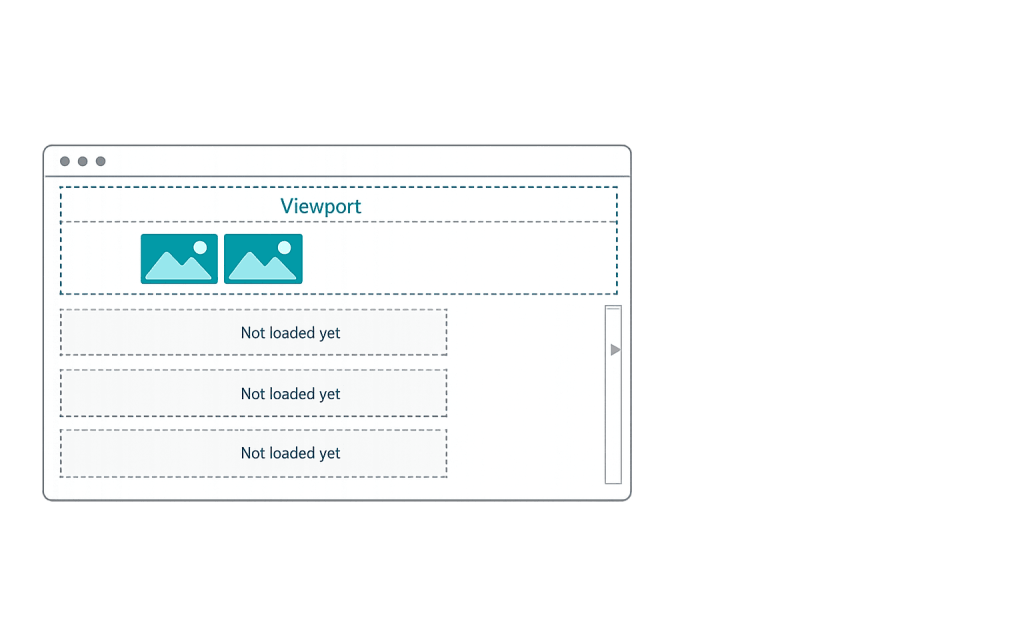
How Lazy Loading Works
Without lazy loading, a browser downloads every image on the page as soon as the page starts loading — including images that are far below the fold and may never be seen if the visitor leaves quickly. With lazy loading:
- Page loads — Only images within or near the visible viewport are fetched immediately
- Visitor scrolls — As off-screen images approach the viewport, the browser begins fetching them
- Images appear — The image loads and renders as the user reaches that part of the page
Browsers use the Intersection Observer API to track which elements are near the viewport and trigger loading at the appropriate moment. The loading distance — how far from the viewport an image starts loading — is determined by the browser based on network speed and other factors.
For WordPress sites, lazy loading is also available through caching and performance plugins like WP Rocket, which extend native lazy loading to CSS background images and iframes that the HTML attribute alone doesn’t cover.
Purpose & Benefits
1. Faster Initial Page Load
By reducing the number of resources fetched on page load, lazy loading decreases the amount of data the browser has to process before it can display the page. This directly improves PageSpeed scores and Time to Interactive — particularly on image-heavy pages like portfolio sites, blog posts with multiple images, or product pages with many photos. Our speed optimization services routinely include lazy loading configuration as part of a broader performance audit.
2. Better Core Web Vitals Scores
Lazy loading contributes to better Core Web Vitals performance by reducing the resources that compete with the main content during initial load. Fewer competing network requests mean the browser can prioritize rendering the critical, above-the-fold content faster. This has a direct relationship to Largest Contentful Paint (LCP) performance — with the important caveat that the LCP element itself should never be lazy loaded.
3. Reduced Data Usage for Visitors
On mobile connections or in areas with limited bandwidth, loading hundreds of kilobytes of images the visitor never sees is wasteful — for both the visitor and your server. Lazy loading means visitors who read only the top half of an article don’t pay the data cost of loading images at the bottom. This improves the experience on mobile devices and reduces hosting bandwidth consumption over time. See also our web hosting options for sites with high traffic volumes.
Examples
1. Blog Post with Multiple Embedded Images
A detailed how-to article includes 12 images scattered throughout a long-form post. Without lazy loading, all 12 images load when the page opens. With lazy loading, only the first 2–3 images (those visible in the initial viewport) load immediately. The remaining 9 load as the reader scrolls through the post. For a visitor who reads the article fully, the experience is identical — but the initial page load is significantly faster.
2. Portfolio or Gallery Page
A web design portfolio page displays 24 project thumbnails. Without lazy loading, all 24 images must download before the page becomes responsive. With lazy loading, the first row or two of thumbnails loads immediately, and additional rows load as the visitor scrolls through the gallery. This dramatically reduces the initial page weight and improves the score on PageSpeed tools.
3. WooCommerce Product Listing Page
An eCommerce store shows 48 products per page with a thumbnail image for each. Lazy loading ensures that only the products visible in the browser window are loaded initially. As the visitor scrolls through the catalog, product images below the fold load in advance. This reduces page load times and improves the shopping experience, particularly on mobile.
Common Mistakes to Avoid
- Lazy loading the LCP element — This is the most consequential lazy loading mistake. If the hero image or main banner — the element that will become the Largest Contentful Paint (LCP) — is lazy loaded, the browser delays fetching it unnecessarily. LCP scores suffer, and PageSpeed Insights will flag this specifically. Above-the-fold images that are key to the visual experience should load eagerly, not lazily.
- Not specifying image dimensions — Lazy-loaded images without explicit width and height attributes cause the browser to recalculate page layout when they load, contributing to Cumulative Layout Shift (CLS) — a separate Core Web Vital. Always define dimensions on images, lazy loaded or not.
- Relying solely on plugins without auditing results — Performance plugins often apply lazy loading broadly. It’s worth verifying what’s being lazy loaded and whether the LCP image is inadvertently included. A quick check with Chrome DevTools or PageSpeed Insights after enabling lazy loading will reveal any problems.
- Forgetting CSS background images — The native
loading="lazy"HTML attribute only works on<img>and<iframe>elements. Background images set via CSS are not covered and require JavaScript-based solutions or plugin support to lazy load.
Best Practices
1. Enable Native Lazy Loading — But Exclude Above-the-Fold Images
Add loading="lazy" to all <img> tags that appear below the fold. For images that are visible in the initial viewport — particularly the hero image or main banner — use loading="eager" or simply omit the attribute. In WordPress, themes and performance plugins handle this automatically for many images, but it’s worth auditing which images are receiving the attribute.
2. Always Define Image Dimensions
Set explicit width and height attributes on every image element. This allows the browser to reserve space in the layout before the image loads, preventing content from jumping around — which contributes to CLS and degrades the experience of lazy-loaded content appearing. This practice is valuable regardless of whether lazy loading is in use, but it becomes especially important when images are deferred.
3. Combine Lazy Loading with Image Optimization
Lazy loading reduces the number of images loaded initially; image optimization reduces the size of each image. Both are necessary for maximum performance. Compress images, use modern formats like WebP, and serve appropriately sized versions for each device (using srcset). Together, these practices produce the greatest improvements to PageSpeed and Core Web Vitals scores.
Frequently Asked Questions
Is lazy loading enabled by default in WordPress?
Yes. Since WordPress 5.5, images added through the block editor or media library automatically receive the loading="lazy" attribute — with the important exception of the first image on a page, which WordPress treats as a likely above-the-fold candidate. Performance plugins like WP Rocket extend this further to cover background images and iframes.
Does lazy loading hurt SEO?
It can if implemented incorrectly. If Googlebot can’t see the lazy-loaded content (which is rare with modern implementations), it may not index it. Google’s crawler does execute JavaScript and can handle native lazy loading. The more common SEO risk is accidentally lazy loading the LCP image, which hurts Core Web Vitals scores and, by extension, rankings.
Should I lazy load videos and iframes?
Yes, particularly for embedded videos like YouTube or Vimeo iframes. These are often large and resource-intensive. Adding loading="lazy" to iframes (supported in modern browsers) or using a facade approach — showing a thumbnail until the user clicks to load the video — significantly reduces page weight and improves load times.
How do I know if lazy loading is working on my site?
Use Chrome DevTools: open the Network tab, reload the page, and watch which images load immediately versus which load as you scroll. You can also use PageSpeed Insights to check for the “Defer offscreen images” opportunity — if your site is correctly implementing lazy loading for off-screen images, this warning should be absent or minimal.
Related Glossary Terms
- PageSpeed
- Largest Contentful Paint (LCP)
- Core Web Vitals
- Cumulative Layout Shift (CLS)
- Content Delivery Network (CDN)
- Server Cache
How CyberOptik Can Help
Site performance directly impacts your search rankings and user experience — and lazy loading is one of the foundational optimizations we implement for every site we work on. If your site is slow, losing PageSpeed points, or failing Core Web Vitals thresholds, we can diagnose what’s happening and fix it. Learn about our hosting solutions or our speed optimization services, or contact us to discuss your site’s performance.


