
Disk space refers to the storage capacity allocated on a web server for all the files, databases, and data that make up your website. Every element of your site occupies disk space: WordPress core files, plugins, themes, uploaded images and videos, database tables containing your posts and settings, email accounts, and server logs. Hosting plans include a fixed allocation of disk space, and if you exceed it, your site can stop functioning until the issue is resolved.
For most small business websites, disk space is rarely a limiting constraint — a typical WordPress site with standard pages and images uses anywhere from a few hundred megabytes to a few gigabytes. The sites that run into disk space issues are usually those with large media libraries, high-volume databases, multiple websites on a single account, or server logs that haven’t been cleaned up in months. Understanding what’s consuming your allocation helps you manage it proactively rather than reactively.
What Uses Disk Space on a WordPress Site
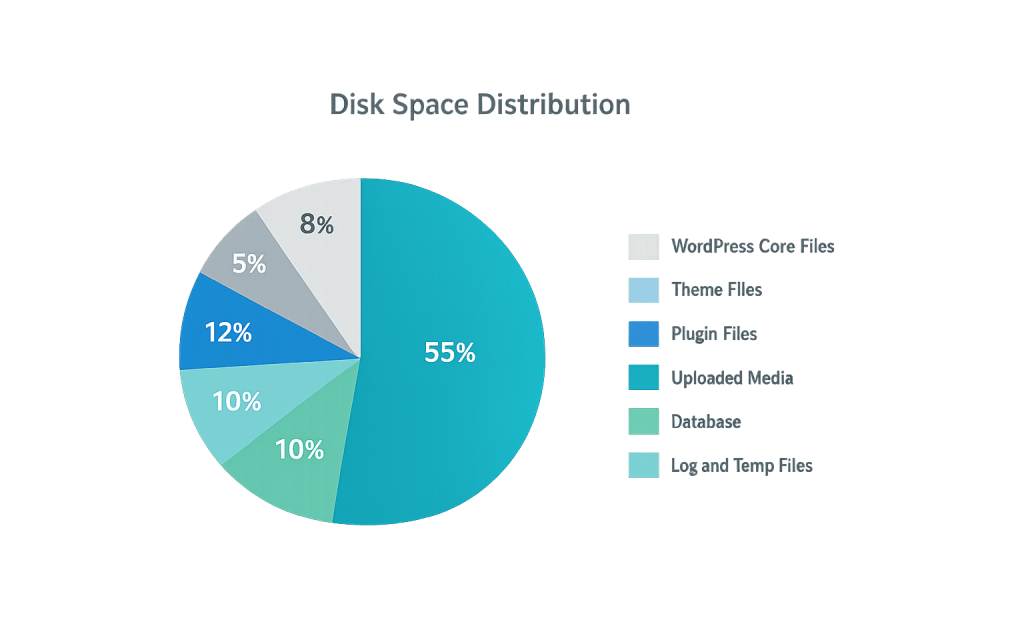
Disk space consumption on a WordPress site breaks down into several categories:
- WordPress core files — The base WordPress installation typically uses 20–50 MB.
- Themes and plugins — Each installed theme or plugin contributes to your total; premium plugins with many features can add up quickly.
- Media uploads — Images, PDFs, videos, and other files in your media library are often the largest contributor, especially for sites with years of content.
- Database — Your database stores posts, pages, comments, settings, plugin data, and revisions. Without regular database optimization, revisions and transients accumulate over time.
- Email accounts — If your hosting plan includes email, stored email messages count toward your disk space allocation.
- Backups — Server-side backup files, if stored in the same hosting environment, can consume substantial space.
- Server logs — Error logs and access logs are generated continuously and can grow large on busy sites.
[Image: Pie chart showing typical disk space distribution across WordPress site components]
Purpose & Benefits
1. Ensures Your Site Stays Online
Running out of disk space is one of the faster ways to take a site offline. When the server has no remaining storage, it can’t write new data — which means new form submissions fail, database writes fail, and in severe cases the site stops loading entirely. Monitoring your disk usage prevents this from becoming an emergency. Our WordPress hosting plans include monitoring and proactive alerts.
2. Affects Backup Reliability
Most quality WordPress hosting plans create automatic backups. If disk space is tight, backup processes may fail silently or produce incomplete backups. Maintaining adequate headroom ensures your backup system always has space to complete its work — a critical consideration for any site where data recovery matters.
3. Supports Performance Optimization
Accumulated junk — post revisions, spam comments, orphaned plugin data, and oversized image uploads — occupies disk space and contributes to database bloat. Regular cleanup improves both disk efficiency and query speed. A leaner database means faster load times and lower server overhead.
Examples
1. Media Library Accumulation
A real estate agency runs an active WordPress site and uploads full-resolution property photos directly without resizing them first. After three years, the wp-content/uploads folder has grown to 18 GB. Their 20 GB hosting plan is nearly full, backups are failing, and the site is slowing down. Bulk image compression and cleanup would recover a significant portion of that space.
2. Excessive Post Revisions
A content-heavy blog with 500 posts, each with 30+ revisions stored in the database, has a database that’s ballooned to several times its necessary size. WordPress stores a new revision every time you save a draft. Without a revision limit set in wp-config.php or cleaned up through a plugin, this accumulates indefinitely — occupying database space and slowing queries.
3. Multiple Sites on Shared Hosting
A small business owner has three websites on a single shared hosting plan with a 10 GB disk limit. Each site is modest, but combined media libraries, email accounts, and plugin data push the account toward its limit. Moving to a plan with a higher allocation — or to separate hosting accounts — solves the problem before it becomes a service disruption.
Common Mistakes to Avoid
- Uploading uncompressed images — A single uncompressed photograph can be 5–10 MB. Compressed to an appropriate size for web display, it might be 100–300 KB. Consistent image optimization before uploading prevents media libraries from becoming disproportionately large.
- Ignoring disk usage until it’s full — Many hosting control panels show current disk usage in the dashboard. Checking this periodically — not just when something breaks — gives you time to act before hitting limits.
- Storing backups on the same server — Keeping backup files in your hosting account defeats part of the purpose of a backup (protecting you if the server fails) and consumes your disk allocation. Store backups offsite in cloud storage.
- Never cleaning up WordPress revisions — WordPress stores unlimited revisions by default. Setting a revision limit (typically 3–5 per post) and periodically clearing old revisions with a plugin keeps your database clean.
Best Practices
1. Optimize Images Before Uploading
Use a tool to compress images before adding them to WordPress, or configure an image optimization plugin (like Imagify, ShortPixel, or Smush) to automatically compress uploads. Serving correctly sized images also improves page load speed and Core Web Vitals scores, making this a performance and storage win simultaneously.
2. Run Regular Database Maintenance
Schedule periodic database optimization to remove accumulated post revisions, spam and trash comments, expired transients, and orphaned plugin data. Plugins like WP-Optimize automate this process. A leaner database loads faster and leaves more room in your disk allocation for actual content.
3. Monitor Your Usage and Upgrade Proactively
Check your disk usage through your hosting control panel monthly. If you’re consistently above 70% of your allocation, it’s time to either clean up or upgrade your plan. Waiting until you hit the limit means the first sign of a problem could be a site outage rather than a dashboard warning. Our web hosting services include plans sized appropriately for business sites.
Frequently Asked Questions
How much disk space does a typical WordPress site need?
Most small to medium business websites use between 1–5 GB of disk space. Sites with extensive media libraries, large databases, or multiple installations can reach 10 GB or more. Start with a plan that gives you comfortable headroom above your current usage, not just what you need today.
Does disk space affect website speed?
Not directly — more disk space doesn’t make your site faster. However, a site that’s nearly full may experience issues with caching, logging, and database writes that indirectly affect performance. A bloated database full of revisions and orphaned data does directly slow down database queries.
What should I do if my hosting plan is almost full?
First, audit what’s consuming your space — media files, databases, email, or backups. Compress or remove large, unnecessary files. Clean up your database. If you’ve removed everything you can and you’re still near capacity, upgrading to a plan with more storage is the right move. Contact your host before you hit the limit.
Is SSD disk space different from traditional storage?
Yes. Most modern hosting plans use SSD (solid-state drive) storage, which reads and writes data significantly faster than traditional spinning hard drives. SSD storage contributes to faster database queries and file delivery. When evaluating hosting plans, SSD is worth confirming.
Can running out of disk space take my site down?
Yes. When disk space is full, the server cannot write new files or database entries. This causes failed form submissions, broken email, failed backups, and potentially a non-functional site. Some hosts notify you when approaching limits; others don’t. Proactive monitoring is the safest approach.
Related Glossary Terms
How CyberOptik Can Help
Site performance directly impacts your search rankings and user experience. We offer managed WordPress hosting with appropriately sized storage allocations, proactive monitoring, and regular maintenance — so disk space issues get caught before they cause problems. Learn about our hosting solutions or explore our speed optimization services, or contact us.


