
Severity: Major · Fix time: 15–60 min · Skill level: Intermediate
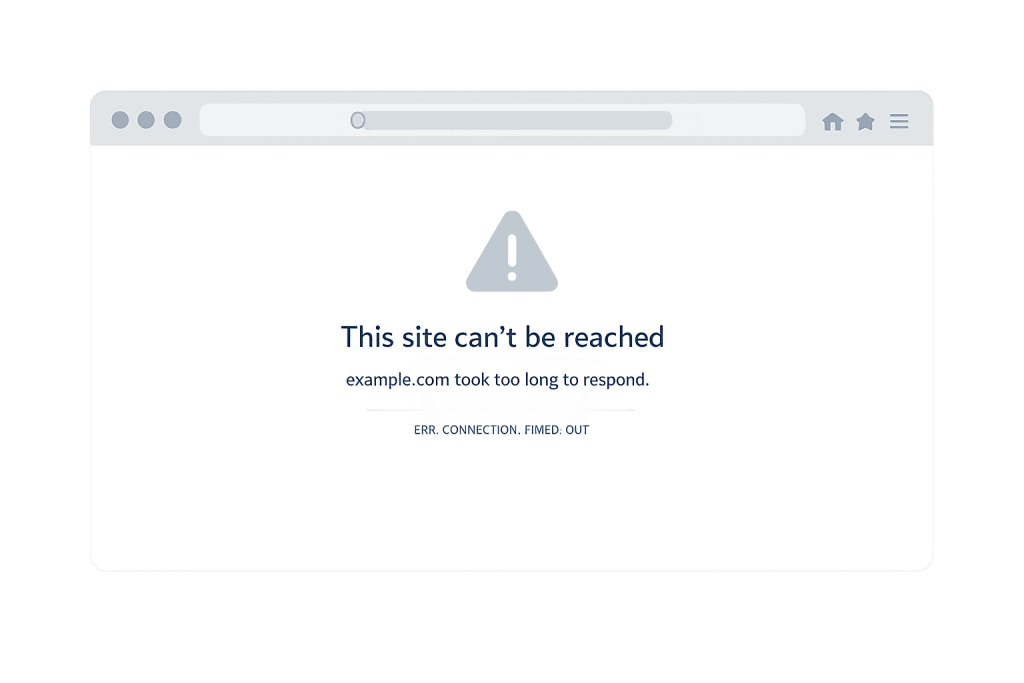
Connection timed out is a WordPress error that appears when the server takes too long to respond to a browser’s request — so long that the browser gives up waiting. Unlike a 504 Gateway Timeout, which occurs in proxied environments, a connection timeout typically means the server itself is unavailable or too overloaded to accept new connections. Visitors see their browser’s native “connection timed out” or “This site can’t be reached” message.
This error is most common on shared hosting plans during periods of high traffic or heavy server load. A single resource-hungry PHP process can occupy all available server capacity and prevent any new requests from being processed. The result: every visitor on the site sees a timeout error until the overloaded process finishes or is killed.
Need a quick map of every WordPress error? See our 70+ WordPress Errors Guide → for a categorized reference of every common WordPress issue.
[Image: Browser showing “This site can’t be reached — yoursite.com took too long to respond” error message]
How Connection Timed Out Works
Every web server has a finite number of PHP worker processes — the active slots that handle incoming page requests. On shared hosting, this is often between 5 and 25 workers shared across many sites. When all workers are occupied (typically because a slow plugin or database query is tying each one up), new requests can’t be processed. The browser waits for a connection that never comes and eventually reports a timeout.
Common triggers on WordPress sites:
- Overloaded shared hosting — During traffic spikes, a shared server running dozens of other sites may simply run out of resources to allocate to your site.
- A runaway PHP process — A backup plugin, import operation, or poorly coded plugin that doesn’t release its PHP worker keeps a process slot occupied indefinitely.
- PHP memory limit too low — When WordPress tries to allocate more memory than the server allows, PHP terminates processes abnormally. Subsequent requests queue up and time out waiting.
- Slow or hanging database queries — A query waiting on a locked database table, or a query returning millions of rows, can tie up a PHP worker for minutes.
- Slow external API calls — A plugin that calls an external service (weather data, shipping rates, social media feeds) will hold a PHP worker open for the duration of that external request — potentially seconds or minutes if the external service is slow.
Check This First — 2-Minute Diagnostic
- Check with an external tool — Visit downforeveryoneorjustme.com or use Pingdom to confirm the site is down for everyone, not just your connection.
- Check your hosting dashboard — Many hosts display CPU usage and PHP worker utilization. A maxed-out resource graph correlating with the timeout confirms an overload scenario.
- Check if it’s page-specific or site-wide — If a specific page times out but others load, that page has a specific heavy process. If all pages timeout, it’s server-wide overload.
- Review error logs — Check cPanel’s Error Log for recent PHP fatal errors or “max clients” messages, which indicate the server ran out of connection slots.
- Consider recent activity — Did a backup, import, or plugin update run recently? These are common triggers for runaway PHP processes.
Purpose & Benefits
1. Identifying Hosting Capacity Limits
Connection timeouts under normal traffic — not just during spikes — signal that your hosting plan is undersized. Many owners discover this when a high-traffic link brings a sudden surge. Understanding the PHP worker limit helps you have an informed conversation with your host about upgrading to a plan with more dedicated resources.
2. Revealing Performance Problems Worth Fixing
A timeout that happens specifically during certain operations (WooCommerce checkout, form submissions, specific page loads) points to a performance problem in that code path worth addressing. Optimizing the database query, replacing the inefficient plugin, or implementing caching eliminates the timeout and improves performance for all visitors — not just during overload periods.
3. Justifying Caching as an Infrastructure Investment
A server cache or browser cache is the most effective defense against connection timeouts during traffic spikes. Cached pages can be served without invoking PHP at all, freeing up PHP workers for dynamic requests. Our speed optimization services include caching configuration that meaningfully reduces PHP load under real traffic conditions.
Examples
1. Shared Hosting Timeout During Traffic Spike
A small business blog is featured in a regional newsletter, driving 500 visitors to the site within 30 minutes — 10x its normal traffic. The shared hosting plan’s 10 PHP worker slots fill up immediately. New visitors get connection timeout errors for about 20 minutes until the traffic normalizes. Immediate fix: contact the host to request a temporary resource boost. Long-term fix: enable a caching plugin so that most page requests are served as static files without needing PHP.
2. Backup Plugin Running Overnight Causes Morning Timeouts
A scheduled backup plugin set to run at 2 AM takes 4 hours to complete due to a large media library. When staff arrive in the morning and begin using the site alongside the still-running backup, available PHP workers hit their limit. Timeouts appear for every visitor. Fix: configure the backup plugin to exclude the /wp-content/uploads/ directory from compressed archives (back up media files separately) and schedule backups for the lowest-traffic period of the week.
3. Increasing Memory Limit Resolves Intermittent Timeouts
A WooCommerce store experiences intermittent connection timeouts during checkout — consistently when three or more orders are placed simultaneously. The error log shows “Allowed memory size exhausted” errors immediately before each timeout. Increasing the PHP memory limit in wp-config.php resolves the issue:
// Increase WordPress memory limit to prevent resource exhaustion during concurrent requests
define('WP_MEMORY_LIMIT', '256M');
define('WP_MAX_MEMORY_LIMIT', '256M');
The WP_MAX_MEMORY_LIMIT value increases the ceiling available to admin operations specifically.
Common Mistakes to Avoid
- Assuming it’s a network problem — Connection timeouts in WordPress are almost always server-side, not the visitor’s internet connection. If external tools confirm the site is down for everyone, focus troubleshooting on the server, not the network.
- Restarting the server without diagnosing the cause — Rebooting a VPS or restarting PHP-FPM clears the overload temporarily, but the runaway process will recur if you don’t identify and fix what caused it.
- Running heavy operations during peak hours — Backup jobs, large imports, and scheduled maintenance tasks should run during the lowest-traffic period of the week — typically between 2 AM and 5 AM, not during business hours.
- Ignoring caching on shared hosting — Without caching, every page request uses PHP. With caching, many requests are served as static files. This is the most impactful change you can make to reduce timeout frequency on shared hosting.
Best Practices
1. Enable Caching to Reduce PHP Worker Pressure
A caching plugin (WP Rocket, W3 Total Cache, LiteSpeed Cache, or WP Super Cache) creates static HTML versions of your pages served directly by the web server — no PHP required. This significantly reduces the number of active PHP processes needed, cutting PHP worker usage on most shared hosting sites by 70–90%.
2. Deactivate Plugins to Identify Resource-Hungry Processes
If timeouts happen consistently, a plugin is likely the cause. Bulk-deactivate all plugins during a low-traffic period and test performance. Reactivate one by one, checking server resource metrics each time. Backup plugins, security scanners, and SEO crawl plugins are the most common sources of sustained resource consumption.
3. Audit Hosting Plan Against Site Requirements
If your site consistently times out under normal traffic — not just during spikes — your hosting plan’s PHP worker and memory limits are insufficient. Review your hosting dashboard’s resource usage graphs; if CPU and PHP workers are consistently maxed out, upgrade to a managed WordPress host or VPS with dedicated resources.
Frequently Asked Questions
What causes connection timed out most often?
On shared hosting, the most common cause is server resource exhaustion — too many simultaneous requests competing for a limited number of PHP worker processes. This is often triggered by a traffic spike, a runaway background process (backup, import), or a resource-hungry plugin that holds PHP workers open for extended periods. Check your hosting dashboard’s resource graphs and server error logs for confirmation.
How do I fix connection timed out when locked out of wp-admin?
If the site is completely unresponsive, you likely can’t access wp-admin at all. Connect to your hosting control panel and check for any runaway processes — in cPanel, look under “CPU and Concurrent Connection Usage.” Ask your host support to check for and kill any processes consuming unusual resources. Once the site responds, increase the PHP memory limit in wp-config.php via your hosting file manager and identify the plugin causing the overload.
Can connection timed out hurt my SEO?
Yes, particularly if it persists. Search engines regularly crawl your site, and pages that consistently return timeout errors will be recorded as unavailable. Extended downtime — especially more than a few days — can cause Google to reduce crawl frequency or temporarily deprioritize the affected site. Enabling caching and addressing the root cause quickly limits the SEO impact.
What is the difference between connection timed out and a 504 gateway timeout?
A 504 Gateway Timeout occurs in multi-server environments where a gateway (like a CDN) waited for the origin server and got no response within the timeout window. A connection timeout means the browser couldn’t establish a connection at all — the server didn’t respond to the initial request. Both often stem from overload, but at different layers.
Should I contact my host when this happens?
Yes, especially on shared hosting when the timeout isn’t caused by one of your own processes. Your host can check server-wide resource usage and temporarily boost your allocation. Persistent timeouts on shared hosting are often a clear sign the site has grown beyond what that tier supports.
Related Glossary Terms
- 504 Gateway Timeout
- 503 Service Unavailable
- 500 Internal Server Error
- Memory Exhausted Error
- Caching
- Server Cache
- WordPress Hosting
- PHP
How CyberOptik Can Help
Still broken? Our team fixes WordPress errors like this in under 30 minutes for maintenance clients. Connection timeouts are often a hosting capacity problem masquerading as a WordPress problem — and the right long-term solution is usually a combination of caching, plugin optimization, and a hosting plan sized for your actual workload. Our WordPress hosting services and speed optimization services address both. Contact us to discuss your site or explore our WordPress maintenance plans.


