
Server cache (also called server-side caching or full-page caching) is a performance technique where pre-built, static versions of web pages are stored at the server level and served directly to visitors — bypassing the time-consuming process of PHP execution, database queries, and template rendering that WordPress normally requires to build each page on demand.
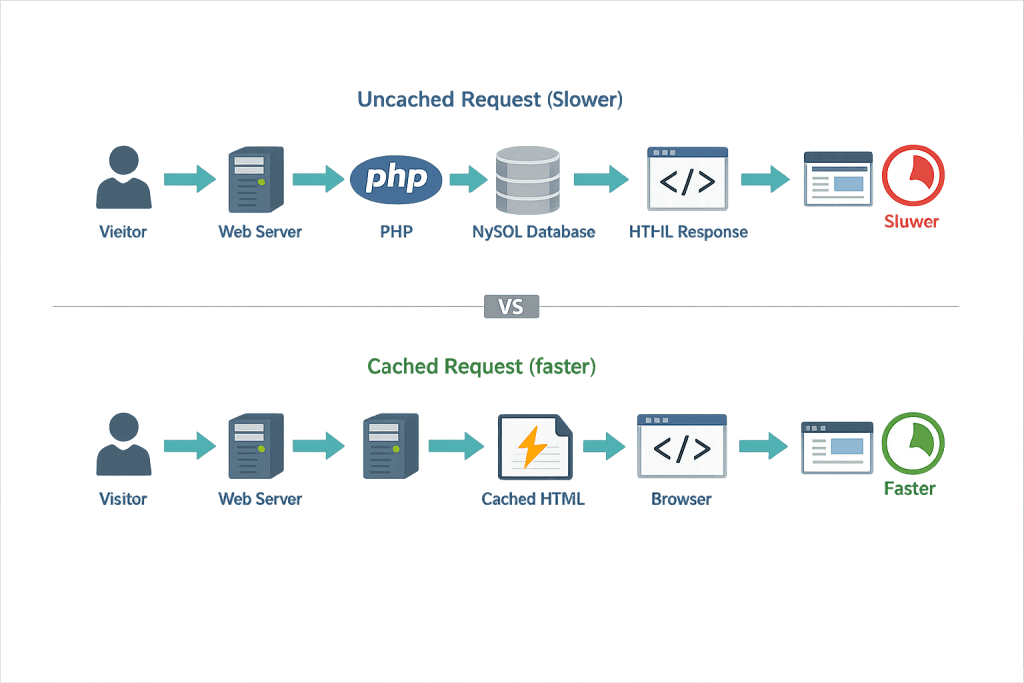
Without caching, every request to a WordPress page triggers a full execution cycle: WordPress loads, the database is queried, PHP processes the template, and the fully assembled HTML is sent to the visitor. On a busy site, this can create significant server load and slow response times. Server-side caching shortens this process dramatically — instead of rebuilding the page from scratch for each visitor, the server returns a pre-built HTML file stored in fast memory. The result is often a 10–50x improvement in pages served per second and substantially faster response times.
Server cache is distinct from browser caching (which stores assets on the visitor’s device) and object caching (which stores database query results in memory). These three caching layers work together and serve different purposes in a complete caching strategy.
How Server-Side Caching Works
The core process:
- A visitor requests a page. The server checks whether a cached (pre-built) version exists and is still valid.
- If a valid cache exists, the pre-built HTML is returned immediately without invoking PHP or querying the database.
- If no cache exists (first request, or cache has been cleared), WordPress builds the page normally and the result is stored for future requests.
- Cache is invalidated (cleared) when the content changes — a post is updated, a new comment is added, or a scheduled purge runs.
The most common server-side caching implementations for WordPress:
- Varnish Cache — An open-source HTTP accelerator designed specifically for caching. Sits in front of the web server and can serve cached pages without involving PHP at all. Known for excellent performance under high load.
- Nginx FastCGI Cache — WordPress hosting environments using Nginx can configure FastCGI caching, which caches PHP responses at the server level. Faster than serving through PHP but slightly more complex to configure than plugin-based caching.
- LiteSpeed Cache — LiteSpeed’s web server includes a built-in caching system with a companion WordPress plugin (LiteSpeed Cache) that integrates tightly with the server. Popular on shared and cloud hosting environments.
- Managed hosting platform caching — Managed WordPress hosts like WP Engine, Kinsta, and Flywheel implement proprietary server-side caching systems that work automatically without manual configuration.
[Image: Diagram showing two request flows: uncached (visitor → web server → PHP → MySQL → HTML response) vs. cached (visitor → web server → cached HTML directly)]
Purpose & Benefits
1. Dramatically Reduce Server Response Time
Server-side caching is one of the highest-impact performance improvements available for WordPress. Pages that take 500ms–2 seconds to build dynamically are served in under 50ms from cache. This improvement directly affects PageSpeed scores, Core Web Vitals metrics, and — by extension — search rankings. Google uses page speed as a ranking signal, making server cache both a performance and an SEO consideration.
2. Handle Traffic Spikes Without Server Overload
Under heavy traffic, the bottleneck is almost always PHP processing and database queries. Server-side caching eliminates most of these for authenticated visitors, meaning a server that would struggle at 100 concurrent users can handle thousands from cache. This is central to scalability planning — sites without server-side caching are much more vulnerable to traffic spikes from marketing campaigns or viral content.
3. Improve User Experience Across All Visitors
Every visitor benefits from faster page loads regardless of their device, location, or browser. Fast-loading pages reduce bounce rates, improve engagement, and directly influence conversion rates. In e-commerce contexts, a one-second delay in page load time can reduce conversion rates by 7% or more. When combined with a content delivery network, server cache delivers fast, consistent performance globally.
Examples
1. Full-Page Cache on a Blog
A high-traffic blog receives thousands of daily readers, most of whom are reading the same articles. Without server caching, each of these page loads triggers WordPress’s full build process. With full-page server caching enabled, the first request builds the page and the subsequent thousands of requests are served from the pre-built cache — reducing server load by over 90% and cutting load times significantly.
2. WooCommerce Store With Selective Caching
An e-commerce store running WooCommerce requires careful caching configuration. Static pages (homepage, about, product catalog) benefit from full-page caching. But dynamic pages (cart, checkout, account pages) must be excluded from cache because they display personalized content. Server-side caching systems are configured to exclude these pages automatically, serving fast cached responses everywhere else.
3. Traffic Spike During a Campaign
A business runs a large email marketing campaign that drives 5,000 visitors to the site in the first hour — far more than normal. Without server caching, the sudden load overwhelms the server’s PHP capacity and the site slows or goes offline. With server-side caching in place, most of those requests hit the cache and are served in milliseconds, while the server handles only the cache misses — a much smaller subset.
Common Mistakes to Avoid
- Caching pages that should be dynamic — Cart, checkout, account, and search result pages contain user-specific or session-specific content that breaks when served from a shared cache. Always configure exclusions for these URLs. Most caching plugins and hosting platforms handle this automatically for WooCommerce, but it’s worth verifying.
- Not clearing cache after content updates — If the cache isn’t invalidated when content changes, visitors see outdated pages. Modern caching systems clear relevant cache entries automatically on post update, but misconfigured systems can serve stale content. Always test content changes on the live site to confirm cache purging works correctly.
- Running multiple conflicting caching plugins — Having a plugin-based cache (like WP Rocket) and a server-level cache (like Nginx FastCGI) active simultaneously can cause unexpected behavior. Understand what caching your hosting environment provides before adding plugin-based caching on top.
- Forgetting logged-in users — By default, most server caching configurations bypass the cache for logged-in users — which is correct, since they see personalized admin bars and content. But on membership sites or sites where logged-in users are the majority, this can significantly reduce the cache’s benefit. Configure appropriately for your use case.
Best Practices
1. Use Your Hosting Platform’s Native Caching First
Managed WordPress hosts build server-side caching directly into their infrastructure. Use the platform’s native caching before adding a caching plugin — platform-level caching is typically faster, better integrated, and more reliable than plugin-based alternatives. Adding a caching plugin on top of managed hosting’s cache often creates conflicts rather than improvements.
2. Combine Server Cache With Object Cache and CDN
Server-side caching handles full-page requests. Object caching handles repeated database queries within a single request. A CDN delivers static assets (images, CSS, JavaScript) from edge servers globally. Together, these three layers provide comprehensive performance coverage — each addressing a different category of load and latency.
3. Test Performance Before and After Configuration Changes
Use tools like PageSpeed Insights, GTmetrix, or WebPageTest to establish a baseline, then measure after caching is configured. Check Time to First Byte (TTFB) specifically — a good server-side cache should reduce TTFB to under 200ms. Also test after content updates to confirm cache invalidation is working correctly and visitors aren’t seeing stale content.
Frequently Asked Questions
What’s the difference between server cache and a WordPress caching plugin?
WordPress caching plugins like WP Rocket or W3 Total Cache create static HTML files that are served via PHP rules or server configuration. Server-side caching (Varnish, Nginx FastCGI, LiteSpeed) operates below the PHP layer entirely — requests are fulfilled without invoking PHP or WordPress at all. Server-level caching is generally faster but requires server access to configure.
Do I need a caching plugin if my host already provides server-side caching?
Usually not. Managed WordPress hosts that provide server-level caching (Kinsta, WP Engine, Flywheel, Cloudways) typically recommend against adding a separate caching plugin — it can cause conflicts and duplicate cache layers. Ask your host specifically what caching is already in place before adding a plugin.
Does caching affect SEO?
Yes, positively. Faster server response times (Time to First Byte) are a component of Google’s Core Web Vitals assessment. Sites with fast TTFB score better on technical performance metrics, which influences search rankings. Caching is one of the most direct paths to improving TTFB.
How often should cache be cleared?
Cache should be cleared automatically when content changes (updated posts, new products) and scheduled for periodic full purges on some systems. Manual full cache clears are appropriate before and after major updates, theme or plugin changes, and troubleshooting sessions. Clearing cache too frequently reduces its benefit; clearing it too rarely can serve stale content.
Can caching cause problems on my site?
Misconfigured caching can cause issues: stale content appearing to users, personalized pages serving incorrect data, or conflicts between multiple caching layers. These are typically configuration issues rather than fundamental problems with caching itself. Testing after configuration changes — and knowing how to clear cache manually — resolves most issues quickly.
Related Glossary Terms
How CyberOptik Can Help
Server-side caching configuration is part of how we set up every WordPress hosting environment we manage. Whether you’re dealing with a slow site, preparing for a high-traffic campaign, or just want to confirm your caching is configured correctly, we can audit and optimize your setup. Contact us to discuss your site’s performance or learn about our hosting and speed optimization services.


