
WordPress Revisions is a built-in version control system that automatically saves a copy of your content every time you save a draft, publish an update, or allow the editor’s autosave feature to run. Each revision captures the full state of the post or page at that moment — title, content, and excerpt — creating a timestamped history you can browse, compare, and restore at any time.
For anyone managing a website, revisions provide a meaningful safety net. If a published page gets incorrectly edited, content gets accidentally deleted, or a copyediting change needs to be walked back, you can restore a previous version without starting over. WordPress automatically saves content approximately every 60 seconds while you work, and each time you click Save Draft or Update, a new revision is created. This system works behind the scenes for most users — until the moment they need it.
How WordPress Revisions Work
The revisions system stores each saved version as a post of the revision post type in the WordPress database, attached to the original post as a child record. This means revisions follow the same database structure as regular posts and are retrievable through standard WordPress functions.
[Image: WordPress revision comparison screen showing two versions side by side, with deletions in red and additions in green, and a slider at the top for navigating between versions]
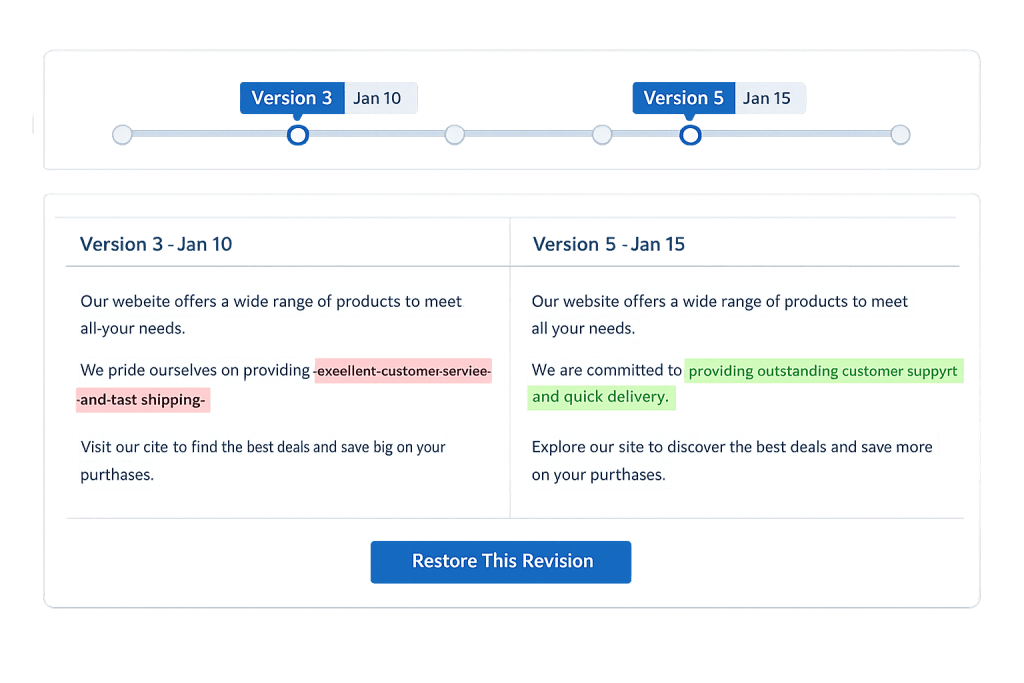
Accessing revisions is straightforward in both editor experiences:
- Block Editor (Gutenberg): Open the Settings panel in the right sidebar. Click the number next to “Revisions” to open the revision history screen.
- Classic Editor: Find the “Revisions” option in the Publish box on the right sidebar and click “Browse.”
On the revision screen, a slider at the top lets you move through all saved versions. WordPress displays the two selected versions side by side with a color-coded comparison: content added since the previous version appears highlighted in green, and deleted content appears in red. When you find the version you want, click “Restore This Revision” — WordPress immediately applies it and returns you to the editor. Restoring a revision doesn’t permanently delete anything; WordPress creates a new revision that’s a copy of the version you restored.
Access to revisions is tied to user roles: Administrators and Editors can view and restore revisions for any post. Authors can only access revisions for their own posts. Contributors can view revisions on their drafts but cannot restore them after publication.
Purpose & Benefits
1. Content Safety and Error Recovery
Revisions eliminate the worst-case scenario of accidentally publishing bad content with no way to recover what was there before. Whether it’s an accidental deletion during editing, a failed copy-paste operation that wipes out a section, or a miscommunication between two editors who overwrote each other’s work, revisions give you a way back. This is especially valuable on high-traffic pages — product pages, service pages, landing pages — where incorrect content has immediate business impact. Our WordPress Core & Admin services include helping teams build workflows that take advantage of revisions as a safety layer.
2. Comparison and Collaboration Support
The side-by-side comparison view makes revisions useful not just for recovery, but for review. Before finalizing an edit, you can compare the current draft against the published version to confirm every change is intentional. For teams where multiple user roles contribute to the same content — an author drafts, an editor revises, a manager approves — the revision history provides a transparent record of what changed and when. This reduces miscommunication and gives editors confidence when approving updates.
3. Autosave as a Development Safety Net
WordPress autosaves your content approximately every 60 seconds in the editor, independent of the manual revision system. If your browser crashes, your internet connection drops, or your laptop battery dies mid-edit, the autosave captures your most recent work. Autosaves are stored separately from revisions and appear in the revision history as “Autosave” entries. They function as a last-resort recovery option that has saved many editors from re-writing content from memory.
Examples
1. Recovering from an Accidental Content Deletion
A marketing coordinator updates the company’s service page to remove an outdated section. After publishing, they realize they deleted a paragraph that was actually still relevant — one that included a link to a case study that the sales team references regularly. They navigate to the service page in the WordPress admin, open the revision history, find the version from earlier that morning, and restore it. The deleted paragraph and its links are back within 60 seconds.
2. Reviewing an Editorial Revision Before Finalizing
A site publishes industry articles with a two-stage editing process: a writer submits a draft, and an editor revises it for clarity. Before publishing, the editor reviews the revision history to see a clean comparison of what they changed versus the original draft. The side-by-side diff view highlights every sentence they rewrote, letting them double-check nothing was accidentally removed. This workflow is particularly useful on longer content pieces where mental tracking of all changes is difficult.
3. Rolling Back After a Plugin Update Breaks a Page Builder Layout
A WordPress update changes how a shortcode is processed, which causes a complex page layout to break on rendering. The administrator opens the affected page, browses the revision history to the last saved version before the update was applied, and restores it as a temporary fix while a proper solution is developed. The page goes back to displaying correctly immediately, buying time to address the underlying issue without visible downtime.
Common Mistakes to Avoid
- Leaving revisions uncapped on large sites — By default, WordPress saves unlimited revisions. On sites with thousands of posts and active editing, uncapped revisions can significantly bloat the database over time, contributing to slower queries and larger backups. Setting a reasonable limit — typically 10–20 per post — keeps the database lean without sacrificing useful history.
- Disabling revisions entirely — Some caching and performance tutorials recommend disabling revisions to reduce database load. This is generally a false economy — the database savings are modest, but the loss of a safety net for content recovery is a real cost. Limiting revisions is a better approach than eliminating them.
- Assuming revisions are a backup — Revisions capture content changes, not your entire site. They don’t back up plugin data, theme files, media files, or database configurations. A separate backup strategy — ideally automated and stored off-site — is still essential.
- Forgetting that revisions count toward database size — Revisions are real database rows. On a site with hundreds of posts that each have dozens of revisions, this can add up to thousands of database rows. Periodic cleanup of old revisions — using a plugin or WP-CLI — is good database hygiene.
Best Practices
1. Set a Revision Limit Appropriate to Your Workflow
Define WP_POST_REVISIONS in your wp-config.php to cap the number of revisions stored per post. A limit of 10–20 is sufficient for most sites — enough history to recover from any realistic editing mistake without letting the database grow without bound. For sites that publish content rarely (mostly static pages), 5 revisions is often ample.
define( 'WP_POST_REVISIONS', 10 );
Alternatively, plugins like WP Revisions Control let you set limits per post type from the admin dashboard — useful when you want different limits for blog posts versus pages versus custom post types.
2. Use the Comparison View Before Restoring
Before clicking “Restore This Revision,” use the comparison view to confirm the version you’re restoring contains everything you expect. Revision timestamps are the primary navigation tool, and memory of exactly when a change was made isn’t always reliable. Scanning the diff prevents accidentally restoring to a version that’s missing content you want to keep. If you’re unsure, open the target version in a separate browser tab to see the rendered output before committing.
3. Pair Revisions with a Real Backup System
Revisions are useful for recovering from editorial mistakes, but they’re not a substitute for a proper backup strategy. A database corruption, a hacked site, or a bad hosting migration won’t be recoverable through revisions. Combine WordPress’s built-in revision system with an automated backup tool — such as UpdraftPlus, WP Time Capsule, or your hosting provider’s backup service — so you have both granular content recovery and full-site recovery covered.
Frequently Asked Questions
How many revisions does WordPress keep by default?
WordPress saves revisions indefinitely by default — there is no built-in cap on the number of revisions per post. Every manual save and autosave creates a new revision. For sites with frequent content updates, this can accumulate quickly. Setting a limit via WP_POST_REVISIONS in wp-config.php is a common configuration choice.
Can I compare two non-adjacent revisions?
Yes. On the revision comparison screen, check the “Compare any two revisions” box. Two sliders appear, letting you select any two revisions from the history — not just adjacent ones. This is useful when you want to see how content changed over a longer period, such as comparing today’s version against a version from three weeks ago.
Do revisions affect site performance?
They can, if left uncapped on a large, actively edited site. A database with tens of thousands of revision rows adds query overhead, particularly during post queries that join against the wp_posts table. Setting a revision limit and periodically purging old revisions with WP-CLI or a plugin keeps this in check. On most small-to-medium sites, the impact is negligible.
Are revisions enabled for all post types?
By default, revisions are enabled for posts and pages. Custom post types registered with 'supports' => array( 'revisions' ) also support revision history. Post types that don’t include revisions in their supports array don’t generate revision records — which can be appropriate for high-volume post types like log entries or auto-generated records where version history isn’t meaningful.
What happens to revisions if I delete a post?
When you delete a post permanently (empty trash), all of its associated revisions are also deleted. If you only move a post to trash, the revisions remain attached and will be restored if you restore the post from trash.
Related Glossary Terms
- WordPress Core
- WordPress Pattern
- Block Editor (Gutenberg)
- User Roles (Administrator, Editor, etc.)
- User Permissions
- Backup
- wp-config.php
- WP-CLI
How CyberOptik Can Help
Understanding how WordPress works under the hood helps you make better decisions about your site. We manage revision configurations, database optimization, and content workflows for clients every day — ensuring that tools like revisions are properly set up without creating unnecessary database bloat. Whether you need help with site configuration, performance tuning, or ongoing WordPress maintenance, we’re here. Get in touch to discuss your project or explore our WordPress maintenance services.


