
SPF record (Sender Policy Framework record) is a DNS TXT record that specifies which mail servers and IP addresses are authorized to send email on behalf of a domain. When an email arrives claiming to be from your domain, the receiving mail server checks your SPF record in DNS to verify that the sending server is on the approved list. If it isn’t, the email fails SPF authentication and may be rejected, quarantined, or routed to the spam folder.
SPF records exist because the standard email protocol (SMTP) was designed without built-in sender authentication — making it trivially easy for anyone to send an email that appears to come from any domain. SPF is one of three foundational email authentication mechanisms — alongside DKIM and DMARC — designed to close this gap and protect domains from being spoofed by spammers and phishing attackers. For businesses that rely on email marketing or transactional email, a correctly configured SPF record is a prerequisite for reliable inbox delivery.
[Image: Flow diagram showing email sent from a server → receiving server checks DNS for SPF record → compares sending IP against authorized IPs → pass/fail outcome determines inbox/spam routing]
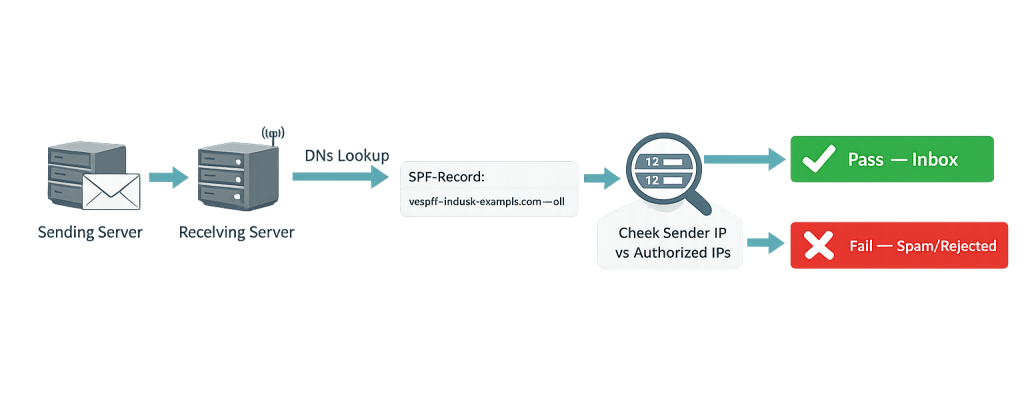
How an SPF Record Works
The SPF check happens during the SMTP conversation when an incoming email is received. Here’s the sequence:
- Email is sent from a server claiming to be from
yourdomain.com - Receiving server queries DNS for the SPF TXT record of
yourdomain.com - SPF record is retrieved — a string of text specifying authorized sending sources
- Sending IP is compared against the list of authorized IP addresses and domains in the SPF record
- Outcome is determined:
–Pass— The sending server is authorized
–Fail(with-all) — Not authorized; typically rejected
–SoftFail(with~all) — Not authorized; typically marked as suspicious but accepted
–Neutral(with?all) — No policy defined
An SPF record looks like this in DNS:
v=spf1 include:_spf.google.com ip4:192.0.2.1 -all
Breaking this down:
– v=spf1 — Identifies this as an SPF record
– include:_spf.google.com — Authorizes Google’s mail servers (e.g., for Google Workspace)
– ip4:192.0.2.1 — Authorizes a specific IP address
– -all — Hard fail: any server not listed is unauthorized
Each domain can have only one SPF record. Multiple SPF records for the same domain cause authentication failures.
Purpose & Benefits
1. Protects Your Domain From Email Spoofing
Without an SPF record, anyone can send email claiming to be from your domain. Attackers exploit this for phishing — sending fraudulent emails that appear to come from legitimate brands to trick recipients. A correctly configured SPF record tells receiving servers to reject or flag email from unauthorized sources, making it significantly harder for bad actors to spoof your domain. This protects both your recipients and your domain’s reputation.
2. Improves Email Deliverability for Legitimate Campaigns
Major mailbox providers — Gmail, Yahoo, Microsoft — use SPF authentication as a factor in spam filter decisions. Since 2024, Gmail and Yahoo require SPF authentication for bulk senders. Without it, email campaigns land in spam or are rejected outright. A valid SPF record is the minimum authentication baseline for reliable inbox delivery. Our marketing services include email infrastructure review as part of campaign setup.
3. Works in Conjunction With DKIM and DMARC for Comprehensive Authentication
SPF alone only validates the sending server’s IP address. It doesn’t verify the email’s content or headers visible to the recipient. DKIM adds a cryptographic signature to emails. DMARC ties SPF and DKIM together and defines what happens when authentication fails. A complete email authentication setup uses all three, with hosting infrastructure configured to support them.
Examples
1. SPF Record for Google Workspace Email
A business uses Google Workspace for its company email. The SPF record in their domain’s DNS includes include:_spf.google.com, which authorizes Google’s mail servers to send on behalf of the domain. When an employee sends a client email through Gmail, the receiving server checks the SPF record, finds Google’s servers authorized, and delivers the email normally.
2. SPF Failure Causing Campaign Emails to Land in Spam
A business switches from Mailchimp to a new email service provider. The new ESP uses different sending servers that aren’t listed in the existing SPF record. The first campaign after the switch lands in spam for most recipients. The fix is straightforward: update the SPF record in DNS to include the new provider’s include: statement. Future sends authenticate correctly and reach the inbox.
3. Multiple Services Requiring SPF Entries
A WooCommerce store sends three types of email: customer-facing order confirmations through WooCommerce (using their hosting server), marketing newsletters through Mailchimp, and support responses through Google Workspace. Each of these uses different sending infrastructure. The SPF record must authorize all three:
v=spf1 include:_spf.google.com include:servers.mcsv.net ip4:[hosting-server-ip] -all
This ensures all legitimate email sources are authorized without opening the record too broadly.
Common Mistakes to Avoid
- Having no SPF record at all — Many domains are set up without any email authentication. Without an SPF record, your domain is unprotected against spoofing and your outgoing emails are more likely to be filtered. Check your current DNS records and add an SPF record if one doesn’t exist.
- Exceeding the 10 DNS lookup limit — SPF records that reference many
include:statements can exceed the DNS lookup limit (10 lookups per evaluation). When this happens, SPF evaluation fails even for legitimate email. Audit your SPF record for unnecessary entries and consolidate where possible. - Having multiple SPF records for the same domain — DNS allows only one SPF record per domain. If two TXT records beginning with
v=spf1exist for the same domain, SPF evaluation fails with a “PermError.” Combine all authorized senders into a single SPF record. - Using
+all(allow all) —+allat the end of an SPF record means any server can send email as your domain — which completely defeats the purpose of having an SPF record. Always end with-all(hard fail) or~all(soft fail).
Best Practices
1. Audit All Email Sending Services and Document Them
Before creating or updating an SPF record, identify every service that sends email on behalf of your domain: your email hosting provider, marketing platforms like Mailchimp or Klaviyo, transactional email services like SendGrid, your CRM, and any other tools. Each service’s documentation will specify what include: statement or IP address to add to your SPF record. A complete inventory prevents the “missing sender” problem.
2. Use Hard Fail (-all) Rather Than Soft Fail (~all)
Most SPF guides recommend ending with -all (hard fail) once your record is validated and working. This tells receiving servers to reject email from unauthorized sources, providing stronger protection against spoofing. ~all (soft fail) is sometimes used during an initial transition period to avoid accidentally blocking legitimate email, but should be tightened to -all once the record is confirmed accurate.
3. Implement SPF Alongside DKIM and DMARC
SPF is one layer of a three-layer email authentication framework. Configure DKIM to cryptographically sign outgoing emails, and set up a DMARC record to define your policy for handling authentication failures. Gmail and Yahoo’s 2024 bulk sender requirements mandate all three. If your DNS records aren’t configured for the full authentication stack, inbox placement for bulk email is compromised.
Frequently Asked Questions
Do I need an SPF record if I only send transactional email?
Yes. SPF applies to all email sent from your domain — transactional order confirmations, support replies, and marketing campaigns alike. Even if you only send a small volume of email, a missing SPF record leaves your domain open to spoofing. The configuration takes minutes and protects both your recipients and your domain reputation.
How do I check if my SPF record is set up correctly?
Use free tools like MXToolbox (mxtoolbox.com/spf.aspx), Google Admin Toolbox, or mail-tester.com to validate your SPF record. These tools show your current record, check for syntax errors, count DNS lookups, and flag common configuration issues. Your email service provider’s dashboard may also include deliverability diagnostics.
What happens if my SPF record fails?
The outcome depends on your record’s policy suffix. With -all (hard fail), the receiving server will typically reject the email outright or route it to spam. With ~all (soft fail), the email is often accepted but tagged as suspicious and more likely to be filtered. The specific behavior varies by receiving mail server and mailbox provider.
Can I have more than one SPF record for my domain?
No. DNS only allows one SPF TXT record per domain. If you need to authorize multiple sending services, they must all be consolidated into a single SPF record using include: statements and ip4:/ip6: directives. Having two separate SPF records will cause authentication failures.
What’s the relationship between SPF, DKIM, and DMARC?
SPF verifies that the sending server is authorized by the domain owner. DKIM adds a cryptographic signature that verifies the email’s content hasn’t been tampered with in transit. DMARC uses both SPF and DKIM results to determine whether an email is legitimate and defines what happens (reject, quarantine, or allow) when authentication fails. All three work together — SPF and DKIM are the authentication mechanisms; DMARC is the policy layer.
Related Glossary Terms
- DKIM (DomainKeys Identified Mail)
- DMARC
- DNS (Domain Name System)
- Email Marketing
- Spam Filter
- Transactional Email
How CyberOptik Can Help
Email authentication — SPF, DKIM, and DMARC — sits at the intersection of technical infrastructure and marketing performance. Misconfigured records cause legitimate email to land in spam; missing records leave your domain exposed to spoofing. Our team configures and audits email authentication as part of our hosting and marketing engagements, so your email program has the foundation it needs to perform. Contact us to discuss your email infrastructure or learn about our hosting solutions.


