
Pages in WordPress are a built-in content type designed for static, evergreen content that forms the permanent structure of your website. Unlike posts, which are time-stamped, categorized, and displayed in reverse chronological order, Pages are standalone content without publication dates, categories, or tags. Your homepage, About page, Services pages, and Contact page are all examples of WordPress Pages — content that remains relatively stable over time and isn’t part of a blog or news stream.
The Pages post type is one of the two default content types WordPress ships with (the other being Posts). Understanding the difference between them — and knowing which to use for which purpose — is one of the first practical concepts every WordPress site owner should grasp. Getting this right from the start produces cleaner site architecture, better SEO, and a more maintainable content structure as the site grows.
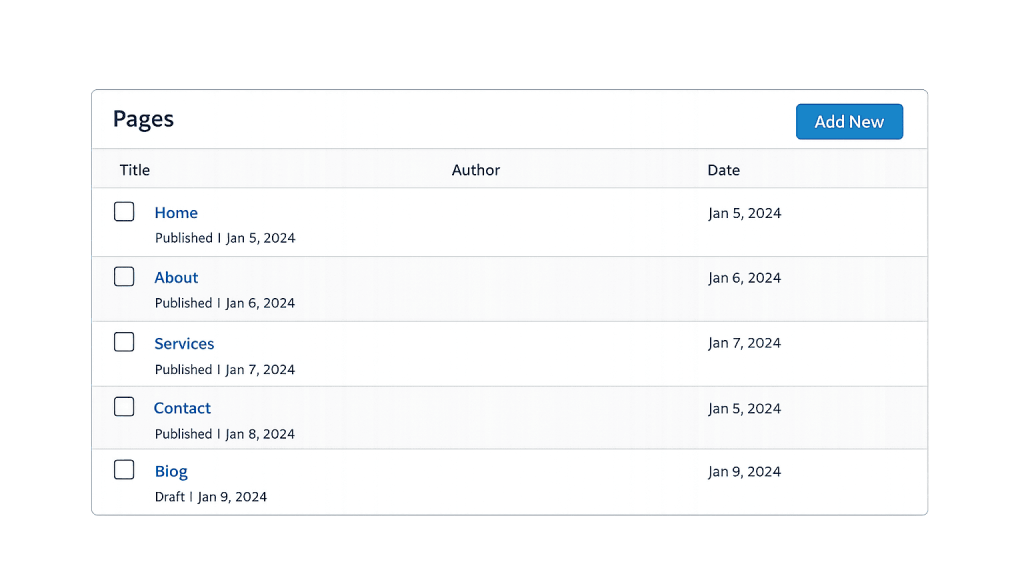
[Image: WordPress dashboard Pages list screen showing sample pages like Home, About, Services, Contact, with their publish dates and statuses]
How WordPress Pages Work
Pages behave differently from Posts in several important ways:
- No chronological order — Pages don’t have a date-driven display logic. There’s no “latest pages” feed. Each page is a standalone document.
- No categories or tags — Pages aren’t organized by taxonomy. Navigation to Pages is handled through menus and parent-child hierarchies.
- Hierarchical by default — Pages support parent-child relationships. An “Our Team” page can be a child of the “About” page, creating a URL structure like
/about/our-team/. Posts can have categories but aren’t hierarchical themselves. - Static template — Pages use the theme’s
page.phptemplate by default, or a custom page template assigned in the editor. - Not included in RSS feeds — Pages don’t appear in your site’s RSS feed, which is reserved for dynamic post content.
When you create a new page in WordPress (Pages → Add New), you’re working within this content type. The permalink for a page is typically yourdomain.com/page-slug/, and the slug can be set in the editor just like any other content type.
Purpose & Benefits
1. Structure for Permanent Site Content
Pages are the structural foundation of your WordPress site. Your homepage, service pages, legal pages, and contact page are Pages because they represent core information that doesn’t change with the news cycle. This separation from the time-sensitive content of Posts keeps your site architecture clean and your navigation predictable. Our WordPress development services are built around structuring Pages and site architecture correctly from the start.
2. Hierarchical URL and Navigation Structure
The parent-child relationship between Pages creates organized URL structures that reflect your content hierarchy. A page like /services/web-design/ clearly communicates both where it sits in the site and what it covers. This structure helps users understand where they are and helps search engines understand your site’s topical organization — both important for SEO and user experience.
3. Template Flexibility for Different Layouts
Each Page can be assigned a specific page template — a custom layout that goes beyond the default theme design. This makes Pages the natural choice for content that needs a unique presentation: a full-width homepage, a landing page without navigation, a portfolio showcase, or a pricing table. Posts are generally more uniform in their display; Pages can vary significantly.
Examples
1. Standard Business Website Structure
A consulting firm uses WordPress Pages for its entire primary navigation: Home, About Us (with child pages for Team and History), Services (with child pages for each service area), Case Studies index, and Contact. These are all static Pages. The firm separately maintains a Blog using Posts. The distinction keeps promotional evergreen content (Pages) separate from thought leadership content (Posts).
2. Multi-Location Service Business
A home services company creates individual Pages for each service area it covers: /services/plumbing/springfield/, /services/plumbing/riverside/, etc. These are all Pages rather than Posts because they represent permanent service offerings, not time-stamped articles. They use a custom page template that pulls in the city name dynamically and displays service-specific content.
3. Landing Page for a Campaign
A business creates a dedicated landing page for a trade show lead campaign — no navigation, stripped-down header, focused on a single CTA. This is a WordPress Page with a custom page template that removes the standard navigation. It’s a Page rather than a Post because it’s not time-sensitive content; it’s a conversion-focused static document.
Common Mistakes to Avoid
- Publishing blog content as Pages — Blog posts, news updates, and articles belong in Posts, not Pages. Using Pages for blog content bypasses categories, tags, RSS feeds, and the chronological archive structure that Posts are built for.
- Creating too many top-level Pages without hierarchy — A flat structure of 30 top-level Pages is harder to navigate and harder to maintain than a well-organized hierarchy. Use parent-child relationships to group related Pages.
- Not setting a Homepage — WordPress needs to be told which Page to use as the homepage. Go to Settings → Reading and select “A static page,” then specify your homepage Page. Leaving this unconfigured causes WordPress to display the latest blog posts as your homepage.
- Ignoring page-level SEO settings — Each WordPress Page should have a unique, optimized title tag, meta description, and a well-structured heading hierarchy. Pages that are left with auto-generated titles or no meta description are missing basic on-page SEO opportunities.
Best Practices
1. Plan Your Page Hierarchy Before Building
Before creating Pages, sketch out the structure you want: which Pages will be top-level, which will be children, and what the resulting URL structure will look like. A thoughtful hierarchy is easier to navigate, creates clean permalink structures, and signals topical organization to search engines. Retroactively reorganizing Pages after a site is built is more work than planning upfront.
2. Assign Custom Templates to Pages That Need Them
WordPress’s default page layout works for many purposes, but important Pages often benefit from custom templates. Landing pages, the homepage, full-width service pages, and portfolio displays all present better with templates designed for their specific purpose. If your theme or page builder provides template options, use them intentionally rather than leaving everything on the default.
3. Set Each Page’s Purpose Before Creating It
Every Page should answer: What is this page for? Who is it for? What action should visitors take? Pages without a clear purpose tend to become thin, unfocused content. A well-defined purpose drives better content, stronger calls to action, and clearer optimization decisions — whether for SEO or conversion.
Frequently Asked Questions
What’s the difference between WordPress Pages and Posts?
Pages are for static, evergreen content — your About page, Services, Contact. Posts are for time-sensitive, regularly published content — blog articles, news, announcements. Pages have a hierarchy and don’t use categories or tags. Posts are organized chronologically and use categories and tags for organization.
Can I use Posts for my service pages instead of Pages?
Technically yes, but it’s not recommended. Service pages are static, permanent content that doesn’t benefit from the chronological or category structure Posts are built around. Using Posts for static content creates confusing URL structures, clutters your blog archive, and creates navigation complications. The cleanest solution is to use each content type for its intended purpose.
How many Pages should a WordPress site have?
There’s no right number — it depends entirely on the business and its content needs. A simple service business might have 5–8 core Pages. A larger business with multiple service lines and locations might have 50+. What matters is that every Page has a clear purpose and a place in the site’s navigation or internal link structure.
What happens if I accidentally delete a WordPress Page?
If you have WordPress Revisions enabled and use a recent backup, recovery may be possible. Deleted Pages go to the Trash and can be restored within 30 days (or until the Trash is emptied). If a Page was permanently deleted, you’ll need to recreate it — though the content may be recoverable from your WordPress backups or a staging environment.
Related Glossary Terms
How CyberOptik Can Help
Understanding how to structure WordPress Pages is the foundation of a well-built website. We plan site architecture carefully at the start of every project — getting the right content in the right content type with the right hierarchy. Whether you’re building a new WordPress site or cleaning up the structure of an existing one, we can help. Get in touch to discuss your project or explore our WordPress development services.


