
WYSIWYG editor (pronounced “wiz-ee-wig”) stands for What You See Is What You Get — a type of content editing interface that displays your content visually as you build it, rather than showing raw code. In a WYSIWYG editor, formatting a word as bold actually shows it bold on screen, inserting an image shows the image inline, and the layout you create closely approximates how the page will look when published.
The term predates WordPress by decades, originating in word processing software. In the WordPress context, it refers to the visual editing experience — as opposed to editing raw HTML. WordPress has offered some form of WYSIWYG editing since its earliest versions, and the shift from the classic TinyMCE editor to the block-based Gutenberg editor in WordPress 5.0 (2018) represents the most significant evolution of that experience in the platform’s history. Today, both the block editor and the Classic Editor plugin provide WYSIWYG experiences, each with a different philosophy about how visual editing should work.
[Image: Side-by-side comparison of the WordPress block editor (Gutenberg) interface showing a formatted post visually, contrasted with the underlying HTML code view]
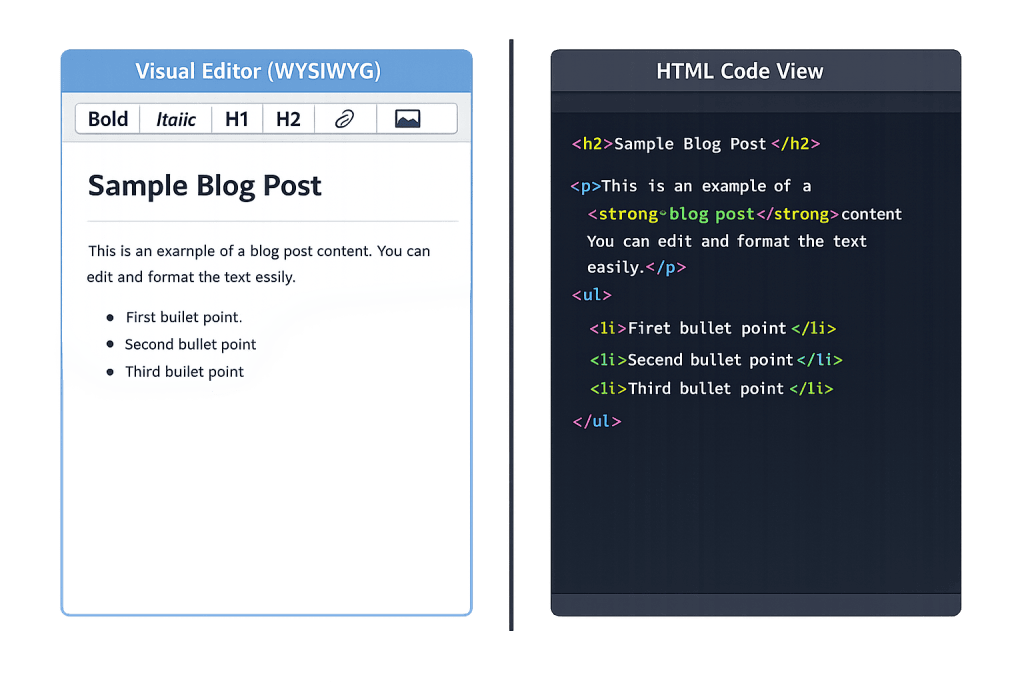
How the WYSIWYG Editor Works in WordPress
WordPress offers two main WYSIWYG editing experiences:
The Block Editor (Gutenberg) — Introduced with WordPress 5.0 and now the default editor. Content is organized into discrete blocks: paragraphs, headings, images, buttons, columns, galleries, and hundreds of custom blocks from plugins. Each block is independently editable and can be moved, styled, and configured without touching code. The block editor also powers Full Site Editing, allowing WYSIWYG management of headers, footers, and page templates.
The Classic Editor — The original TinyMCE-based editor, available as a plugin and still used widely. Operates like a traditional word processor: a single continuous content area with a formatting toolbar. Simpler and more familiar to users transitioning from document editors, but less powerful for complex layouts.
Both present a visual interface where formatting choices are immediately visible — that’s the WYSIWYG principle. Neither requires the editor to write HTML directly, though both offer a code view for those who want it.
Purpose & Benefits
1. Lowers the Barrier to Content Publishing
WYSIWYG editing means anyone on your team can write, format, and publish content without learning HTML or CSS. A staff member who knows how to use a word processor can add a blog post, update a page, and embed an image without developer involvement. This independence is one of the foundational reasons WordPress powers 43% of all websites — it puts content control in non-technical hands. Our WordPress development services always include training editors on the WYSIWYG interface.
2. Speeds Up Content Workflows
Seeing your formatting decisions in real time — rather than writing code and then previewing it — removes a slow feedback loop from the publishing process. Writers can focus on content rather than markup. For sites with regular publishing schedules, this efficiency compounds across every post, page, and update.
3. Supports Complex Layouts Without Code
The block editor extends WYSIWYG beyond basic text formatting. Columns, cover images, pullquotes, tables, and custom-designed sections can be assembled visually without touching a line of code. This enables marketing teams and content managers to build landing pages and campaign content that previously would have required a developer — keeping your site dynamic without creating a bottleneck on the development team.
Examples
1. A Marketing Manager Publishes a Blog Post
A marketing manager drafts a new article directly in the WordPress block editor. She adds a heading block, paragraph blocks with formatted text, an image block with a caption, and a button block linking to a product page — all by clicking, typing, and dragging. The editor shows exactly how the post will look before it goes live. She publishes without any developer involvement.
2. Building a Landing Page with the Block Editor
A business owner uses the block editor to assemble a promotional landing page. They add a cover block with a background image, a columns block for feature comparisons, a testimonial block, and a call-to-action button. The WYSIWYG interface lets them see the page taking shape in real time. What once required custom HTML and a developer can now be done in an afternoon with WordPress patterns and blocks.
3. Classic Editor for Long-Form Writers
A publication that migrated to WordPress years ago still runs the Classic Editor plugin. Their writers prefer the continuous, document-like writing experience over block-based editing — it mirrors the word processors they’ve used for years. They use the toolbar to add headings, bold text, links, and images. The WYSIWYG experience is simpler but sufficient for their text-heavy content workflow.
Common Mistakes to Avoid
- Over-relying on inline formatting — WYSIWYG editors make it easy to manually apply colors, font sizes, and spacing directly to individual blocks. This bypasses your theme’s design system and creates content that breaks or looks inconsistent when the theme is updated. Use theme-level styles and block styles rather than per-block overrides wherever possible.
- Pasting directly from Microsoft Word — Word documents carry hidden formatting markup that can inject unpredictable styles into your content. Always paste as plain text first (Ctrl+Shift+V) and then apply formatting within the editor, or use a text editor as an intermediary.
- Assuming WYSIWYG means pixel-perfect accuracy — The editor preview closely approximates the published result, but differences in browser rendering, theme CSS, and responsive breakpoints mean the final output isn’t always identical to the editor view. Always preview on the actual front end, especially on mobile, before publishing important pages.
- Confusing the editor view with page builder tools — Some page builders (like Elementor or Beaver Builder) also claim to be WYSIWYG, but they function differently from the native block editor and can create front-end performance issues. The native WordPress block editor is the recommended option for most sites.
Best Practices
1. Use Block Patterns and Reusable Blocks for Consistency
Rather than building layouts from scratch in each post, save frequently used arrangements as WordPress patterns or reusable blocks. A consistent CTA section, a styled testimonial block, or a formatted author bio can be inserted anywhere on the site in seconds — and if the design needs updating, changing the reusable block updates every instance automatically.
2. Learn the Keyboard Shortcuts
The block editor has keyboard shortcuts that make WYSIWYG editing significantly faster. Typing / opens the block inserter; Ctrl+Z undoes changes; Ctrl+Shift+D duplicates a block. Learning the shortcuts removes the friction of reaching for the toolbar constantly and keeps the writing flow intact while still working visually.
3. Preview on Mobile Before Publishing
The WYSIWYG editor defaults to a desktop view. Before publishing any page or post with a complex layout, use the Preview function and check the mobile view. Columns that look clean at desktop width may stack poorly on small screens. The block editor includes a responsive preview mode — use it, especially for landing pages and service pages where mobile traffic is significant.
Frequently Asked Questions
What is the difference between the WYSIWYG editor and the block editor?
“WYSIWYG editor” describes the general concept — visual, real-time editing where what you see matches what gets published. The block editor (Gutenberg) is WordPress’s specific implementation of that concept. All block editing is WYSIWYG, but WYSIWYG is the broader principle. The term is also sometimes used to refer specifically to the older Classic Editor, which was WordPress’s WYSIWYG experience before Gutenberg.
Can I switch back to the Classic Editor from the block editor?
Yes. The Classic Editor plugin (officially supported by WordPress) restores the pre-Gutenberg editing experience. It can be configured to apply site-wide or on a per-user basis. However, the block editor is the direction WordPress is actively developing — over time, new features will be block-editor-first, and the Classic Editor plugin will eventually be retired.
Is the WYSIWYG editor good enough for designing full pages?
For most businesses, yes. The block editor’s WYSIWYG capabilities have expanded significantly with Full Site Editing — you can now visually design headers, footers, templates, and full pages without a separate page builder plugin. For highly custom or design-intensive layouts, a custom WordPress theme built by a developer will produce a more precise result than drag-and-drop tools alone.
Does using a WYSIWYG editor affect SEO?
The editor itself doesn’t affect SEO, but how you use it does. Applying proper heading hierarchy (H1 → H2 → H3) within the WYSIWYG interface, adding alt text to images, and structuring content clearly all contribute to on-page SEO. The WYSIWYG interface makes these best practices accessible without code — you just need to apply them consistently.
What happens to my content if I switch from the Classic Editor to the block editor?
Existing content created in the Classic Editor is preserved and displayed as a single “Classic” block in the block editor. It isn’t automatically converted to individual blocks. You can continue editing it in the classic format or manually convert it to native blocks. For large sites with many posts, this transition is manageable but worth planning before switching.
Related Glossary Terms
- Block Editor (Gutenberg)
- Classic Editor
- WordPress Pattern
- Full Site Editing (FSE)
- WordPress Theme
- Shortcode
- WordPress Revisions
- Writing Settings
How CyberOptik Can Help
Understanding how WordPress works under the hood helps you make better decisions about your site. Our team configures the WYSIWYG editing environment for clients every day — from choosing the right editor setup for your team’s workflow to building block patterns and templates that make content management faster and more consistent. If your current editing experience feels clunky or your team struggles to maintain the site without developer help, that’s a solvable problem. Get in touch to discuss your project or explore our WordPress development services.


