
Google Tag Manager is a free tag management system from Google that lets you deploy and manage tracking codes — called tags — on your website without editing the site’s source code directly. Instead of asking a developer to manually add each tracking snippet to your pages, everything gets managed through a single GTM container script that loads all your tags according to the rules you set.
For most businesses, Google Tag Manager sits invisibly in the background while doing a lot of heavy lifting. It coordinates the scripts that power Google Analytics 4, conversion tracking, Google Ads remarketing, Facebook Pixel, chat widgets, and dozens of other tools — all from one centralized dashboard rather than scattered throughout your website’s codebase.
[Image: Diagram showing GTM container collecting events from a website and distributing them to GA4, Google Ads, and other tools]
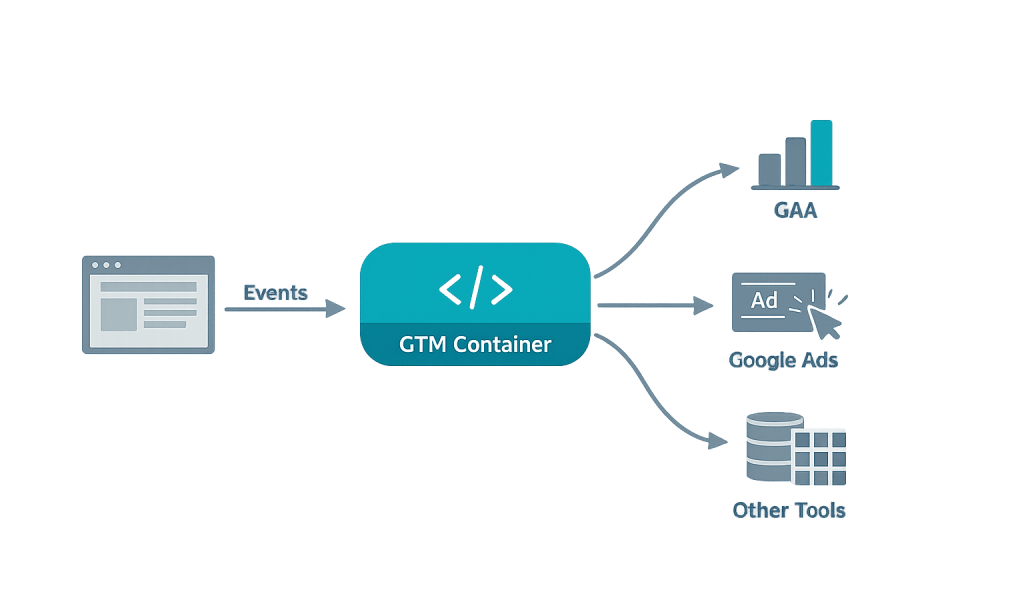
How Google Tag Manager Works
GTM operates around three core concepts: tags, triggers, and variables.
- Tags are the snippets of code you want to run — like a GA4 configuration tag, a Google Ads conversion tag, or a custom event tracker.
- Triggers define when a tag should fire — for example, “fire when someone visits the Thank You page” or “fire when a button with the class .cta-button is clicked.”
- Variables store dynamic values — like page URLs, click text, or form field contents — that tags and triggers can reference.
When a visitor loads a page on your site, GTM’s container script runs first. It evaluates all active triggers against what’s happening on the page and fires the appropriate tags accordingly. This all happens in the user’s browser, usually in under a second.
GTM also includes a built-in preview and debug mode, which lets you test your tag setup before publishing changes to your live site. This is one of its most useful features — you can verify that tags are firing correctly, that the right data is being captured, and that nothing is broken before any visitor sees the updated configuration.
Purpose & Benefits
1. Centralized Tag Management Without Developer Dependency
Every time a business previously wanted to add a new tracking pixel or update an existing one, they needed a developer to touch the site’s code. GTM removes that bottleneck. Marketing teams can publish new tags, adjust triggers, and update tracking configurations through the GTM interface — without deploying a new version of the site. This saves time and reduces risk.
2. Faster, More Reliable Analytics Implementation
When tracking codes are scattered across multiple pages of a site’s codebase, inconsistencies happen. A tag gets added to some pages but not others. An update to one tag breaks another. GTM enforces consistency — one container script loads on every page, and your tag rules apply site-wide. This makes your Google Analytics 4 data more reliable and your conversion tracking more accurate.
3. Built-In Version Control and Rollback
GTM maintains a complete history of every change made to your container. If a new tag configuration causes problems, you can roll back to a previous version in seconds. This versioning system acts as a safety net, making it practical to experiment with tracking improvements without fear of permanently breaking something.
Examples
1. Setting Up GA4 Event Tracking Without Code
A business wants to track when visitors click their “Request a Quote” button. Without GTM, a developer would need to add custom JavaScript directly to the page. With GTM, the marketing team creates a Click trigger that fires when the button is clicked, attaches a GA4 event tag to it, and publishes — no code changes needed on the site.
2. Managing Multiple Marketing Pixels
An e-commerce business runs Google Ads, Facebook Ads, and LinkedIn Ads simultaneously. Each platform has its own tracking pixel, and each needs to fire on different page types. GTM manages all three from a single dashboard, with each pixel controlled by its own trigger rules — keeping the website’s code clean while all platforms receive accurate data.
3. Scroll Depth Tracking for Content Pages
A content-heavy site wants to know how far visitors read on key blog posts. A GTM scroll depth trigger can fire a GA4 event at 25%, 50%, 75%, and 100% scroll thresholds. This engagement data helps the content team understand which articles hold attention and which lose readers halfway down — insights that directly inform content strategy.
Common Mistakes to Avoid
- Publishing without testing — GTM’s preview mode exists for a reason. Publishing tags without verifying they fire correctly in debug mode is a fast path to corrupted analytics data or duplicate tracking.
- Too many tags slowing down the page — Every tag GTM fires is code running in the browser. Loading 20+ tags — especially heavy ones like chat widgets and heatmap scripts — adds page weight. Audit your container periodically and remove tags you no longer use.
- Misconfigured triggers causing duplicate data — A common mistake is accidentally setting a trigger to fire on “All Pages” when it should only fire on a specific confirmation page. This inflates conversion numbers and makes analytics reports misleading.
- Skipping the data layer — Many advanced GTM use cases rely on the data layer to pass dynamic values (transaction amounts, user IDs, product names) to tags. Skipping this setup limits what you can track and often leads to workarounds that break over time.
Best Practices
1. Use Naming Conventions for Everything
Consistent naming makes GTM containers maintainable over time, especially when multiple people access the same account. Name tags, triggers, and variables with a clear structure — for example: GA4 - Event - Form Submit - Contact Page. Anyone looking at the container six months later can understand exactly what each component does.
2. Test Every Configuration in Preview Mode Before Publishing
Before any new tag goes live, use GTM’s built-in preview mode to verify it fires on the right triggers, captures the correct variable values, and doesn’t conflict with existing tags. This step takes minutes and prevents analytics data errors that can take weeks to diagnose after the fact.
3. Audit Your Container Regularly
Tag containers accumulate over time. Old tags from campaigns that ended, pixels from platforms you no longer use, and test configurations that never got cleaned up all add to page load time and increase the risk of conflicts. Schedule a quarterly review to pause or delete anything that’s no longer serving a purpose. Lean containers perform better and are easier to manage.
Frequently Asked Questions
Is Google Tag Manager free?
Yes. Google Tag Manager is completely free to use. There is a premium version called Tag Manager 360, included in the Google Marketing Platform 360 suite for enterprise users, but the standard version — which covers the needs of the vast majority of websites — costs nothing.
Does Google Tag Manager replace Google Analytics?
No. GTM and GA4 are different tools that work together. GTM is the delivery mechanism — it handles deploying the GA4 tracking code and sending events to GA4. GA4 is where your data is stored and analyzed. Most websites use both: GTM to manage the tags, GA4 to report on the data those tags collect.
Will Google Tag Manager slow down my website?
GTM itself adds a small amount of load to the page, but it’s typically minimal. The bigger concern is what’s inside your container — a dozen heavy third-party scripts will slow any page down regardless of how they’re loaded. A well-maintained GTM container with only necessary tags has a negligible performance impact.
Do I need a developer to use Google Tag Manager?
Not always. Basic tag setups — like installing GA4 or adding a Google Ads conversion tag — can be managed by marketers with basic GTM training. More advanced configurations — like setting up custom data layer pushes or tracking complex JavaScript events — do benefit from developer involvement.
What’s the difference between Google Tag Manager and Google Analytics?
GTM is a tag deployment and management tool. GA4 is an analytics platform. Think of GTM as the system that gets data from your website to GA4 (and other tools). You could install GA4’s tracking code directly without GTM, but GTM makes it easier to manage, update, and expand your tracking over time.
Related Glossary Terms
How CyberOptik Can Help
Getting Google Tag Manager configured correctly is the foundation of reliable analytics and ad tracking — and the setup details matter more than most people realize. Our team implements and audits GTM containers for clients regularly, making sure every tag fires accurately, every conversion gets counted, and your marketing data actually reflects reality. Whether you’re starting fresh or cleaning up an existing container, we can help. Explore our marketing services or get in touch.


