
functions.php is a PHP file included in every WordPress theme that acts as a theme-specific plugin, allowing developers to add custom functionality, register features, and modify WordPress behavior without touching core files. Located at wp-content/themes/your-theme/functions.php, it loads automatically on every page request — both on the front end and in the WordPress admin.
Think of it as a command center for your theme. Anything from registering navigation menus and widget areas to enqueuing scripts and styles, adding custom post types, or hoisting hooks and filters — it all gets wired through functions.php. Unlike a standalone plugin, this file is tied to the active theme. If you switch themes, any customizations here disappear with it. That’s why working in a child theme is the recommended approach when modifying functions.php.
[Image: Diagram showing functions.php loading sequence — child theme → parent theme → WordPress core]
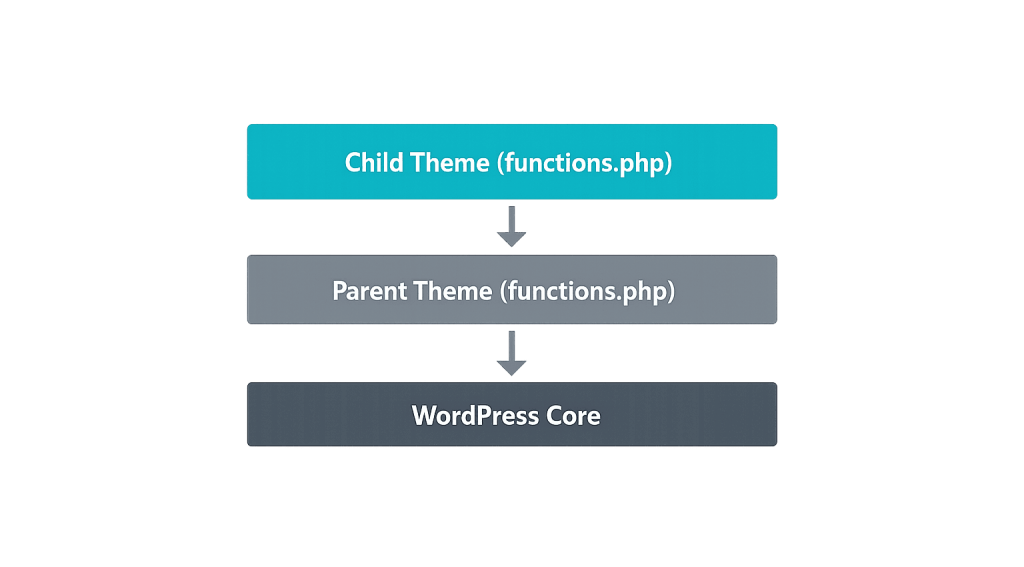
How functions.php Works in WordPress
When WordPress loads a page, it processes functions.php files in a specific order:
- WordPress core files load first
- If a child theme is active, its functions.php loads next
- The parent theme’s functions.php loads last
This cascade lets child theme code override parent theme behavior — which is exactly why you should never edit a parent theme’s functions.php directly. Any changes would be wiped out the next time the theme updates.
functions.php has access to all of WordPress’s hook system, which means you can use add_action() and add_filter() to extend or modify nearly every aspect of WordPress. It can also register theme support features (featured images, post formats), define custom PHP functions, and load additional files.
In block themes (Full Site Editing), functions.php still plays a role — mainly for backend functionality that can’t be handled through the block editor interface or theme.json configuration. Its footprint is smaller in modern block themes, but it’s still present and still loaded.
Purpose & Benefits
1. Centralizes Theme-Specific Customizations
functions.php is the designated place for any code that should only run with your current theme. Registering menus, declaring widget areas, adding theme support for featured images or custom logo — all of this lives here. Keeping theme logic in the theme file (rather than scattered across plugins) makes your codebase easier to manage and hand off.
2. Hooks Into WordPress Without Modifying Core
By using add_action() and add_filter() inside functions.php, you can modify how WordPress behaves without touching core files. This is the correct, upgrade-safe approach to customization. Core files get overwritten during updates; your functions.php does not.
3. Extends Your Site Beyond What Plugins Provide
Some functionality is too specific or too tightly integrated with your theme’s design to warrant a standalone plugin. Custom shortcodes, theme-specific REST API modifications, or tweaks to the hook system are all reasonable candidates for functions.php — especially in a child theme that won’t be replaced by updates.
Examples
1. Registering a Custom Navigation Menu
A typical use case: declaring a menu location so it can be managed from Appearance → Menus.
// Register a primary navigation menu location
function my_theme_register_menus() {
    register_nav_menus( array(
        'primary' => __( 'Primary Menu', 'my-theme' ),
        'footer'  => __( 'Footer Menu', 'my-theme' ),
    ) );
}
add_action( 'after_setup_theme', 'my_theme_register_menus' );
This registers two menu locations — “Primary Menu” and “Footer Menu” — available for assignment in the WordPress Menus interface.
2. Enqueuing Scripts and Styles
Rather than adding <script> or <link> tags directly to templates, WordPress provides wp_enqueue_scripts to load assets the right way.
// Enqueue theme stylesheet and a custom JS file
function my_theme_enqueue_assets() {
    wp_enqueue_style(
        'my-theme-style',
        get_stylesheet_uri(),
        array(),
        wp_get_theme()->get( 'Version' )
    );

    wp_enqueue_script(
        'my-theme-script',
        get_template_directory_uri() . '/js/main.js',
        array( 'jquery' ),
        '1.0.0',
        true // load in footer
    );
}
add_action( 'wp_enqueue_scripts', 'my_theme_enqueue_assets' );
The true parameter on wp_enqueue_script loads the file in the footer for better page performance.
3. Adding Theme Support for Featured Images
Before featured images work on a theme, the theme must declare support for them. This is a one-line addition to the setup function:
// Enable featured image support for posts and pages
function my_theme_setup() {
    add_theme_support( 'post-thumbnails' );
    add_theme_support( 'title-tag' );
    add_theme_support( 'custom-logo' );
}
add_action( 'after_setup_theme', 'my_theme_setup' );
Without add_theme_support( 'post-thumbnails' ), the featured image box won’t appear in the post editor.
Common Mistakes to Avoid
- Editing the parent theme’s functions.php directly — Any changes get wiped out when the parent theme updates. Always use a child theme for customizations.
- Using the WordPress Theme Editor (Appearance → Editor) for live edits — A single syntax error in functions.php will white-screen your entire site. Use a local development environment or staging site and edit via FTP or a code editor, not the browser.
- Adding plugin-level functionality to functions.php — If the feature should persist across theme changes (e-commerce logic, custom post types meant to survive a redesign), it belongs in a plugin, not functions.php.
- Not prefixing custom function names — Without a unique prefix, your function names may clash with other themes or plugins, causing fatal errors. Always namespace your functions (e.g.,
mytheme_register_menus()notregister_menus()).
Best Practices
1. Always Use a Child Theme
Make all functions.php modifications in a child theme, not the parent theme. This preserves your changes through parent theme updates and keeps your customizations cleanly separated from the original theme code. The child theme’s functions.php loads first, giving it the ability to override parent functions.
2. Use Hooks Correctly
Register your custom functions using add_action() and add_filter() rather than calling WordPress functions directly in the global scope. This ensures your code runs at the right point in WordPress’s execution order and avoids fatal errors from calling functions before they’re available.
// Correct — runs at the right time
add_action( 'init', 'my_theme_register_post_types' );

// Incorrect — runs immediately, before WordPress is ready
my_theme_register_post_types();
3. Split Large functions.php into Separate Files
For complex themes, a single functions.php file becomes unwieldy quickly. Use require_once or get_template_part() to split functionality into separate files organized by purpose (e.g., inc/custom-post-types.php, inc/shortcodes.php). This keeps your codebase readable and easier to debug.
Frequently Asked Questions
What’s the difference between functions.php and a plugin?
Both can add functionality to WordPress, but functions.php is theme-specific — it only runs when that theme is active. A plugin runs regardless of which theme is active. If you want a feature to persist through theme changes, use a plugin. If the feature only makes sense within your current theme’s design, functions.php is the right place.
Can I break my site by editing functions.php?
Yes. A single PHP syntax error — a missing semicolon, an unclosed bracket — will produce a white screen or fatal error. Always test changes on a staging site first, and use a code editor with syntax highlighting rather than the WordPress browser editor.
Should I use functions.php or a code snippet plugin?
For simple one-off snippets, a plugin like Code Snippets is a reasonable alternative — it adds a layer of safety that prevents a bad snippet from taking down your whole site. For complex, theme-integrated functionality, functions.php (in a child theme) is more appropriate and keeps things organized.
Does functions.php work with block themes?
Yes, but with a smaller role. Block themes handle much of their configuration through theme.json. functions.php still loads and is still the right place for backend logic that can’t be managed through the block editor — like registering custom block patterns, enqueueing scripts, or adding REST API modifications.
How do I find my theme’s functions.php file?
It’s located at wp-content/themes/your-theme-name/functions.php. If you’re using a child theme, there will be a separate file at wp-content/themes/your-child-theme-name/functions.php. You can access it via FTP, cPanel file manager, or through Appearance → Theme File Editor in WordPress (though we recommend the latter only for viewing, not editing on a live site).
Related Glossary Terms
How CyberOptik Can Help
As a WordPress-focused agency, functions.php is part of our daily toolkit — we work with it on every custom theme and child theme we build. Whether you need to add custom functionality to an existing site, migrate code to a child theme to protect it from updates, or troubleshoot a white screen caused by a functions.php error, our developers can help. Get in touch to discuss your project or explore our WordPress development services.


