
Form validation is the process of checking user-submitted data to ensure it is complete, correctly formatted, and appropriate before it is accepted by a website or application. When a visitor fills out a contact form, signup page, or checkout, validation checks that required fields aren’t empty, that email addresses follow the correct format, that phone numbers contain only digits, and that any other business rules are met. Invalid submissions are rejected with an error message guiding the user to fix the problem.
From a business perspective, form validation serves two purposes simultaneously: it protects your site from bad or malicious data, and it improves the user experience by providing clear, immediate feedback when something goes wrong. A contact form that silently fails — or one that gives cryptic error messages — frustrates visitors and loses leads. Good validation is invisible when everything works right and helpful when something goes wrong.
Client-Side vs. Server-Side Validation
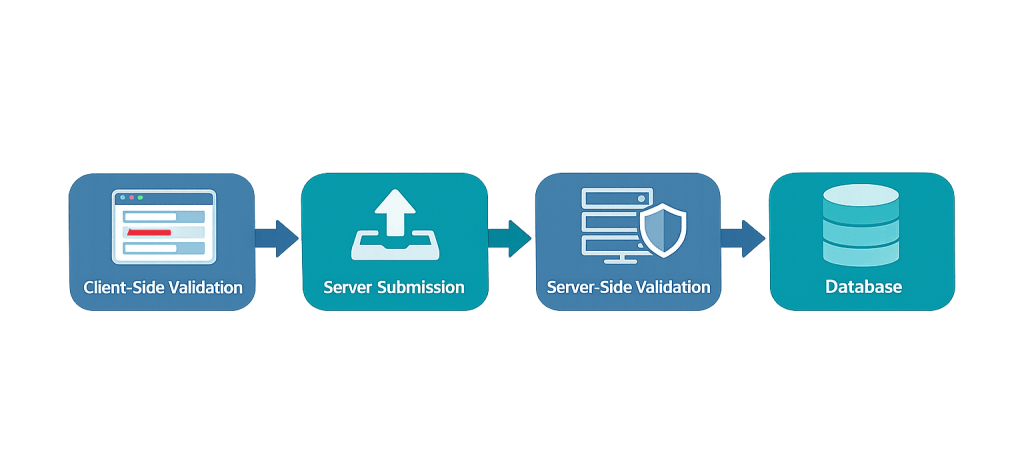
Form validation happens at two distinct points in the submission process, and both are necessary:
Client-side validation runs in the visitor’s browser before any data is sent to the server. It uses HTML5 attributes (like required, type="email", minlength) or JavaScript to check data instantly. The user gets immediate feedback — a red border on an empty required field, an error message under an invalid email — without waiting for a server round trip. This makes forms faster and more responsive for legitimate users.
Server-side validation runs on your web server after the form data is submitted. It re-checks everything the client validated, plus business rules and database-level conditions that the browser can’t verify (like “is this email address already registered?”). Server-side validation is not optional — client-side validation can be bypassed by anyone who knows how to manipulate a browser or send direct HTTP requests. A form that trusts only client-side checks is vulnerable.
In practice, the best forms use both: client-side validation for immediate UX feedback, server-side validation for security and data integrity.
[Image: Diagram showing client-side validation (in browser) → server submission → server-side validation → database]
Purpose & Benefits
1. Data Quality That Protects Your Business
Invalid or malformed data — a phone number with letters in it, an email address without an @ symbol, a submission with empty required fields — creates problems downstream. Contact requests go unanswered because the email address is wrong. Orders can’t be fulfilled because address fields are missing. Server-side validation is also the first line of defense against SQL injection and other attacks that use form submissions as vectors to target your database. Validation keeps your data clean and your site secure.
2. Improved Conversion Rate Through Better User Experience
A form that fails silently — submitting and then loading a blank page, or displaying a generic “something went wrong” error — loses leads. Visitors who encounter confusing errors on forms often give up rather than troubleshoot. Clear, specific, in-context error messages (e.g., “Please enter a valid email address” highlighted directly under the email field) help users fix the problem and complete the submission. Better UX at the form level directly improves your conversion rate. Our web design services include attention to form behavior as part of the overall UX design.
3. Reduced Spam and Bot Submissions
Without validation, automated bots can flood your contact forms with spam, pollute your CRM data, and trigger unnecessary email notifications. Validation combined with other anti-spam measures (CAPTCHA, honeypot fields, rate limiting) filters out bot submissions before they waste your time. This is particularly relevant for WordPress contact forms, where popular plugins like WPForms, Gravity Forms, and Contact Form 7 all include validation and spam prevention features that can be configured without custom code.
Examples
1. A Contact Form With Required Field Validation
A service business’s contact form has three required fields: Name, Email, and Message. When a visitor clicks “Send” without filling in the Email field, the form doesn’t submit — instead, a red border appears around the email input and a message reads: “Please enter your email address.” This is client-side HTML5 validation using the required attribute. The visitor fixes the field and the form submits successfully. No frustrating page reloads, no lost data.
2. Server-Side Validation on a Lead Form
A property management company’s contact form appears to accept any email address on the client side. But on the server, before storing the submission or sending a notification email, the backend code validates that the email domain actually exists, checks that the message field isn’t a known spam pattern, and confirms the submission came from the form rather than a direct API call. A submission that passes client validation but fails server validation returns an appropriate error — protecting the business from junk data while the legitimate user never notices the additional check.
3. A Multi-Step Checkout Form
A WooCommerce checkout validates each step before allowing the visitor to proceed to the next one. In Step 1 (contact info), the email address must be valid and the phone number must be 10 digits. In Step 2 (shipping address), the ZIP code must match the selected state. In Step 3 (payment), the card number passes a Luhn algorithm check before the form submits. Each step of validation catches errors close to where they were entered — rather than presenting a list of errors from all three steps after the visitor clicks “Place Order.”
Common Mistakes to Avoid
- Relying only on client-side validation — Client-side checks can be bypassed by anyone who disables JavaScript or uses developer tools to modify the HTML. Server-side validation is always required for security, not optional.
- Generic or unhelpful error messages — “Invalid input” or “Error” gives users no information about what went wrong or how to fix it. Error messages should be specific (“Phone number must be 10 digits, numbers only”) and placed immediately adjacent to the field with the problem.
- Validating after the user leaves the page — Don’t run full validation only on form submit. For longer forms, validate fields as the user completes them (on blur/focus-out) so they get feedback immediately rather than only after trying to submit.
- Over-strict validation that rejects valid data — Phone number fields that reject international formats, name fields that reject hyphens or apostrophes (affecting names like O’Brien), or email fields using outdated format rules can block legitimate submissions. Test validation rules against real-world edge cases before launch.
Best Practices
1. Use HTML5 Validation Attributes First, Then Enhance With JavaScript
HTML5 provides built-in validation through attributes like required, type="email", type="tel", minlength, maxlength, and pattern. These work in all modern browsers without any JavaScript and provide a solid validation foundation. Add JavaScript validation on top for a better UX — inline error messages, real-time field checking, custom error styling — but don’t rely on JavaScript alone, since it can be disabled.
2. Place Error Messages Immediately Adjacent to the Problem Field
Error messages should appear directly below (or beside) the field they relate to — not at the top of the form, not in a generic alert box. Inline errors help users locate and fix the problem without having to cross-reference a list against a long form. Use color (typically red) along with an icon or text label — don’t rely on color alone, as this fails accessibility standards for color-blind users. This principle matters both for usability and for accessibility compliance.
3. Sanitize and Validate on the Server, Always
Regardless of how thorough your client-side validation is, treat all submitted data as potentially hostile on the server. Sanitize inputs (strip or encode special characters that could be used in injection attacks), validate against expected formats and ranges, and check against business rules that only the server can enforce. For WordPress contact forms, use established plugins — WPForms, Gravity Forms, Ninja Forms — rather than rolling your own validation, as these handle sanitization and server-side checks for you.
Frequently Asked Questions
Do I need both client-side and server-side validation?
Yes. Client-side validation improves UX by giving immediate feedback without a server round trip. But it’s trivial to bypass — anyone can disable JavaScript or send direct HTTP requests to your form endpoint. Server-side validation is your actual security layer. Treat client-side as a convenience feature and server-side as a requirement.
Why does my WordPress contact form still receive spam even with validation?
Validation alone doesn’t stop spam — it checks that data is in the right format, not that it’s from a real human. Spam bots can fill out forms with valid-looking data. Anti-spam measures like CAPTCHA, honeypot fields (a hidden field that bots fill in but humans don’t see), rate limiting, and Akismet integration are separate from validation and necessary alongside it.
How does validation affect my conversion rate?
Poorly designed validation (unclear errors, strict rules that reject valid data, validation only on submit) frustrates users and increases form abandonment. Well-designed validation (helpful inline error messages, real-time feedback, forgiving formatting rules) reduces friction and helps more visitors complete forms successfully. The impact on conversion rate is real and measurable — a form that helps users succeed converts at a higher rate than one that silently fails them.
What WordPress plugins handle form validation well?
WPForms, Gravity Forms, and Ninja Forms all include robust client-side and server-side validation, spam protection, and accessibility-friendly error messages. They handle the technical complexity so you don’t need custom code for standard contact, lead, or registration forms. For complex custom validation rules, a developer can add custom validation logic on top of any of these plugins.
Can I validate file uploads with a form?
Yes. File upload validation checks file type, file size, and (server-side) can scan file contents for malicious code. This is especially important on WordPress sites where an unvalidated file upload field could allow someone to upload a PHP file and execute it on your server. Never allow file uploads without both client-side type/size validation and server-side content validation and access restrictions.
Related Glossary Terms
How CyberOptik Can Help
Forms are often where visitor intent meets business opportunity — and a form that doesn’t work right loses both. We design and build contact forms, lead capture forms, and custom form experiences that validate correctly, handle errors gracefully, and convert at a higher rate. Whether you need a simple contact form setup or complex multi-step logic, we can help. See our web design services or contact us to discuss your project.


