
Menu in WordPress refers to the navigation menu system that controls the links displayed in your site’s navigational areas — typically the primary menu in the site header, a secondary menu in the footer, and optionally additional menus like sidebar navigation or a mobile-specific menu. WordPress menus are built through the admin interface and can include any combination of pages, posts, categories, tags, custom links, and other content types.
Navigation menus are one of the most fundamental usability elements on any website. A well-structured menu helps visitors find what they’re looking for quickly, guides them toward the actions your site is designed to drive, and signals what your business offers within the first few seconds of a visit. A confusing or overloaded menu is one of the most common reasons visitors leave without converting — the hamburger menu on mobile and the header on desktop are often the first interaction a visitor has after the hero section.
[Image: Screenshot of WordPress Appearance > Menus editor showing a menu structure with nested sub-items, alongside a preview of how the menu renders in the site header]
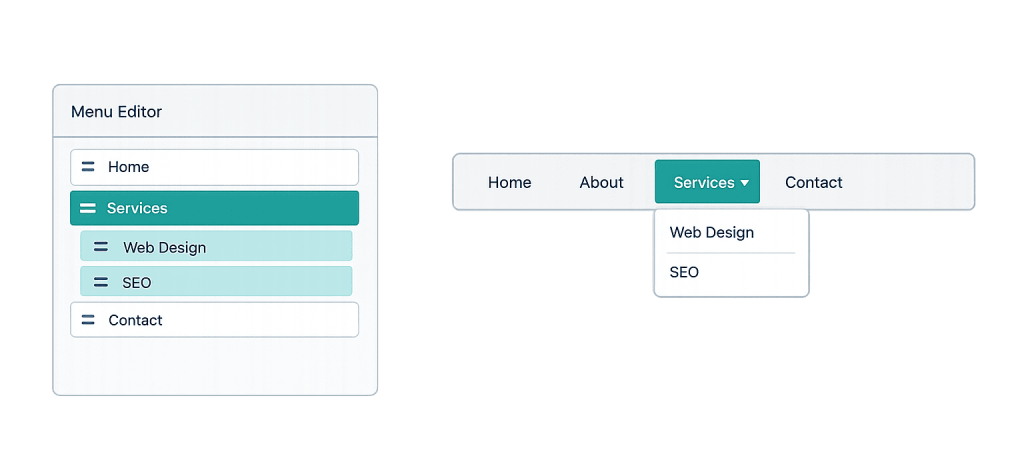
How WordPress Menus Work
WordPress menus are managed under Appearance > Menus (in the classic admin) or through the site editor’s navigation block for Full Site Editing themes. The basic workflow:
- Create a menu — Give the menu a name. One WordPress site can have multiple menus (primary, footer, mobile, etc.).
- Add items — Select pages, posts, categories, custom links, or other content to add to the menu. Items appear in a list you can drag to reorder.
- Create hierarchy — Drag items slightly to the right to create sub-menu items (dropdown children). Most themes support one or two levels of nesting.
- Assign to a location — Each theme registers specific “menu locations” — named slots where menus appear. Assign your menu to a location like “Primary Navigation” or “Footer Menu.”
- Save — The menu immediately reflects on the live site.
Themes register the locations where menus can appear. A simple theme might offer one primary menu location. A more complex theme might offer separate locations for a top bar menu, main navigation, mobile navigation, and footer links.
Purpose & Benefits
1. Guiding Visitors to High-Value Pages
The primary purpose of a navigation menu is to help visitors get where they need to go — and to nudge them toward pages that matter most to your business. A well-designed primary menu typically includes your core service categories, an “About” page, and a clear path to contact or inquiry. Burying important pages in dropdowns — or omitting them from navigation entirely — forces visitors to work harder than they should, increasing the likelihood they’ll leave. Our web design services include information architecture as part of the design process.
2. Supporting SEO Through Internal Link Structure
Navigation menus are sitewide internal links. Every page in your primary menu gets a link from every other page on your site, which makes those pages the strongest internally-linked pages on your domain. This is one reason why putting your most important pages in the primary navigation — rather than only in a footer or sidebar — provides an SEO signal alongside the usability benefit. Menu structure is part of your overall internal linking strategy.
3. Improving Mobile Usability
On mobile devices, navigation menus transform into collapsible hamburger menus — a three-line icon that reveals the menu when tapped. How well your menu collapses, how large the tap targets are, and how quickly the menu responds are all factors in mobile usability. Because Google uses mobile-first indexing, poor mobile navigation is a usability signal that can affect search performance as well as user experience.
Examples
1. Service-Based Business Primary Menu
A law firm’s primary navigation includes: Home | Practice Areas (dropdown with sub-items for each area) | Attorney Profiles | Blog | Contact. The dropdown allows deep linking to specific practice area pages without cluttering the top-level navigation. The Contact page is always visible at the top level because it’s the highest-priority conversion destination.
2. Footer Menu for Secondary Links
A site’s footer includes a separate footer menu with: Privacy Policy | Terms of Service | Sitemap | Accessibility Statement. These are important pages that need to be reachable but don’t belong in the primary navigation. WordPress’s multiple menu system handles this cleanly — one menu for the header, a separate menu for the footer.
3. Mega Menu for Complex Site Architecture
A large e-commerce site selling multiple product categories implements a “mega menu” — a dropdown that expands into a full-width panel with category images, featured products, and quick-link columns. This is typically achieved through a WordPress menu plugin or a page builder’s navigation component, rather than WordPress’s default dropdown behavior. The mega menu communicates the breadth of the catalog at a glance without requiring visitors to navigate page by page.
Common Mistakes to Avoid
- Overloading the primary menu — A navigation bar with 10+ top-level items is visually overwhelming and forces visitors to scan too much before acting. Limit primary navigation to 5–7 top-level items, using dropdowns or mega menus to organize complexity underneath.
- Using vague menu labels — “Solutions,” “Services,” or “What We Do” are less useful than specific labels like “Web Design,” “SEO,” and “Hosting.” Visitors scan menus quickly — specific labels communicate immediately, vague ones require a second look.
- Forgetting to test mobile navigation — A menu that looks perfect on desktop may be cramped, hidden, or unresponsive on a phone. Test your navigation on actual mobile devices, not just a browser resize tool.
- Not assigning the menu to a location — Creating a menu in WordPress without assigning it to a menu location means it won’t display anywhere. This is one of the more common admin mistakes for people new to WordPress.
Best Practices
1. Prioritize High-Value Pages in Primary Navigation
Map your primary menu to pages that drive business goals: core service pages, inquiry or contact forms, and any pages where visitors are most likely to convert. Secondary information — blog archives, privacy policies, staff bios — belongs in secondary menus, footers, or internal links rather than primary navigation. Think of the primary menu as prime real estate with a limited number of slots.
2. Use Descriptive, Action-Oriented Labels
Menu labels should match what visitors expect to find behind them — and ideally suggest an action or outcome. “Get a Quote” is more compelling than “Contact.” “Our Services” is clearer than “What We Do.” Align menu labels with the language your audience uses to describe what they’re looking for, which also creates a natural connection to your keyword strategy.
3. Maintain Consistent Navigation Across the Site
The primary navigation should appear identically on every page of the site. Inconsistent navigation — where some pages show different menu items or structures — confuses visitors and creates a sense that the site is poorly maintained. WordPress’s menu system handles sitewide consistency automatically; custom implementations that override the global menu on specific pages should be reviewed carefully.
Frequently Asked Questions
How do I create a navigation menu in WordPress?
Go to Appearance > Menus in your WordPress admin. Click “Create a new menu,” give it a name, then use the panel on the left to add items — pages, posts, categories, or custom links. Drag items to set the order, and drag sub-items slightly to the right to create dropdowns. Finally, assign the menu to a location (like “Primary Navigation”) using the “Manage Locations” tab, then click Save Menu.
How many menus can I have in WordPress?
As many as you need. WordPress allows you to create multiple menus and assign them to different locations registered by your theme. A typical setup might have a primary menu for the header, a secondary menu for the footer, and possibly a mobile-specific menu.
What’s the difference between WordPress menus and the navigation block in FSE?
Classic WordPress themes use the Appearance > Menus interface. Full Site Editing (FSE) themes use the Navigation block in the site editor, where you build navigation visually on the page canvas. Both produce the same result — a site navigation — but through different editing workflows. The Navigation block offers more direct visual control over styling and layout.
Can I add custom links to a WordPress menu?
Yes. In the Appearance > Menus editor, expand the “Custom Links” panel on the left side. Enter any URL and a label, then click “Add to Menu.” This lets you add links to external pages, specific anchors on a page, file downloads, or any other URL alongside your WordPress page and post links.
Why isn’t my menu showing on my site?
The most common reason is that the menu hasn’t been assigned to a menu location. A menu must be both created and assigned to a location (in Manage Locations or the “Menu Settings” box at the bottom of the menu editor) before it appears on the site. If you’re using a Full Site Editing theme, menus are managed through the site editor’s Navigation block rather than the classic Menus screen.
Related Glossary Terms
How CyberOptik Can Help
Navigation structure is a core part of how we approach every site we design and build. Getting the information architecture right — what goes in the primary menu, how dropdowns are structured, how the mobile experience behaves — directly affects both user experience and conversions. Whether you’re building a new site or reorganizing an existing one, our team can help. Get in touch to discuss your project or explore our WordPress development services.


