
The hamburger menu is a user interface element consisting of three horizontal lines stacked vertically — resembling a hamburger from the side — that serves as a button to open and close a navigation menu. Tapping or clicking it reveals the site’s navigation links, which are otherwise hidden from view. It’s most commonly found in the top corner of mobile websites and apps.
The icon was originally designed by Norm Cox for the Xerox Star computer in 1981, but it became ubiquitous in the smartphone era as a practical solution to a real problem: how do you fit an entire website’s navigation onto a 375-pixel-wide screen without making the interface unusable? The hamburger menu’s answer is to hide the navigation until it’s needed. That tradeoff — cleaner interface versus one more tap to access navigation — has been debated by UX researchers ever since.
[Image: Side-by-side comparison showing a desktop navigation bar and its collapsed hamburger menu equivalent on mobile]
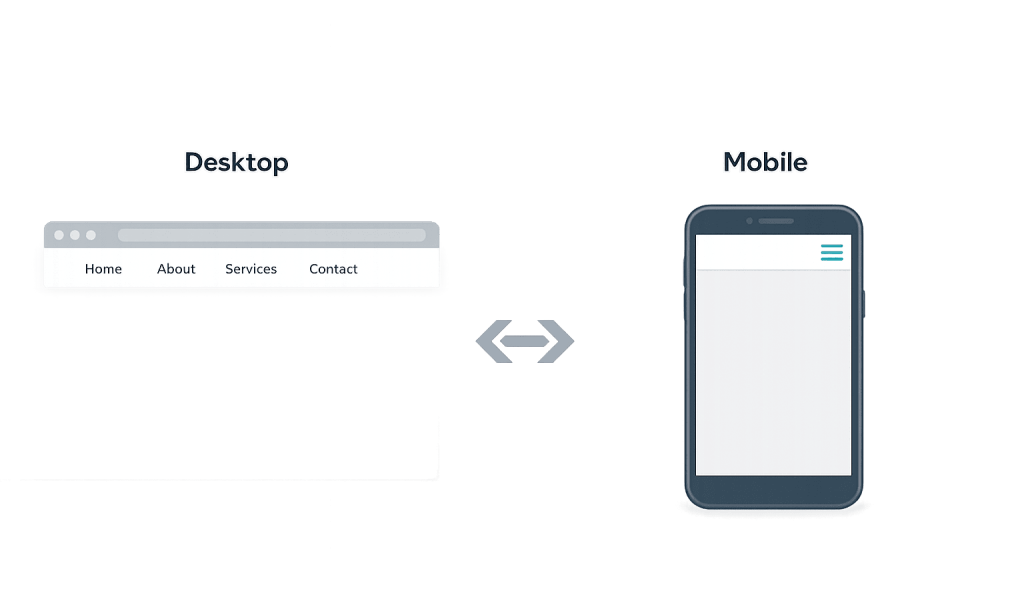
How the Hamburger Menu Works
The hamburger icon functions as a toggle. By default, the navigation menu is hidden. When a user taps the icon, the menu expands — typically as a slide-out panel from the left or right, a dropdown from the top, or a full-screen overlay. Tapping the icon again (which often transforms into an “X” to signal closability) collapses the menu.
From a technical standpoint, this is a CSS and JavaScript pattern: the menu exists in the page’s HTML but is styled as hidden by default, and a JavaScript event listener on the button toggles a class that changes the menu’s visibility. Modern CSS and accessibility practices require that the button also communicate its state to screen readers using ARIA attributes — specifically aria-expanded — so users with visual impairments know whether the menu is currently open or closed.
The hamburger menu appears almost universally in responsive design as the primary navigation solution at mobile breakpoints. It also appears on some desktop experiences with very complex navigation structures, though UX research consistently shows it performs better on mobile than desktop.
Purpose & Benefits
1. Maximizing Usable Screen Space on Mobile
On screens under 768 pixels wide, displaying a full horizontal navigation bar is impractical — there simply isn’t room. The hamburger menu solves this by collapsing the navigation into a single icon, leaving the full screen width available for content. This is particularly important above the fold on mobile, where every pixel determines whether a visitor immediately understands what your site offers.
2. Interface Clarity for Minimalist Designs
Some desktop sites use the hamburger menu as a deliberate design choice rather than a necessity, hiding navigation to create a cleaner, less cluttered first impression. Portfolio sites, luxury brands, and single-page experiences sometimes use this approach when the content itself should be the primary focus and navigation links might feel like visual noise. The tradeoff in discoverability is intentional in these cases.
3. Consistent Navigation Patterns Across a Responsive Site
When building with responsive design, the hamburger menu provides a reliable pattern that users understand. Rather than radically redesigning navigation for each screen size, the hamburger menu allows for a smooth transition from a full desktop navigation bar down to a compact mobile control — with the same links available on both, just presented differently.
Examples
1. Standard Mobile Navigation
A business website shows its full navigation — Home, Services, About, Blog, Contact — in a horizontal bar on desktop. At the mobile breakpoint, those links collapse into a hamburger icon in the top-right corner. A visitor on their phone taps the icon, a slide-out menu appears from the right with all the same links, and they navigate to the Contact page. This is the most common implementation.
2. Full-Screen Navigation Overlay
A creative agency uses a hamburger menu that, when tapped, fills the entire screen with large navigation links and a brief brand message. The overlay approach gives the navigation room to breathe and creates a distinctive, immersive moment. This pattern is more common on design-forward or portfolio sites where the navigation itself is part of the brand experience.
3. Desktop Mega-Navigation Simplified
An enterprise software company has a complex navigation with dozens of product categories, documentation links, and support resources. On desktop, they show a simplified top navigation with key categories; a hamburger menu reveals the full secondary navigation without overwhelming the main interface. This keeps the primary navigation clean while making comprehensive navigation accessible.
Common Mistakes to Avoid
- Using a hamburger menu on desktop when navigation could be visible — Research from the Nielsen Norman Group consistently shows that hidden navigation reduces engagement, increases time-on-task, and lowers satisfaction rates on desktop. If your navigation can fit horizontally on a desktop screen, show it. Reserve the hamburger for mobile.
- Forgetting accessibility markup — A hamburger menu button without proper ARIA attributes is invisible to screen readers. At minimum, the button needs
aria-expandedto communicate its state andaria-labelto identify its purpose to users navigating by keyboard or screen reader. - Making the icon too small or low-contrast — The icon needs to be easy to tap on a touchscreen (minimum 44×44 pixels is a standard accessibility guideline) and visible against the header background. A tiny, low-contrast hamburger icon gets missed.
- No visual feedback when the menu is open — Users need to know the menu is active. The hamburger icon should visibly change — typically transforming into an “X” — when the menu is open, so visitors know tapping it again will close it.
Best Practices
1. Place the Icon in the Top-Right or Top-Left Corner
Users look in predictable places for navigation controls. The top-left is traditional (aligned with reading direction in left-to-right cultures); the top-right is also well-established and avoids conflict with logos typically placed at the left. Research supports both positions — what matters is consistency and prominence. Nielsen Norman Group’s updated research confirms the hamburger icon is now widely recognized, especially in standard positions.
2. Label the Icon With the Word “Menu”
Adding a text label — simply “Menu” — beneath or beside the hamburger icon measurably improves discoverability, especially for users less familiar with the convention. The label makes the icon’s purpose unambiguous without adding significant visual weight to the header.
3. Ensure the Open Menu Is Easy to Close
When a hamburger menu opens, the user needs a clear way to close it — an obvious “X” button in the same location as the hamburger, the ability to tap outside the menu to dismiss it, or a swipe gesture on mobile. If closing the menu is confusing or requires hunting for a control, user experience suffers. Test closing behavior on actual devices, not just in a desktop browser.
Frequently Asked Questions
Is the hamburger menu bad for UX?
It depends on where and how it’s used. On mobile, where screen space is genuinely limited, it’s a practical and widely understood pattern. On desktop, where full navigation can typically be displayed without space constraints, hiding navigation behind a hamburger icon reduces engagement and task success rates according to UX research. The icon itself is now familiar; the question is whether hiding navigation is the right call given your users and screen size.
Why is it called a hamburger menu?
The three horizontal lines look like a burger from the side: two bun-like lines on top and bottom, with a patty in the middle. The nickname became popular in the design community around 2010–2012 as the icon became ubiquitous on smartphones, though the icon itself was designed decades earlier.
Should every mobile site use a hamburger menu?
Most mobile sites use it because it solves a genuine problem. The alternative — attempting to display full navigation on a small screen — typically makes the interface more difficult to use, not less. For sites with very few navigation links (two or three items), it can be worth displaying them directly on mobile rather than hiding them behind an icon.
Does the hamburger menu affect SEO?
Not directly. Search engines can read the navigation links regardless of whether they’re visible or hidden by CSS. However, if important pages are buried in a hamburger menu and users aren’t finding them — affecting time on site and engagement metrics — there can be an indirect SEO impact.
What’s an alternative to the hamburger menu on mobile?
Options include a bottom navigation bar (common in mobile apps), a priority+ navigation that shows the most important links and collapses the rest, or tabs for sites with a small number of primary sections. Each approach involves different tradeoffs in visibility, discoverability, and visual weight.
Related Glossary Terms
How CyberOptik Can Help
Navigation design — including how and when to use a hamburger menu — directly affects how easily visitors find what they’re looking for and whether they take action on your site. Our design team thinks through navigation patterns from the first wireframe, ensuring your mobile and desktop experiences are both intuitive and accessible. See our web design services or contact us to start a project.


