
A widget in WordPress is a self-contained, modular block of content or functionality that can be placed in designated areas of a website — typically the sidebar, footer, or other widget-ready zones defined by the active theme. Widgets let site owners add and arrange elements like recent posts, search bars, contact forms, and social media feeds without editing any code.
Widgets have been part of WordPress since early versions of the platform, and they’ve evolved alongside the block editor. In modern WordPress, widget areas accept blocks directly, which means the same drag-and-drop editing experience used in posts and pages now applies to sidebars and footers. Understanding how widgets work gives you meaningful control over the layout and functionality of areas that appear across every page of your site.
How WordPress Widgets Work
Widgets live in widget areas (sometimes called sidebars) — regions of a theme that are specifically set up to accept them. A theme may define anywhere from one to a dozen widget areas depending on its layout. Common locations include:
- Sidebar — appears alongside the main content on blog pages or archives
- Footer columns — often split into 2–4 widget areas for footer content
- Header widget area — less common, but used for things like phone numbers or search bars
- Before/after content — some themes define widget areas above or below the main content
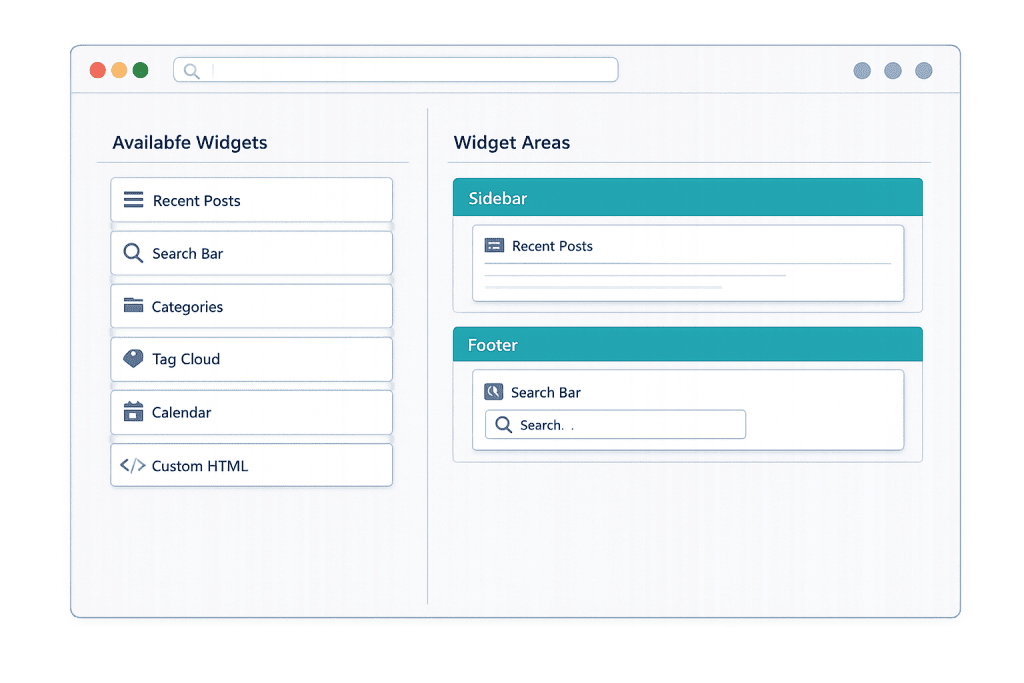
To manage widgets, you navigate to Appearance → Widgets in the WordPress dashboard. From there, you can add blocks to any available widget area, reorder them, and configure their settings.
WordPress ships with a solid set of built-in widgets: Recent Posts, Categories, Archives, Search, Calendar, Custom HTML, Navigation Menu, and a few others. Themes and plugins can add their own widgets on top of these defaults — for example, a WooCommerce installation adds a Cart widget, Product Categories widget, and several others specific to eCommerce.
[Image: Screenshot of the Widgets admin screen showing available widget areas and blocks being added to a sidebar and footer]
Purpose & Benefits
1. Site-Wide Customization Without Code
Widgets let you add functionality to areas that appear on every page — or specific page types — without touching a theme file or writing any code. A search bar in the header, a newsletter signup in the sidebar, or a contact number in the footer can all be managed through the Widgets screen. This is part of the broader WordPress Core & Admin value proposition: meaningful control with no technical barrier.
2. Flexible Content Placement for Different Page Types
Widget areas can be configured to show on all pages, specific templates, or certain categories. This makes widgets a practical tool for displaying contextually relevant content — showing product-related links only on shop pages, or a blog newsletter signup only in the post sidebar. Combined with a well-structured WordPress theme, widgets extend what your design can do.
3. Rapid Testing and Layout Iteration
Because widgets are modular and drag-and-drop, you can add, remove, and rearrange them quickly. This makes them useful for testing whether additional elements in a sidebar or footer improve engagement — like whether adding a Recent Posts widget increases internal linking clicks — without committing to a full redesign.
Examples
1. Newsletter Signup in the Blog Sidebar
A consulting firm’s blog uses a sidebar widget area to place an email capture form from their email marketing plugin. Every blog post page shows the sidebar widget, giving readers an easy path to subscribe after reading. This single widget placement runs across dozens of posts automatically.
2. WooCommerce Cart in the Header
An online store adds the WooCommerce Mini Cart widget to a header widget area, so shoppers can see the number of items in their cart no matter which page they’re browsing. The widget updates dynamically as items are added, giving shoppers confidence without navigating away from the product they’re viewing.
3. Contact Information in the Footer
A service business uses the footer widget area to display three columns: one with a Text widget containing their phone number and hours, one with a Recent Posts widget showing the latest blog content, and one with a Navigation Menu widget linking to key service pages. All three appear sitewide with no per-page configuration needed.
Common Mistakes to Avoid
- Overloading the sidebar — Packing too many widgets into a sidebar creates visual noise and can bury the information visitors actually came for. Each widget should earn its spot by serving a specific purpose.
- Forgetting about mobile — Widget areas often display differently on small screens. A sidebar that looks organized on desktop can appear as a long scroll below the main content on mobile, pushing important information out of view. Always review widget layouts on mobile devices.
- Relying on theme-specific widgets that may disappear — Some widgets are provided by a theme rather than a plugin. If you switch themes, those widgets may stop working or disappear from widget areas entirely. Prefer plugin-based widgets for critical functionality.
- Not considering the block editor transition — Older sites may still use the classic widgets interface, which works differently from the block-based version. If you’re rebuilding or redesigning, understanding the block editor (Gutenberg) approach to widget areas will save confusion.
Best Practices
1. Match Widgets to the Purpose of Each Page Type
Think about what visitors need in different contexts. Blog readers benefit from a Recent Posts widget or category navigation in the sidebar. Shop visitors benefit from product filtering or cart widgets. If your theme supports conditional widget display, use it — rather than showing every widget everywhere.
2. Keep Widget Areas Lean and Focused
A footer with three or four well-chosen widgets — contact info, navigation, a trust signal, and a newsletter signup — serves visitors better than a footer stuffed with every available widget. Less is more. Whitespace around each element helps visitors process what they’re seeing.
3. Test Widget Changes Before Publishing
For high-traffic sites, use a staging site to preview widget changes before they go live. What looks good in the admin may render unexpectedly in certain themes, especially in complex footer grid layouts or on mobile.
Frequently Asked Questions
What’s the difference between a widget and a plugin?
A plugin adds functionality to WordPress as a whole — it changes what the site can do. A widget is typically a front-end display element placed in a specific area. Many plugins include their own widgets as part of their functionality, so the two often work together. A contact form plugin, for example, might provide a form widget you can drop into a sidebar.
Are widgets still used in WordPress with the block editor?
Yes. Modern WordPress uses blocks inside widget areas rather than the older drag-and-drop widget interface, but widget areas themselves still exist and are still managed through Appearance → Widgets. The core concept — placing modular content in theme-defined areas — hasn’t changed, just the editing interface.
Can I add widgets to any area on my page?
Widgets can only be placed in widget areas defined by your theme. If your theme doesn’t define a widget area in a specific location, you can’t add a widget there through the standard interface. Page builders and custom development can create more flexibility, but that goes beyond the built-in widget system.
What happens to my widgets if I switch themes?
Your widget content and settings are saved in the database, so they won’t disappear. But the widget areas themselves are defined by each theme — if your new theme uses different widget area names or doesn’t include all the same areas, some widgets may end up in an “Inactive Widgets” section until you reassign them manually.
How do I add a widget to my site?
Go to Appearance → Widgets in your WordPress dashboard. You’ll see your available widget areas and a block inserter for each one. Click the + button to add any block — text, image, recent posts, navigation menu, or anything else — to that area. Save when done.
Related Glossary Terms
- WordPress Theme
- Sidebar
- Plugin
- Block Editor (Gutenberg)
- Full Site Editing (FSE)
- Customizer
- Dashboard
- Footer
How CyberOptik Can Help
Understanding how WordPress works under the hood helps you make better decisions about your site. Our team configures widget areas and site layouts for clients every day — from simple sidebar adjustments to fully custom footer designs built to match a brand. If you’re not sure your site’s layout is working as hard as it could for your business, we can help. Get in touch to discuss your project or explore our WordPress development services.


