
Git is a distributed version control system that tracks changes to files over time, allowing developers to maintain a complete history of every modification made to a codebase. Created by Linus Torvalds in 2005, Git has become the near-universal standard for managing code — used by 93.87% of developers according to the 2024 Stack Overflow Developer Survey. It is the foundation of collaborative software development.
Version control solves a problem every developer has experienced: how do you safely make changes to working code, collaborate with others without overwriting each other’s work, and recover when something breaks? Git answers all three. Every change is tracked with a message describing what was done and why. Teams can work on separate features simultaneously without conflict. And if a change introduces a bug, the exact moment it was introduced can be identified and the code can be rolled back.
For business owners, Git operates behind the scenes on every professional development project. Understanding what it does — and why it matters — helps you set better expectations for your development team, ask better questions during project reviews, and recognize why a well-run development workflow includes version control as standard practice.
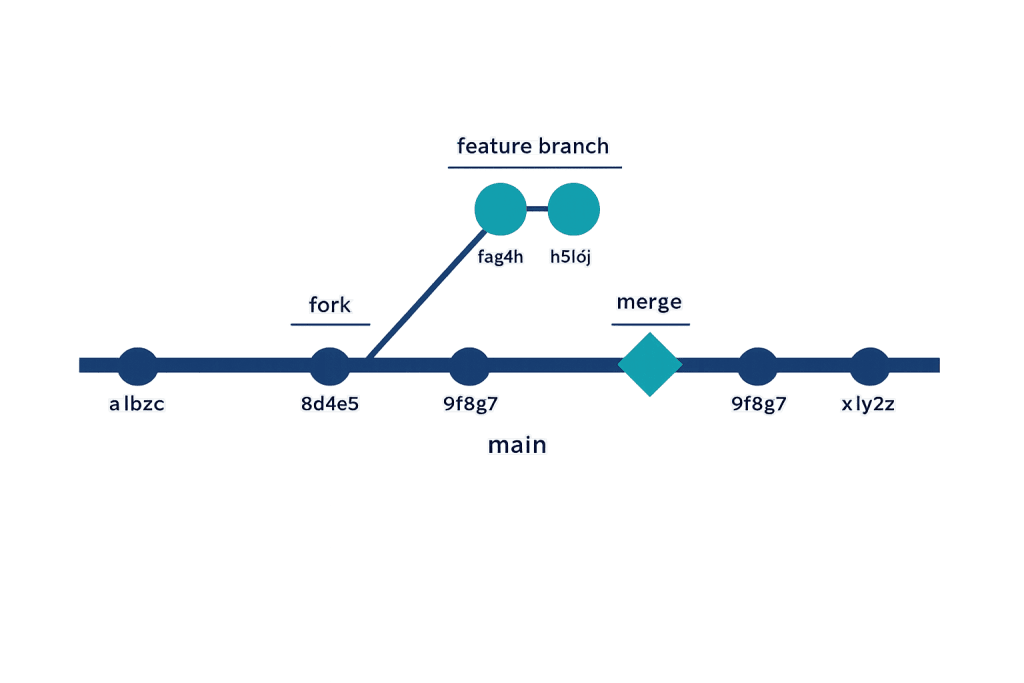
[Image: Diagram showing a Git branching structure with a main branch, a feature branch being merged in, and the commit history timeline]
How Git Works
Git organizes code into repositories (repos) — directories that contain the project files along with the entire history of changes. Each time a developer saves a meaningful set of changes, they create a commit: a snapshot of the files at that moment, identified by a unique hash and accompanied by a commit message explaining what changed.
Key Git concepts:
- Repository (repo) — The project folder plus its full change history.
- Commit — A saved snapshot of changes with a message describing the work.
- Branch — A parallel line of development that diverges from the main codebase. Used to develop a feature or fix a bug without affecting production code.
- Merge — The process of combining changes from one branch into another.
- Pull Request (PR) — A formal request to merge changes from a branch into the main branch, typically accompanied by code review.
- Remote — A version of the repository hosted on a server (like GitHub or GitLab) that teammates can push to and pull from.
- Clone — Copying a remote repository to your local machine.
- Stash — Temporarily saving uncommitted changes so you can switch tasks without losing work.
Git is distributed, meaning every developer has a complete copy of the repository and its history on their local machine. This allows offline work and provides natural redundancy — if the remote server goes down, every developer’s copy is a full backup.
Purpose & Benefits
1. Safer Development and Deployment
Git makes it safe to work on a live codebase because changes are isolated in branches until they’re ready to merge. A developer can build a new feature, test it thoroughly, and merge it only when it’s stable — without risking the live site at any point. For WordPress projects, this pairs with a staging site workflow: code is tested in staging, merged to the main branch, then deployed to production. Our WordPress development services follow this workflow on every project.
2. Complete Change History and Accountability
Every commit records who made a change, when, and why. This history is invaluable when something breaks: you can trace exactly when a problem was introduced and what changed at that moment. It also provides a natural audit trail — useful when multiple developers work on the same codebase and accountability for changes matters.
3. Effective Team Collaboration
Git enables multiple developers to work on the same codebase simultaneously without constantly overwriting each other’s work. Each developer works on their own branch, and Git’s merge capabilities combine changes intelligently — automatically resolving most cases where two developers edited different parts of the same file, and flagging conflicts when the same lines were changed differently.
Examples
1. Basic Git Workflow
The everyday commands a developer uses to commit changes to a repository:
# Check the current status of your working directory
git status

# Stage specific files for the next commit
git add functions.php style.css

# Stage all changed files at once
git add .

# Create a commit with a descriptive message
git commit -m "Add custom post type for team members"

# Push the commit to the remote repository
git push origin main
This sequence — status, add, commit, push — is the core Git workflow. The commit message ("Add custom post type for team members") documents exactly what was done, creating a readable history for the team.
2. Working with Branches
Creating and switching between branches to develop a feature safely:
# Create a new branch and switch to it in one command
git checkout -b feature/contact-form-redesign

# Make changes, stage them, and commit as normal
git add contact-form.php
git commit -m "Redesign contact form layout for mobile"

# Switch back to the main branch
git checkout main

# Merge the feature branch into main
git merge feature/contact-form-redesign

# Delete the feature branch once merged
git branch -d feature/contact-form-redesign
Feature branches are the standard way to isolate work. The main branch stays stable and deployable at all times while development happens safely in parallel.
3. Rolling Back to a Previous State
When a deployment introduces a problem, Git makes recovery fast:
# View the commit history with short hashes and messages
git log --oneline

# Output example:
# a3f8b21 Update header navigation links
# 9c2d447 Fix WooCommerce cart session bug
# 6e1a903 Add lazy loading to product images   <-- this broke something

# Revert a specific problematic commit without altering history
git revert 6e1a903

# Or reset the branch to a specific earlier state (use with caution)
git reset --hard 9c2d447
git revert creates a new commit that undoes the changes of a specific previous commit — the safest rollback method because it preserves the history. git reset --hard moves the branch pointer back to an earlier commit and is typically used when working in a branch before merging.
Common Mistakes to Avoid
- Committing directly to the main branch — On team projects, committing directly to
main(ormaster) without review creates risk. The standard practice is to work in feature branches and merge via pull requests after review. This keeps the main branch stable and deployable at all times. - Vague or absent commit messages — Commit messages like “fixes” or “update” tell the team nothing. A good message follows the format: “What was done and why.” Future developers (including yourself six months from now) will thank you for the clarity.
- Committing sensitive information — API keys, database passwords, and credentials should never be committed to a repository — even a private one. Use environment variables and
.gitignoreto keep secrets out of version control. Once committed, sensitive data remains in the history even after deletion. - Ignoring merge conflicts — When Git can’t automatically merge two sets of changes, it creates a conflict that requires manual resolution. Accepting the wrong side of a conflict without reviewing both versions can silently overwrite another developer’s work. Always review conflicts carefully before committing the resolution.
Best Practices
1. Use a .gitignore File
A .gitignore file tells Git which files and directories to exclude from tracking. For WordPress development, this typically includes:
# Common WordPress .gitignore entries
wp-config.php
wp-content/uploads/
wp-content/cache/
.env
node_modules/
*.log
WordPress’s wp-config.php contains database credentials and should never be committed. The uploads directory is typically managed outside of Git (it contains user-uploaded media, not code). Keeping these out of the repository keeps it clean, secure, and focused on code.
2. Write Descriptive Commit Messages
A good commit message follows this structure: a short summary line (50 characters or fewer), optionally followed by a blank line and a longer explanation. The summary should complete the sentence “If applied, this commit will…” — e.g., “Add pagination to team members archive page” rather than “team page stuff.” Well-documented commit history is a living record of how a project evolved and why decisions were made.
3. Adopt a Branching Strategy
For any project with more than one developer, a branching strategy prevents confusion. A simple approach:
– main — production-ready code, always deployable
– staging — code ready for testing, synced with the staging site
– feature/* — individual feature or fix branches, merged via pull request
Keeping this structure consistent across a team reduces merge conflicts, makes deployments predictable, and gives everyone a shared understanding of what’s in each environment.
Frequently Asked Questions
What’s the difference between Git and GitHub?
Git is the version control system itself — the software that tracks changes. GitHub is a hosting platform for Git repositories that adds collaboration features: pull requests, code review, issue tracking, project boards, and CI/CD integrations. GitLab and Bitbucket serve the same role. You can use Git entirely without GitHub (locally or with a different host), but GitHub is the most popular platform for hosting Git repositories.
Do I need Git for a simple WordPress site?
Not always, but it’s worth understanding why professional developers use it. For a single developer making infrequent changes to a small site, Git may be overhead. For any site with multiple developers, active ongoing development, or business-critical functionality, Git is the minimum standard — it provides the safety net that makes confident development possible.
How does Git relate to deploying changes to my WordPress site?
Git itself doesn’t deploy code — it manages code. Deployment (moving code from a repository to a live server) is a separate step, typically handled by a CI/CD pipeline (like GitHub Actions), an FTP/SFTP upload, or a hosting platform’s Git integration. Many managed WordPress hosts support deployment directly from a Git repository, meaning a git push triggers an automatic deployment.
What does “open source” have to do with Git?
Git itself is open source software, freely available to anyone. GitHub’s platform is proprietary, but the underlying Git protocol is not. This openness is part of why Git became universal — anyone can run their own Git server, and the tooling ecosystem has no licensing constraints.
Can Git track changes to the WordPress database?
No. Git tracks files — code, templates, configuration. It doesn’t track database content (posts, pages, settings, user accounts). For database version control in WordPress, separate tools like WP Migrate DB or a regular database backup strategy are used. Code and database are managed separately.
Related Glossary Terms
- Staging Site
- SFTP (Secure File Transfer Protocol)
- WP-CLI
- wp-config.php
- PHP
- Open Source
- API (Application Programming Interface)
- WordPress Development
How CyberOptik Can Help
Git is a standard part of how we work on every development project. We maintain versioned repositories for client projects, use branch-based workflows for safe feature development, and connect Git to staging environments so changes are tested before they reach your live site. If your current development process lacks version control — or if you’ve inherited a site with no documented change history — we can help establish a clean, professional workflow. Get in touch to discuss your project or explore our WordPress development services.


