Severity: Critical · Fix time: 15–60 min · Skill level: Advanced
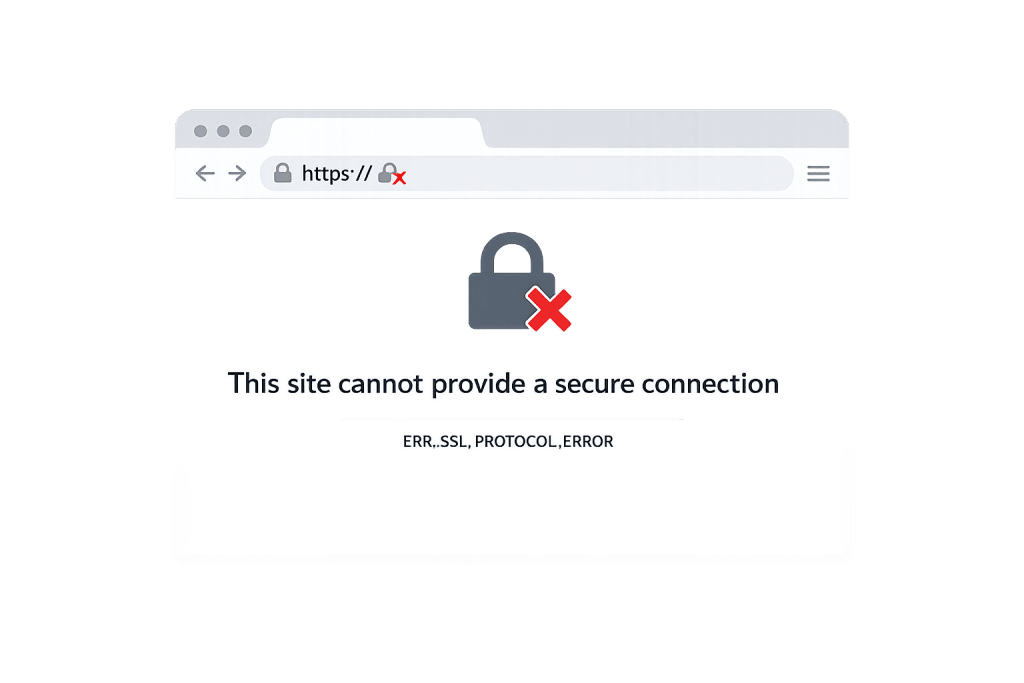
ERR_SSL_PROTOCOL_ERROR is Chrome’s error code for a failed TLS handshake — the negotiation between the browser and the web server that must succeed before any encrypted HTTPS communication can begin. Chrome displays it as: “This site can’t provide a secure connection. [domain] sent an invalid response. ERR_SSL_PROTOCOL_ERROR.” It covers a range of underlying failures: an expired SSL certificate, a TLS protocol version the server doesn’t properly support, or a corrupted SSL state in Chrome itself.
This error is Chrome-specific in its wording. Firefox shows the same TLS failure as “Secure Connection Failed”. Root causes are shared across browsers, but the diagnostic path must account for Chrome-specific factors — particularly Chrome’s SSL state cache and its QUIC protocol behavior. For the broader Chrome heading that covers multiple error sub-codes, see “This site can’t provide a secure connection”.
Need a quick map of every WordPress error? See our 70+ WordPress Errors Guide → for a categorized reference of every common WordPress issue.
[Image: Chrome browser showing ERR_SSL_PROTOCOL_ERROR error page with the “This site can’t provide a secure connection” heading]
How ERR_SSL_PROTOCOL_ERROR Works
Chrome initiates a TLS handshake before loading any HTTPS content. The browser and server negotiate a protocol version, select a cipher suite, and exchange the server’s SSL certificate for validation. If anything in this sequence fails, Chrome shows ERR_SSL_PROTOCOL_ERROR.
Key failure modes for WordPress sites:
- Expired SSL certificate — The most common server-side cause. Let’s Encrypt certificates expire every 90 days. If auto-renewal fails silently, the certificate expires and all browsers reject it. Chrome’s more specific sub-code for this is
NET::ERR_CERT_DATE_INVALID. - TLS protocol version mismatch — All major browsers disabled TLS 1.0 and 1.1 starting in 2020, with Windows 11 moving to disable them at the OS level in 2024. A server configured only for deprecated versions fails every modern browser.
- Chrome SSL state cache corruption — Chrome caches SSL session data, HSTS pins, and certificate information. Stale or corrupted cached data fails the handshake based on incorrect state even when the server is fine. Chrome-specific; won’t affect Firefox.
- QUIC protocol interference — Chrome uses QUIC for some connections. Servers or firewalls that mishandle QUIC can produce handshake failures. Disabling QUIC at
chrome://flags/#enable-quicisolates this as the cause. - Antivirus HTTPS scanning — Security software intercepting HTTPS connections can break the handshake if its interception certificate isn’t trusted by Chrome.
- Incomplete certificate chain — Sending only the domain certificate without required intermediate CA certificates means Chrome can’t verify the trust chain.
Check This First — 2-Minute Diagnostic
- Try Firefox or Edge — If the error appears in Chrome but not in Firefox, the issue is Chrome-specific (SSL state cache, QUIC, or an extension). If both browsers fail, it’s server-side.
- Try an incognito window — Incognito disables extensions that might interfere with SSL. If incognito works, a Chrome extension is the culprit.
- Clear Chrome’s SSL state — Navigate to
chrome://net-internals/#hsts, enter the domain, and click Delete to remove any HSTS pins. Then clear Chrome’s cache entirely via Settings → Privacy and Security. - Check certificate expiry — Click the padlock/warning icon in Chrome’s address bar → “Certificate is not valid.” Check the “Valid until” date. If expired, renew immediately.
- Run SSL Labs — Test your domain at ssllabs.com/ssltest for a full analysis of certificate status, TLS protocol versions, cipher suites, and chain completeness.
Purpose & Benefits
1. Restoring Visitor Access and Trust
ERR_SSL_PROTOCOL_ERROR presents as a full-page red warning. Most users don’t proceed past it regardless of actual risk. Every minute this error persists is lost traffic. Understanding what triggers it means resolving it quickly rather than guessing at causes.
2. Distinguishing Chrome-Specific From Server-Side Failures
ERR_SSL_PROTOCOL_ERROR has both client-side and server-side causes, and conflating them wastes diagnostic time. Chrome’s SSL state cache, QUIC protocol behavior, and extension interference are Chrome-specific — they won’t appear in Firefox. Server-side causes (expired certificate, wrong TLS version, incomplete chain) affect all browsers. Testing in a second browser first is the fastest way to determine which layer needs attention.
3. Keeping TLS Configuration Current
Browser SSL requirements continue to evolve. TLS 1.0 and 1.1 are fully deprecated. Certain cipher suites have been removed from Chrome. Servers configured years ago without maintenance accumulate SSL debt that eventually triggers errors in modern browsers. Resolving this error often means modernizing TLS configuration — which improves security for all visitors. Our WordPress maintenance services include SSL monitoring and TLS configuration reviews.
Examples
1. Expired Let’s Encrypt Certificate After Cron Failure
A WordPress site on a VPS uses Certbot for SSL renewal. After a server timezone change, the systemd renewal timer shifted outside the ACME challenge validation window and began failing silently. The certificate expired 90 days later. Fix:
# Check certificate status
sudo certbot certificates

# Test renewal (dry run identifies issues)
sudo certbot renew --dry-run

# Force immediate renewal after fixing the underlying issue
sudo certbot renew --force-renewal

# Reload web server to apply new certificate
sudo systemctl reload nginx
# Or: sudo systemctl reload apache2
After renewal, run SSL Labs to confirm the chain is complete and the new certificate is trusted.
2. Chrome SSL State Cache Causing False Positives
After a certificate is renewed to a new provider, SSL Labs returns an A grade and Firefox loads without errors — but Chrome on one device still shows ERR_SSL_PROTOCOL_ERROR. Chrome cached the old certificate data and HSTS pins. Fix: navigate to chrome://net-internals/#hsts, enter the domain under “Delete domain security policies,” click Delete. Clear browsing data (cookies + cached files, All time). Reopen Chrome. No server changes needed.
3. TLS Version Mismatch on Legacy Server
A WordPress site on shared hosting that hasn’t been updated since 2019 supports TLS 1.0, 1.1, and 1.2 with a cipher configuration Chrome no longer accepts. SSL Labs shows a C grade. For self-managed servers, update Apache configuration:
# Enable TLS 1.2 and 1.3 only; disable deprecated versions
SSLProtocol -all +TLSv1.2 +TLSv1.3

# Modern cipher suites only
SSLCipherSuite TLSv1.3 TLS_AES_256_GCM_SHA384:TLS_AES_128_GCM_SHA256
SSLCipherSuite TLSv1.2 ECDHE-RSA-AES256-GCM-SHA384:ECDHE-RSA-AES128-GCM-SHA256:ECDHE-RSA-AES128-GCM-SHA256

# Don't force server cipher order
SSLHonorCipherOrder off
On shared hosting where direct Apache configuration isn’t accessible, contact your hosting provider with the SSL Labs report as documentation.
Common Mistakes to Avoid
- Clearing cookies and cache without clearing Chrome’s SSL state — Standard browser cache clearing doesn’t purge Chrome’s SSL-specific data (HSTS pins, SSL session data). Use
chrome://net-internals/#hststo delete domain security policies. If Chrome shows the error but Firefox doesn’t, this is almost always the fix. - Assuming the error is always server-side — Chrome-specific causes (SSL state cache, QUIC, antivirus HTTPS scanning) don’t affect other browsers. Always test in a second browser before touching the server.
- Renewing the certificate without checking the chain — Renewing an expired certificate doesn’t fix a pre-existing incomplete chain. An incomplete chain was already failing for mobile browsers before the expiry; renewal doesn’t correct it. Verify the full chain after every renewal using SSL Labs or
openssl s_client -connect yourdomain.com:443 -showcerts. - Leaving Cloudflare on “Flexible” SSL mode — Flexible SSL delivers HTTPS to visitors but sends unencrypted HTTP to the WordPress origin. Combined with WordPress’s HTTPS redirect, this creates a redirect loop that can manifest as
ERR_SSL_PROTOCOL_ERROR. Use “Full (Strict)” with a valid origin certificate.
Best Practices
1. Monitor SSL Expiry With External Alerts
Configure external monitoring that alerts you at 30 days before certificate expiry — separate from auto-renewal, which can fail silently. Free tools like UptimeRobot provide SSL expiry alerts. After any server configuration change that could affect the renewal process, run sudo certbot renew --dry-run to confirm renewal still works.
2. Install the Full Certificate Chain
Always use fullchain.pem (Let’s Encrypt) or the concatenated bundle (commercial certificates) — never just the domain certificate. Missing intermediate certificates cause handshake failures on mobile browsers and clean installations that haven’t cached the intermediates.
# Correct Let's Encrypt Nginx directive
ssl_certificate /etc/letsencrypt/live/yourdomain.com/fullchain.pem;
ssl_certificate_key /etc/letsencrypt/live/yourdomain.com/privkey.pem;

# For commercial certificates:
cat yourdomain.crt intermediate.crt > yourdomain_fullchain.crt
3. Enforce TLS 1.2 and 1.3 Only
TLS 1.2 minimum with TLS 1.3 enabled is the current standard. Configure Nginx accordingly and run SSL Labs after any change to confirm an A grade:
ssl_protocols TLSv1.2 TLSv1.3;
ssl_ciphers ECDHE-ECDSA-AES128-GCM-SHA256:ECDHE-RSA-AES128-GCM-SHA256:ECDHE-ECDSA-AES256-GCM-SHA384:ECDHE-RSA-AES256-GCM-SHA384;
ssl_prefer_server_ciphers off;
4. Set WordPress URLs to HTTPS in wp-config.php
After SSL is confirmed working, ensure WordPress generates HTTPS URLs consistently. Inconsistent HTTP/HTTPS settings produce mixed content warnings and redirect conflicts. Add to wp-config.php:
define( 'WP_HOME', 'https://yourdomain.com' );
define( 'WP_SITEURL', 'https://yourdomain.com' );
define( 'FORCE_SSL_ADMIN', true );
Frequently Asked Questions
What’s the difference between ERR_SSL_PROTOCOL_ERROR and “This site can’t provide a secure connection”?
They appear together on the same Chrome error page. “This site can’t provide a secure connection” is Chrome’s heading for all TLS failures. ERR_SSL_PROTOCOL_ERROR is the specific code beneath it for generic handshake failures. More specific codes like NET::ERR_CERT_DATE_INVALID (expired certificate) and ERR_SSL_VERSION_OR_CIPHER_MISMATCH (protocol/cipher conflict) appear under the same heading — each pointing to different causes and fixes.
Why does ERR_SSL_PROTOCOL_ERROR appear in Chrome but not Firefox?
Chrome and Firefox have different SSL implementations, different SSL state caches, and different QUIC protocol behavior. A server-side issue (expired cert, broken chain) fails in both browsers. Chrome-specific issues (corrupted SSL state cache, QUIC failure, antivirus scanning) only fail in Chrome. If only Chrome shows the error, clear Chrome’s SSL state first and test with extensions disabled in incognito before touching the server.
Can ERR_SSL_PROTOCOL_ERROR hurt SEO?
Yes. Google crawls primarily over HTTPS. A persistent ERR_SSL_PROTOCOL_ERROR blocks Googlebot from accessing your HTTPS pages and can result in pages being dropped from the index. After fixing the issue, verify in Google Search Console that no crawl errors remain.
How do I fix this on shared hosting with no server access?
Use your hosting control panel’s SSL/TLS section to renew or reinstall the certificate. If the certificate appears valid but the error persists, contact your hosting provider — TLS protocol version and cipher configuration requires server-level access. Bring your SSL Labs report as documentation of the specific failure.
Related Glossary Terms
- SSL Certificate
- HTTPS (Hypertext Transfer Protocol Secure)
- Secure Connection Failed / SSL Handshake Failed
- This Site Can’t Provide a Secure Connection
- Mixed Content Warning
- .htaccess
- wp-config
- DNS (Domain Name System)
How CyberOptik Can Help
Still broken? Our team fixes WordPress errors like this in under 30 minutes for maintenance clients. ERR_SSL_PROTOCOL_ERROR blocks all HTTPS traffic to your site and presents visitors with a full-page security warning. Whether the cause is an expired certificate, a broken TLS configuration, a Cloudflare SSL mode mismatch, or a Chrome-specific SSL state issue, we diagnose and resolve it as part of our WordPress maintenance services. Contact us to get your site back online.