
Block patterns are pre-designed collections of WordPress blocks arranged into a ready-to-use layout that you can insert into any page or post with a single click. Rather than building a section from scratch — placing individual blocks, adjusting columns, styling buttons — a block pattern gives you a complete, polished starting point that you customize with your own content.
Patterns were introduced in WordPress 5.4 and have become one of the most practical time-saving features in the Block Editor (Gutenberg). They bridge the gap between building pages manually and using a page builder plugin — giving non-technical users the ability to create sophisticated layouts while staying inside WordPress core.
[Image: Screenshot of the Block Editor’s Patterns tab showing a grid of pre-designed layout options across categories like Headers, Testimonials, and Call to Action]
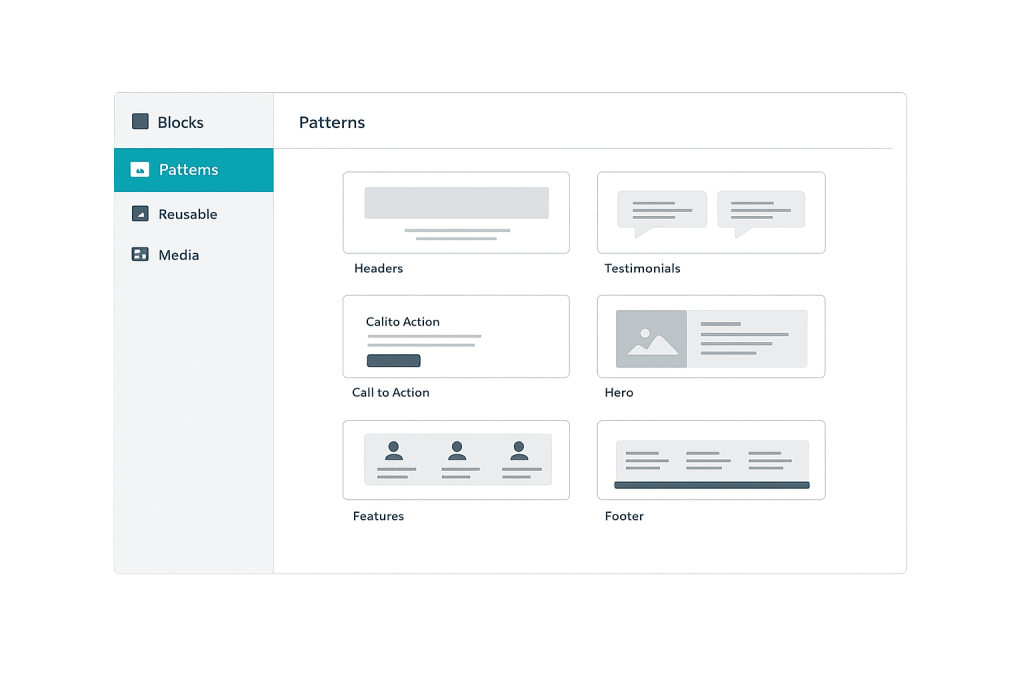
Types of Block Patterns
Block patterns come in two fundamental types, based on how edits to them behave:
Not synced (standard) patterns — When you insert a standard pattern, it creates a fully independent copy of those blocks on your page. Any changes you make affect only that instance. This is the most common type — you insert a pattern as a starting point, then customize the text, images, and colors to match your specific content.
Synced patterns — Formerly called “reusable blocks” in older WordPress versions. When you edit a synced pattern anywhere on the site, the change propagates to every instance of that pattern across all pages. Ideal for elements that must stay consistent everywhere — a footer disclaimer, a promotional banner, or a standard contact section.
Beyond these two types, patterns can come from several sources:
- WordPress core — A library of built-in patterns covering common layout needs
- Block themes — Theme authors bundle patterns tailored to their theme’s design
- Plugins — Many plugins, particularly page-building and design plugins, register their own patterns
- WordPress.org Pattern Directory — A community library of thousands of user-contributed patterns
- Custom-created — Site owners and developers can create and save their own patterns starting in WordPress 6.3
Purpose & Benefits
1. Faster Page Building Without Sacrificing Design
A block pattern for a testimonial section, pricing table, or hero area might take 20 minutes to build from scratch — and five seconds to insert from the patterns library. For sites with many pages or frequent content updates, this compounds into significant time savings. Our WordPress development services often include building custom pattern libraries tailored to a client’s brand and layout needs.
2. Design Consistency Across Pages
Patterns enforce visual consistency. When everyone on a team inserts the same starting layout for service sections or case study cards, the site maintains a cohesive appearance without requiring each person to rebuild the same structure independently. Synced patterns take this further — update the pattern once, and every page reflects the change.
3. Accessible to Non-Developers
Block patterns put sophisticated multi-block layouts within reach of anyone comfortable editing in WordPress — without knowledge of HTML, CSS, or PHP. Combined with Full Site Editing (FSE), patterns also apply to template-level design — headers, footers, and page templates can all use patterns as their structural foundation.
Examples
1. Hero Section on a Landing Page
A professional services firm needs a landing page with a large headline, supporting text, a background image, and two buttons side by side. Instead of building this from Columns, Cover, Heading, Paragraph, and Buttons blocks individually, a designer inserts a hero pattern that already includes this arrangement. They replace the placeholder text with real content and the background image with a branded photo — the structural work is already done.
2. Team Page with Consistent Cards
A company wants each team member’s card to include a circular photo, name, title, and a short bio. They create a custom pattern for this card layout, save it, and insert it for each team member. The structure is consistent across all 12 team members, and updating the card’s formatting later means editing the pattern once — not 12 individual entries.
3. Reusable Promotional Banner (Synced)
A retail business runs a recurring seasonal promotion and wants a banner to appear in multiple locations across the site. They create this as a synced pattern. When the promotion changes — different dates, different offer — they edit the pattern once, and every placement updates automatically. No hunting through pages to find and update each instance manually.
Common Mistakes to Avoid
- Confusing standard and synced patterns — Editing a synced pattern changes it everywhere on the site. If you want to customize just one instance, convert it to a regular (not synced) pattern first, or insert a standard pattern instead.
- Inserting patterns without customizing them — Pattern placeholder content (generic images, lorem ipsum text) occasionally gets published accidentally. Always review and replace all placeholder content before publishing.
- Over-relying on third-party pattern plugins — Many plugins add pattern libraries, but heavy reliance on plugin-specific patterns can create layout lock-in. Building your own custom patterns using core blocks keeps things portable.
- Ignoring the WordPress.org Pattern Directory — The official directory at wordpress.org/patterns/ contains thousands of free, community-built patterns. Many site owners don’t know it exists and spend time rebuilding layouts already available there.
Best Practices
1. Build a Custom Pattern Library for Your Site
Rather than relying solely on theme or plugin patterns, create custom patterns that match your brand’s specific colors, typography, and layout needs. Store commonly used sections — contact areas, service feature blocks, testimonial layouts — as named patterns accessible to anyone who edits the site. This is especially valuable for sites with multiple contributors or regular content updates.
2. Name and Categorize Patterns Clearly
A pattern named “Pattern 1” is useless in a library of 20 patterns. Use descriptive names like “Service Feature Row – 3 Column” or “Testimonial – Single Quote with Photo.” Assign patterns to relevant categories. This small investment in organization pays off every time someone opens the inserter looking for the right layout. You can pair this with a well-structured page builder strategy for larger site builds.
3. Use Synced Patterns for Elements That Must Stay Consistent
Anything that appears on multiple pages with identical content — legal notices, contact information, seasonal promotions, brand taglines — belongs in a synced pattern. Pair this with your understanding of Full Site Editing (FSE) and template parts, which extend this consistency to structural elements like headers and footers at the theme level.
Frequently Asked Questions
What’s the difference between a block pattern and a template?
A block pattern is a reusable layout for a section within a page — like a testimonial block or a CTA row. A template (in the FSE context) defines the overall page structure — where the header, content area, sidebar, and footer appear. You insert patterns into templates or pages; templates wrap around the entire page layout.
Can I create my own block patterns without coding?
Yes. Starting in WordPress 6.3, you can create and save patterns directly within the Block Editor by selecting blocks and using the “Create pattern” option from the block toolbar. For more advanced pattern registration — with specific categories, keywords, or theme integration — PHP code is needed, but everyday pattern creation requires none.
Do block patterns work with all WordPress themes?
Block patterns work with any theme that supports the Block Editor (Gutenberg), which includes nearly all modern themes. Block-based themes (designed for Full Site Editing) offer deeper integration and allow patterns at the template level. Classic themes support patterns within post and page content areas only.
Are block patterns different from page builder templates?
Conceptually similar, but technically different. Page builder templates (like those from Elementor or Divi) work within their respective plugin ecosystems. Block patterns are native to WordPress core — no third-party plugin required. Block patterns are also more portable: if you change themes or remove a plugin, the underlying blocks remain intact.
Where can I find more block patterns?
The WordPress.org Pattern Directory is the largest free source. Your active theme likely includes its own patterns accessible through the inserter. Many design plugins also register patterns. For custom patterns built specifically for your site’s branding, a developer can create a pattern library tailored to your needs.
Related Glossary Terms
- Block Editor (Gutenberg)
- Full Site Editing (FSE)
- Page Builder
- WordPress Theme
- Template Part
- WordPress Core
- Dashboard
How CyberOptik Can Help
Understanding how WordPress works under the hood helps you make better decisions about your site. Block patterns are something our team builds and manages for clients regularly — from creating branded pattern libraries to migrating sites to block-based architectures that make ongoing editing faster and more consistent. Get in touch to discuss your project or explore our WordPress development services.


