Reading Settings is a configuration page in the WordPress admin found under Settings > Reading. It controls two foundational aspects of how your site presents content: what displays on your homepage (a static page or a feed of your latest posts), and how many posts appear on blog archive pages before pagination kicks in. These settings are often configured once during site setup and rarely revisited — but getting them wrong has visible consequences for both site structure and SEO.
For most business websites, Reading Settings is where you tell WordPress that your homepage should be a static page rather than a blog feed. For pure blogging sites, it’s where you control how many posts appear per page. Either way, it’s one of the first things to configure correctly on a new WordPress installation — and one of the more commonly misconfigured settings we encounter when auditing client sites.
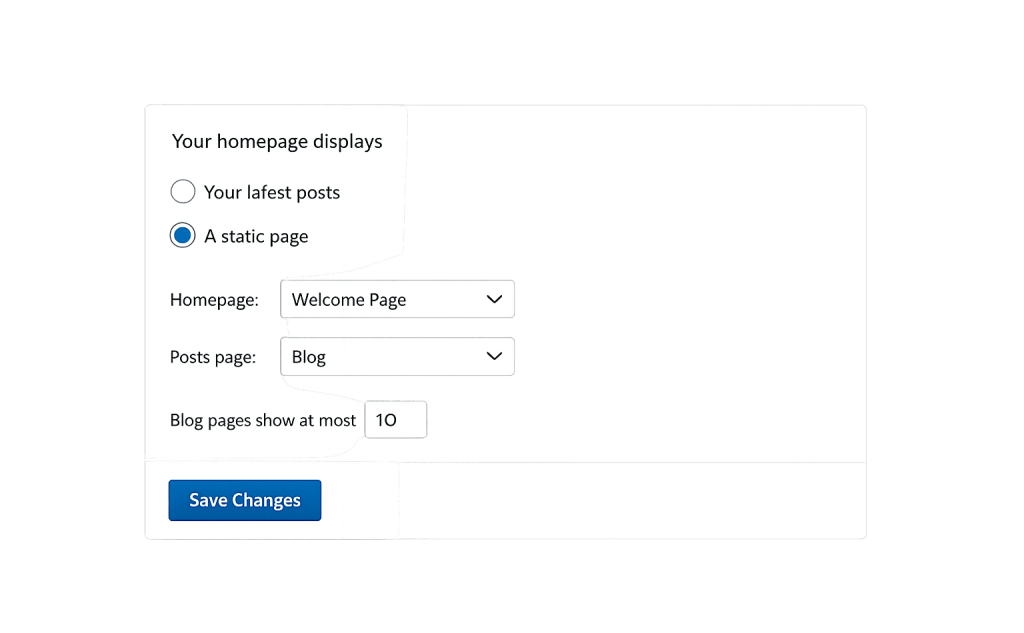
[Image: WordPress Settings > Reading panel showing “Your homepage displays” options: “Your latest posts” vs. “A static page” with page selectors]
How Reading Settings Work
Navigate to Settings > Reading in your WordPress dashboard to access these options:
Your homepage displays
– Your latest posts — The homepage shows a reverse-chronological feed of blog posts. Appropriate for blogs and news sites where fresh content is the primary experience.
– A static page — The homepage shows a specific WordPress page you select. A separate “Posts page” can be assigned to a different page to serve as the blog archive. This is the correct setup for most business websites.
Blog pages show at most
Sets how many posts appear on blog archive pages (including category, tag, and search result pages) before pagination. The default is 10. Higher numbers load more content at once but can increase page load time.
For each article in a feed, include
Controls whether your RSS feed shows the full post content or just a excerpt (summary). Excerpt mode encourages click-throughs to the actual site.
Search engine visibility
A checkbox to discourage search engines from indexing the site. This is meant for sites in development — leaving it checked on a live site blocks search engine indexing entirely, effectively removing your site from search results.
Purpose & Benefits
1. Establishing the Correct Homepage Structure
For business websites, setting a static homepage is essential. Without this, WordPress displays a blog feed on the homepage — which means new visitors land on a list of blog posts rather than a purpose-built homepage that represents your business. This setting is the difference between a site that introduces your business clearly and one that presents an inbox of articles. The General Settings and Reading Settings work together to define your site’s foundational architecture.
2. Controlling Blog Archive Pagination
The “Blog pages show at most” number affects pagespeed and user experience on archive pages. Showing 10–15 posts per page is typically appropriate — enough content to be useful without loading too many images and posts at once. Very high numbers (50+) can significantly slow archive pages, especially on image-heavy blogs. Very low numbers (3–5) create excessive pagination that makes it harder for readers to find older content.
3. Protecting Indexing During Development
The search engine visibility checkbox is useful when building or staging a site — but critically important to verify before launch. A site that goes live with this checkbox enabled is effectively invisible to search engines. In our experience, this setting is one of the more common oversights on newly launched sites and can delay SEO progress by weeks or months if not caught promptly.
Examples
1. Setting Up a Business Website Homepage
A consulting firm migrates to a new WordPress site. Their designer built a custom homepage as a WordPress page called “Home.” In Reading Settings, they set “Your homepage displays” to “A static page,” select “Home” as the Homepage, and select “Blog” (another WordPress page they created) as the Posts page. The site now displays the custom homepage at the domain root and the blog archive at /blog/.
2. Optimizing a Blog for Performance
A food blog with 800 posts is seeing slow archive page load times. Their Reading Settings have “Blog pages show at most” set to 24 — displaying 24 full posts with large images on each archive page. Reducing this to 12 with excerpt display (rather than full text in the feed) cuts the page’s initial load significantly. The change applies immediately across all archive pages without any template edits.
3. Catching the Indexing Checkbox on Launch
A web design team completes a client site, removes the “Discourage search engines from indexing this site” checkbox that was checked during development, and submits the sitemap to Google Search Console. This routine launch checklist step ensures the site begins accumulating organic visibility immediately rather than sitting invisible while the client wonders why their rankings haven’t improved.
Common Mistakes to Avoid
- Leaving the homepage on “Your latest posts” for a business site — A blog feed homepage is rarely the right choice for a company website. Set a static page as the homepage and create a separate posts page for the blog.
- Forgetting to uncheck “Discourage search engines” before launch — This is the single most impactful Reading Settings mistake. A live site with this box checked is invisible to Google. Always verify this is unchecked as part of your pre-launch checklist.
- Setting the posts per page too high — More posts per page means more database queries, more images, and more HTML. Performance-conscious WordPress management keeps this number between 8–15 for most sites.
- Assigning the same page as both homepage and posts page — WordPress won’t allow this and will likely revert one selection. Always use two separate pages — one for the homepage, one for the blog archive.
Best Practices
1. Use Distinct, Named Pages for Homepage and Blog
Before configuring Reading Settings, create two separate WordPress pages: one named “Home” (or “Homepage”) and one named “Blog” (or “News,” or whatever fits your site). Leave both pages blank — WordPress will populate the blog page with the post archive automatically. Then assign them correctly in Reading Settings. This keeps the structure clean and the purpose of each page explicit.
2. Match Posts Per Page to Your Content Type
Image-heavy blogs should show fewer posts per page (8–10) to manage load times. Text-focused blogs can show 12–15 without significant performance impact. If you use a Query Loop block in a block theme, you can also control this at the template level, which overrides the Reading Settings default — useful for showing different counts on different archive pages. The excerpt display option in feeds is worth enabling on most content-focused sites.
3. Audit Reading Settings After Every Major Site Change
Site migrations, theme changes, and WordPress updates can occasionally reset or alter Reading Settings. Add a check of Settings > Reading to your post-update review process, alongside verifying that the search engine visibility checkbox is still unchecked. The General Settings and other WordPress settings pages deserve periodic review for the same reason.
Frequently Asked Questions
Why is my homepage showing blog posts instead of my custom page?
This happens when Reading Settings is still set to “Your latest posts.” Go to Settings > Reading, switch to “A static page,” and select the page you want as your homepage. If you don’t have a dedicated homepage page yet, create one in Pages first.
Does the “posts per page” setting affect WooCommerce product pages?
Reading Settings’ “Blog pages show at most” applies to standard WordPress archive pages (posts, categories, tags). WooCommerce has its own shop display setting under WooCommerce > Settings > Products that controls how many products appear per shop page. The two are independent.
What should I set the homepage to if I don’t have a blog?
Set a static homepage regardless. Create a simple page called “Home” in Pages, then assign it in Reading Settings even if you’re not publishing blog posts. This ensures WordPress always displays your intentional homepage rather than defaulting to a post feed that shows nothing or old content.
Will changing the posts per page break my pagination?
No. WordPress recalculates pagination automatically based on the current setting and total post count. Reducing posts per page from 10 to 8 means more total pages in the archive, but existing URLs typically remain functional. Test pagination behavior after changing this setting to confirm it’s working as expected.
Can individual category or tag archives override the posts-per-page setting?
Not through the Reading Settings UI — the number applies globally to all archive pages. Developers can override it per template using the pre_get_posts action hook in functions.php, or through block theme template settings when using the Query Loop block.
Related Glossary Terms
How CyberOptik Can Help
Reading Settings is one of those foundational configurations that’s simple to set correctly — but causes real problems when it’s not. Whether you’re launching a new WordPress site, troubleshooting a homepage issue, or auditing an existing setup, our team handles these configurations as part of every site we build and maintain. Get in touch to discuss your project or explore our WordPress development services.