
A Full Site Editing (FSE) template is a block-based HTML file in a WordPress block theme that defines the overall layout structure for a specific type of page or content view. Where a classic WordPress theme uses PHP template files (like single.php or page.php) to control how different content types are displayed, block themes use .html template files stored in a /templates/ folder. These templates are built entirely from block markup and can be visually edited within the WordPress Site Editor.
Each FSE template corresponds to a specific page context in the WordPress template hierarchy — the system that determines which template file is used for a given URL. A visitor landing on a single blog post triggers the single.html template. A category archive page uses archive.html or a more specific category.html. The homepage might use front-page.html. Every page on a block theme site is rendered through one of these templates, making them the structural skeleton of the entire site. Understanding templates is essential for anyone doing serious work with Full Site Editing.
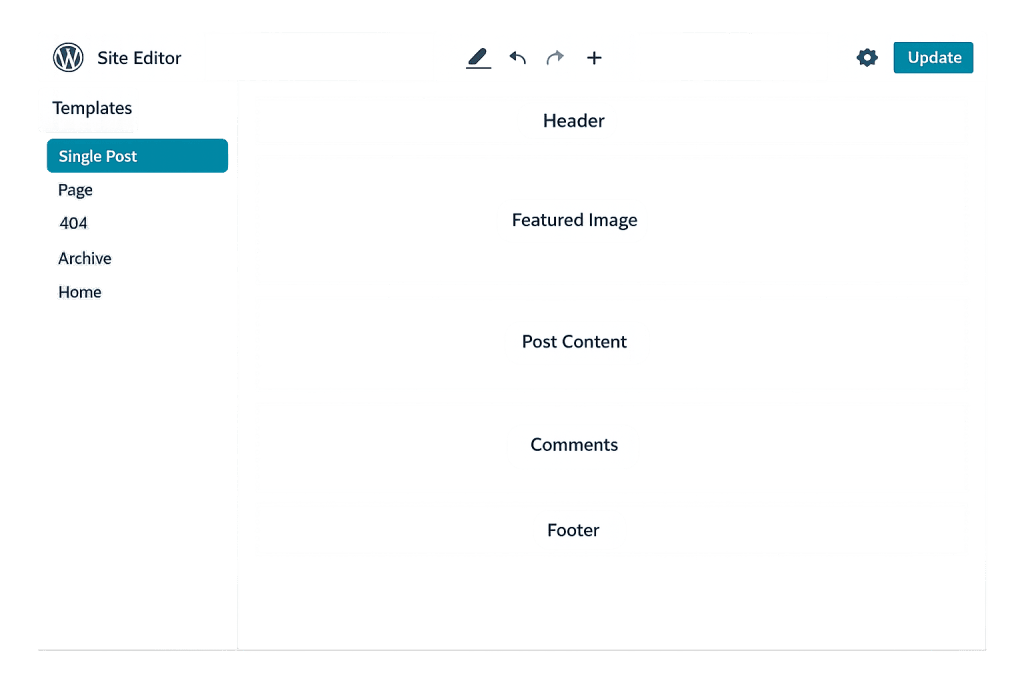
[Image: WordPress Site Editor showing the template list panel and a single post template being edited with block markup]
How FSE Templates Work
FSE templates are HTML files containing WordPress block markup — the same comment-based syntax the Block Editor uses in post content. A minimal single.html template might look like this in its source:
<!-- wp:template-part {"slug":"header"} /-->

<!-- wp:group {"tagName":"main"} -->
<main class="wp-block-group">
    <!-- wp:post-title /-->
    <!-- wp:post-date /-->
    <!-- wp:post-content /-->
</main>
<!-- /wp:group -->

<!-- wp:template-part {"slug":"footer"} /-->
This template includes the header template part, renders the post title, date, and content dynamically, then includes the footer template part. The whole template is visual and editable in the Site Editor — no PHP knowledge required to adjust the layout.
Templates can include:
– Template parts — Reusable structural sections like headers, footers, and sidebars
– Block patterns — Pre-designed content arrangements
– Dynamic blocks — Blocks that output content from the database (post title, post content, query loop, featured image)
– Static blocks — Any regular block content (headings, images, spacers) placed directly in the template
Purpose & Benefits
1. Consistent Layout Control Across Content Types
FSE templates give you a single, defined layout for each type of content — all single posts share the same single.html template, all standard pages share page.html, and so on. When you edit a template, the change applies everywhere that template is used. This is what makes site-wide layout changes manageable: instead of touching every individual post or page, you edit the template once and every instance updates. This is one of the core strengths of Full Site Editing over page-by-page editing approaches.
2. Custom Templates for Specific Page Types
Beyond the default templates, FSE allows the creation of custom templates — templates you assign to specific pages rather than all pages of a content type. A landing page template without header navigation, a portfolio template with a wider layout, or a service page template with a custom sidebar are all achievable by creating a named custom template in the Site Editor and assigning it to the appropriate pages. This replaces what classic themes achieved with page templates (PHP files with a template header comment) but does it visually, without code. Our WordPress development services frequently build custom template sets as part of larger site builds.
3. No PHP Required for Structural Customization
In classic WordPress themes, changing the template for single posts meant editing single.php — a PHP file that required code knowledge and was overwritten on theme updates (unless using a child theme). FSE templates can be customized visually in the Site Editor and are saved in the database as user customizations, surviving theme updates. For non-developers who need meaningful control over their site’s layout, FSE templates represent genuine design capability without a developer dependency for every structural change.
Examples
1. Editing the Single Post Template
A blog wants to add a featured image banner at the top of all single posts, above the post title, rather than inline within the content. In the Site Editor, a site editor navigates to Templates → Single Post, adds a Post Featured Image block above the Post Title block, adjusts its width to full-width, and saves. Every single post now displays the featured image as a full-width banner. The change applies universally without touching any post individually.
2. Creating a Landing Page Template
A marketing campaign needs landing pages that strip out all navigation (header links, footer menu, sidebar) to keep visitors focused on the conversion action. In the Site Editor, under Templates, the team creates a new template called “Landing Page.” They build it with only a minimal header (logo only, no navigation), the page content block, and a simplified footer (no links, just copyright). When creating landing pages in WordPress, editors select “Landing Page” from the template dropdown. The conversion-optimized layout applies automatically.
3. A Custom Archive Template With Filtering
An e-commerce site using WooCommerce needs a custom archive template for its blog that displays posts in a three-column grid with featured images rather than the default single-column list. In the Site Editor, a developer creates a custom category.html template using the Query Loop block with a grid layout and Post Featured Image block inside the post template. The new layout applies to all category archive pages automatically, without any PHP file editing or child theme work.
Common Mistakes to Avoid
- Editing the wrong template — The Site Editor shows which template is active for any page you’re viewing, but it’s easy to accidentally edit a template that affects more pages than intended. Before editing, confirm which template you’re in and which content types it applies to. The breadcrumb in the Site Editor (e.g., “Single Post → single”) makes this visible.
- Not using template parts for reusable sections — Placing header and footer content directly in each individual template (instead of referencing a template part) means updating them requires editing every template individually. Always use template parts for sections that appear across multiple templates.
- Confusing templates with template parts — Templates define the full layout for a content type. Template parts are reusable sections (header, footer) that get included within templates. They serve different purposes in the hierarchy — templates are the whole page layout; template parts are reusable chunks within it.
- Making structural changes to the default index template —
index.htmlis the fallback template for everything that doesn’t have a more specific match. Editing it may affect pages you didn’t intend. For most structural changes, create or edit the specific template for the content type you’re targeting.
Best Practices
1. Build a Complete Template Set Before Launch
For a new site built on a block theme, create all the templates you need before launch: at minimum, index.html (fallback), single.html (blog posts), page.html (standard pages), archive.html (archives), search.html (search results), and 404.html (not found). Missing templates fall back to less specific ones in the hierarchy, which can produce unexpected layouts. A complete template set ensures every content type renders as intended from day one.
2. Use Custom Templates Strategically for Conversion-Critical Pages
Reserve custom templates for pages where layout variation genuinely serves a purpose — landing pages, campaign pages, or pages with unique structural requirements. Creating too many one-off custom templates fragments your design system and increases maintenance burden. The strength of templates is consistency: use it intentionally, and override it only when there’s a real UX reason to do so. Cross-reference with your page template strategy to avoid redundancy.
3. Preview Templates in Context Before Saving
The Site Editor allows you to preview how a template renders with actual content before saving. Use this to verify that dynamic blocks (Post Title, Post Content, Post Featured Image) are behaving as expected with real posts, and that the layout holds up at different screen sizes. A template that looks correct in the editor but breaks with longer post titles or missing featured images creates inconsistencies at scale that are tedious to track down after launch.
Frequently Asked Questions
What’s the difference between an FSE template and a template part?
A template is the full layout for a content type — it defines what a single blog post, archive page, or homepage looks like from top to bottom. A template part is a reusable section (typically header or footer) that gets included within one or more templates. Templates use template parts; template parts don’t contain templates. Think of templates as the whole page and template parts as the building blocks that get reused across multiple templates.
How do FSE templates compare to classic WordPress page templates?
Classic page templates were PHP files with a specific header comment that WordPress recognized. They required developer knowledge to create or edit, lived in the theme files, and were overwritten during theme updates unless a child theme was used. FSE templates are HTML files editable in the Site Editor, saveable as database customizations (surviving theme updates), and visual to work with. They serve the same purpose but are far more accessible to non-developers.
Can I use FSE templates with any WordPress theme?
No. FSE templates only work with block themes — themes built for the Site Editor. Classic themes don’t support FSE. If you’re using a classic theme, you can switch to a block theme to access FSE, but this requires rebuilding your site’s structural layouts in the Site Editor. Content in posts and pages is preserved during the switch; site structure is not.
Do FSE template changes survive theme updates?
Yes. When you edit a template in the Site Editor, your changes are saved in the WordPress database as user customizations. Theme updates change the theme’s source template files but don’t overwrite your saved customizations. If you want to revert a template to its original theme design, the Site Editor provides a “Reset” option for each template.
What templates should every block theme have?
At minimum: index.html (required fallback), and typically single.html (single posts), page.html (pages), archive.html (archives), search.html (search results), and 404.html (not found page). Block themes built for WooCommerce also need WooCommerce-specific templates for the shop, product, cart, and checkout pages. The template hierarchy determines the fallback order — every content type will ultimately render with something, but providing specific templates ensures intentional layouts.
Related Glossary Terms
- Full Site Editing (FSE)
- Template Part
- Page Template
- WordPress Theme
- Block Pattern
- Block Editor (Gutenberg)
How CyberOptik Can Help
Building a complete, well-structured template set for a block theme site requires both design thinking and technical familiarity with WordPress’s FSE system. Whether you’re migrating from a classic theme to a block theme and need your templates rebuilt, or you’re starting a new site and want it done right from the beginning, our team works with FSE templates on every block theme project we take on. Get in touch to discuss your project or explore our WordPress development services.


